32.3 The Audit Log
The audit log records who uses Acinta and how:
- sessions – logins: who used which application, on which computer, and when;
- report executions – every time a report runs: opened, refreshed, filter changed, auto-refreshed or run by a distribution, with timing and result;
- failed and slow visuals;
- distribution runs and e-mails;
- AI calls – every call to the AI service, from nikolAI, AI commentary and Modeller;
- a daily system health snapshot – size, disk, memory and largest tables of the project's databases.
Use it to find popular, unused and slow reports, to see where AI usage goes, and for troubleshooting. Failed logins aren't recorded.
To build reports on the log, Modeller can install a ready-made data model with a dimension and metrics such as Executions, Unused workbooks and Active users, linked to a date dimension of the project or to the audit log's own calendar (build 20314 and later). From build 20348 it also covers distributions, e-mails, AI calls and system health, with metrics such as AI units and Database size (MB) – see The Audit Log Data Model in 22.1 Tables in the Warehouse.
The log is stored in database tables named AUDIT_*: AUDIT_SESSION, AUDIT_REPORT, AUDIT_VISUAL_ISSUE, AUDIT_DISTRIBUTION, AUDIT_EMAIL, AUDIT_AI, AUDIT_SYSTEM_HEALTH, AUDIT_DB_TABLE and AUDIT_OBJECT. They are created when you click OK in the audit log settings.
[!NOTE] Before build 20348, the system health table was called
AUDIT_DB_HEALTH. From build 20348, the snapshots go to the new tableAUDIT_SYSTEM_HEALTH, which is created automatically. The old table keeps its rows but is no longer used, cleaned up or listed under Tables – drop it in the database if you don't need the old snapshots.[!NOTE] A project in a file or folder repository can only keep its audit log In its own database – it has no repository database to put the tables in.
Opening the Settings
| Application | Where |
|---|---|
| Datashop | Cog menu → Tools → Audit log settings... |
| Enterprise Manager | Server page → Audit log settings... (a project must be open) |
| Modeller | PROJECT tab → Audit log settings..., next to Project options... – or double-click the Audit log node in the Object Tree, or right-click it → Audit log settings... |
Only administrators can open the dialog. Other users get the message Only administrators can change the audit log settings.
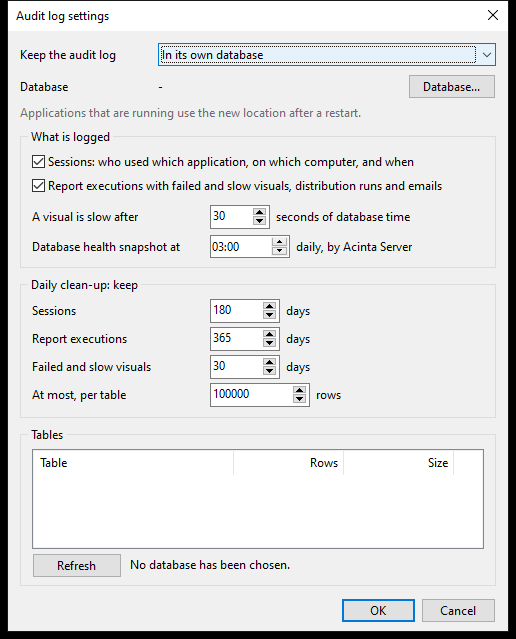 The settings with In its own database chosen, before a database is set up – so no tables are listed yet.
In Datashop and Enterprise Manager, OK saves the project right away. In Modeller, OK only marks the project as changed – save it as usual to keep the change. Cancel discards the changes.
When the audit log is on, OK also creates the audit log tables in the database right away. If that fails, a warning says The audit log tables cannot be created: followed by the reason. If the database can't be used at all, you are asked first: The audit log cannot use its database: ... Nothing is logged until the database works. Save the settings anyway?
In Modeller, if the project has no audit log data model yet, OK then offers to install it – see The Audit Log Data Model in 22.1 Tables in the Warehouse.
Keep the Audit Log
| Choice | Means |
|---|---|
| Off | Nothing is logged. This is the default. |
| In the metadata repository database | The tables are created in the project's repository database. Only for database repositories – not offered for a project in a file or folder repository. If such a project already has it set, e.g. after being copied from a database repository, the Database label says Not possible: the repository is not a database, and nothing is logged until you choose another location. |
| In its own database | Click Database... to set up the connection. The Database label shows the server and database. |
When the audit log is Off, all the settings below are greyed out.
If you change the location or the audit log's own database, the dialog says Applications that are running use the new location after a restart. Applications and Acinta Server keep logging to the database they started with until they are restarted – see 33.1 Acinta Server.
When you save a new location, the project's Audit log data source – used to build reports on the audit log in Modeller – is updated to match. See Tables from the Metadata and Audit Log Nodes in 22.1 Tables in the Warehouse.
What Is Logged
| Setting | Default | Means |
|---|---|---|
| Sessions | On | Who used which application, on which computer, and when – also Acinta Server's session, which the server status of distributions needs (without it: unknown, build 20374 and later) |
| Report executions with failed and slow visuals, distribution runs and emails | On | Every report run, with timing and result, plus visuals that failed or were slow, distribution runs and their e-mails, and AI calls – see AI Calls. Without it, distributions show not logged (build 20374 and later) |
| A visual is slow after n seconds of database time | 30 | A visual whose database time is longer than this is recorded as slow (1–86,400 seconds) |
| System health snapshot at hh:mm | 03:00 | Every day at this time, Acinta Server records the size and health of the project's databases |
On SQL Server, the login needs the VIEW SERVER STATE permission for the full health snapshot.
[!NOTE] Before build 20348, the setting was called Database health snapshot at.
Daily Clean-up
Once a day, Acinta Server deletes rows older than the limits under Daily clean-up: keep. 0 means no limit.
| Setting | Default | Covers |
|---|---|---|
| Sessions | 180 days | Sessions |
| Report executions | 365 days | Report executions, and also distribution runs and e-mails, AI calls, system health snapshots and deleted workbooks |
| Failed and slow visuals | 30 days | Failed and slow visuals |
| At most, per table | 100,000 rows | The oldest rows beyond this number are deleted from each audit table. In the workbook list (AUDIT_OBJECT) only deleted workbooks are removed – existing workbooks always keep their row. |
Distribution runs are deleted with the Report executions retention, and their e-mails go with them. Sessions are kept as long as report executions, AI calls or distribution runs still refer to them.
If you shorten a retention, OK asks you to confirm, because the next daily clean-up deletes the older rows. Click Cancel in the question to go back to the dialog.
Report Executions
AUDIT_REPORT has one row per report run. Event_Kind says what happened (build 20218 and later; Acinta Server's reasons and drill-downs from build 20224):
| Event_Kind | Means |
|---|---|
| Open, OpenNoData, Design | The workbook was opened – with data, without data, or in design view (recorded when its data is first shown) |
| Refresh, FilterChange, ElementRefresh | The whole workbook was reloaded, a filter was changed, or selected elements were reloaded |
| DrillDown, DrillThrough | A drill-down or drill-through; Report_ID is the workbook it came from |
| WebRequest, CacheRefresh, ScheduledCache | Acinta Server ran the workbook for a web or COM request, e.g. from Datashop Web, or refreshed its cache on request or by schedule |
| Distribution | Acinta Server ran the workbook for a distribution – one row per report run, linked to the run by Distribution_Run_ID |
Auto-refreshes aren't logged one by one: Auto_Refresh_Count on the opening row counts them. Status is Running, Completed, Failed (at least one element failed) or Cancelled – a cancelled run never counts as failed. A failed run has Failed_Count and its main Failure_Cause: Connection, Timeout, SQLSyntax, MissingObject, Permission, Database or Internal (build 20220 and later). SQL_Count and Filter_Text – the number of SQL statements and the workbook filter as text – help to reproduce a run (build 20232 and later).
A run of a new workbook that hasn't been saved yet and has no name is logged with the name <unsaved new workbook> in Report_Name. Report_ID already holds the ID the workbook gets when it is saved the first time, so once it is saved, its earlier runs – and its AI calls – belong to it (build 20348 and later).
[!NOTE] Before build 20348: runs and AI calls of a workbook that wasn't saved yet had no
Report_IDand weren't linked to the workbook after saving.
AUDIT_VISUAL_ISSUE lists the grids, graphs, gauges and combo filters that failed or were slow, with the failing or slowest SQL statement, its time, the number of statements, and the error message and cause (build 20232 and later).
AUDIT_OBJECT lists all workbooks with their folder, creation date and – once deleted – deletion date, e.g. to find workbooks nobody opens. It is brought up to date daily (build 20224 and later); a workbook you save is added or updated right away (build 20384 and later).
Distribution Runs
New in build 20230.
Every scheduled run of a distribution by Acinta Server is recorded – and, from build 20375, every test with Test..., as a test run (before, tests weren't recorded). The Recent runs tab of the distribution editor, the Last run column in Datashop and the distribution tree in Enterprise Manager show these rows – see 18.8 Status Reports and Troubleshooting.
AUDIT_DISTRIBUTION has one row per run:
| Column | Holds |
|---|---|
Distribution_Run_ID |
The row number. Report executions of the run (AUDIT_REPORT) and its e-mails refer to it. |
Session_ID |
Acinta Server's session |
Distribution_ID, Distribution_Name |
The distribution |
Run_Mode |
Scheduled or Test (build 20375 and later). When a new version first opens the audit log database, it adds the column to the existing table and sets it to Scheduled on all older rows – tests weren't recorded before. The last-run status counts only Scheduled runs. |
Start_Date, Start_Time, Duration_MS |
When the run started and how long it took |
Status |
Running, Completed, CompletedWithWarnings or Failed (reports or e-mails failed, or the run stopped). A run that stays Running after Acinta Server has stopped was interrupted. |
Reports_Total, Reports_Rendered, Reports_Failed, Reports_Skipped |
The reports – skipped ones had no data and weren't sent |
Emails_Sent, Emails_Failed, Emails_Skipped |
The e-mails |
Warning_Count |
Warnings in the status report, e.g. about fonts |
AI_Calls, AI_Tokens_In, AI_Tokens_Out |
The AI commentary usage of the run |
Status_Report |
The full text of the status report |
AUDIT_EMAIL has one row per e-mail of a run – for collated e-mails one per address – with To_Address, Status (Sent, Failed, Skipped for lack of data, or Composed for an e-mail of a test run, which isn't sent – build 20384 and later) and Error.
Distribution runs are recorded with Report executions with failed and slow visuals, distribution runs and emails under What Is Logged.
Acinta Server's Session
New in build 20230.
While Acinta Server runs a project, it keeps a session open in AUDIT_SESSION with the user (Acinta Server) and updates it regularly. Datashop, Enterprise Manager and the distribution editor use it to show whether Acinta Server is running – also when it runs on another computer. If the session hasn't been updated for 90 seconds, the server counts as not running.
AI Calls
The AUDIT_AI table shows who uses the AI features, which ones, how much, and whether calls fail – e.g. to find where AI usage goes and reduce it. It is logged together with report executions; there's no separate switch.
There is one row per call to the AI service, including failed calls and calls that got no answer, from:
- nikolAI chat in the Report Viewer;
- AI commentary boxes in reports – in Datashop, and when Acinta Server runs a report for a distribution;
- AI commentary in distribution e-mails;
- AI column expressions in Modeller (Extract to virtual attribute).
Not logged: answers reused from the commentary cache, as no AI call is made, and service checks that cost nothing, such as the key check and the template list.
| Column | Holds |
|---|---|
AI_Call_ID |
The row number |
Session_ID |
Links to AUDIT_SESSION – who, which application, which computer. Calls made by Acinta Server link to the server's own session. |
Report_ID |
The workbook the call was about – for a new, unsaved workbook the ID it gets when saved (build 20348 and later). Empty for distribution e-mails (one e-mail can cover several reports) and for Modeller. |
Intent |
Which AI feature was called, e.g. commentary, create_visual, help, classify, extract_column_expression |
Start_Date, Start_Time |
When the call started (local time) |
Duration_MS |
How long the call took, in milliseconds |
Status |
OK; Failed – the AI service answered with an error, e.g. a usage limit was reached; or NoResponse – no answer, e.g. a timeout or no connection |
HTTP_Status, Error |
For troubleshooting failed calls |
Interaction_ID |
Acinta's reference to the call in the AI service's own log – give it to support |
Provider, Model |
The AI provider and model that answered |
Input_Tokens, Cached_Tokens, Output_Tokens, Web_Searches |
The raw usage. Cached tokens are input tokens the provider served from its cache, which is cheaper. |
AI_Units |
The usage as one number – see below |
Question_Text |
nikolAI chat only: the question the user typed, at most 4,000 characters |
AI Units
AI_Units measures a call's AI usage as one number, without money. It weighs input tokens, cached tokens, output tokens and web searches by what they cost relative to each other. 1 unit corresponds to 1,000 input tokens on a reference model.
Use it to compare usage between features, users, reports and periods – e.g. which reports use the most AI.
[!NOTE] AI units are not a price and don't match the invoice. The invoice depends on your agreement, exchange rates and the billing month.
Question Text and Privacy
Question_Text is stored only for nikolAI chat. It isn't stored for AI commentary, column expressions or suggestions – those send instructions or names that are already in the report or the model.
The audit log data model in Modeller leaves Question_Text out (build 20348 and later), so reports built on the model don't show the questions. Still, whoever can read the audit tables can read what users asked nikolAI. Restrict access to the audit log database accordingly – see 2.10 AI Consent and Data Policies.
Tables
The Tables list shows every audit table with its number of rows and its size in MB. The values are read live from the database chosen under Keep the audit log – also before you save.
- not created yet – the table doesn't exist yet. The tables are created when you click OK.
- ? – the value couldn't be read. The size is shown for SQL Server, PostgreSQL and MySQL/MariaDB only.
Refresh reads the values again. Connection errors are shown below the list.
Tips – The Audit Log
- Give the audit log its own database if many people use Acinta – the log then doesn't grow the repository database.
- Look at the Tables list now and then to see how much space the log takes.
Common Issues – The Audit Log
Problem: Nothing is logged after the location was changed. - Solution: Restart the running applications and Acinta Server. They keep the database they started with.
Problem: In the metadata repository database isn't in the list, or the Database label says Not possible: the repository is not a database. - Solution: The project is in a file or folder repository. Choose In its own database – or move the project to a database, see 26.4 Backup, Restore and Moving a Project.
Problem: The health snapshot misses information on SQL Server. - Solution: Give the login the VIEW SERVER STATE permission.