10.3 Creating and Editing Metrics
When the metric you need doesn't exist, create it: an aggregation that summarizes your data, such as the sum of an amount or the number of customers, or an expression that calculates with existing metrics, such as a margin or a ratio. New metrics are saved in the project and available to everyone.
Creating and editing metrics is done in the main window of Datashop Expert.
Creating a Metric
- In the main window, open the Metrics folder (or a subfolder) where the metric belongs.
- Click the + button in the bottom right corner (or press Ctrl+N), or right-click in the list → New → Metric.
- Fill in the metric editor (below) and click OK.
To start from an existing metric, copy it and paste it in a folder: the editor opens with a copy of its settings, and nothing is saved until you click OK.
To edit a metric, double-click it in the main window.
The Metric Editor
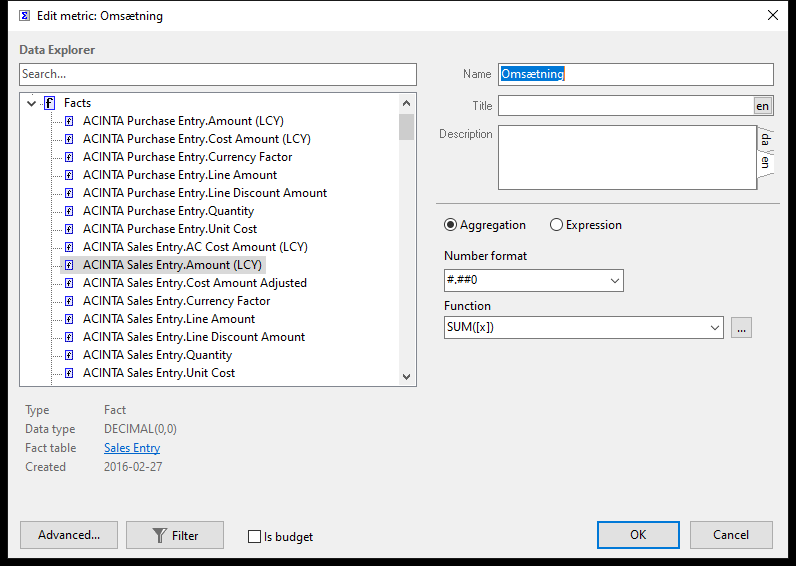 An aggregation metric: SUM of the fact Sales Entry.Amount (LCY), with the Data Explorer on the left.
| Part | What it does |
|---|---|
| Data Explorer / Metric Explorer (left) | Find the source of an aggregation, or the metrics for an expression. Search at the top; details about the selected object below. |
| Name | The metric's unique name, used in formulas. Letters, digits and underscores; it can't start with a digit. Filled in automatically from the source until you change it. |
| Title | The text shown in visuals. Translate it with the language button (e.g. en). When empty, the name is used. |
| Description | What the metric means – shown in the main window and used by nikolAI. Worth filling in. |
| Aggregation / Expression | The kind of metric |
| Number format | The default format, e.g. #,##0, #,##0.00 or 0.0%. You can type your own. Each visual can override it. |
| Advanced... | Dimension levels and transformation – see Advanced Settings |
| Filter | A filter that always applies to this metric, e.g. only credit notes. Shows Filter (2) when it has two criteria. See 9.2 Building Filters. |
| Is budget | Marks the metric as a budget or target, so it's offered in Index to budget and Diff to budget – see 10.4 Quick Transformations |
Aggregation Metrics
Choose Aggregation, then click the source in the Data Explorer:
- Facts – the measures defined in the data model, e.g. an amount or a quantity;
- Tables – any column of a table;
- Dimensions – a dimensional unit, e.g. Customer, to count its members.
Then pick the Function:
| Function | Result |
|---|---|
SUM([x]) |
The total. Default for number columns. |
COUNT([x]) |
The number of rows. Default for text columns and dimensional units. |
COUNT(DISTINCT [x]) |
The number of different values – e.g. the number of buying customers |
AVG([x]), MIN([x]), MAX([x]) |
Average, smallest and largest value |
VAR([x]) |
The variance |
[x] stands for the source. You can type your own SQL aggregation, e.g. SUM([x] * 1.25), or click ... to edit it. [t] stands for the fact's table.
Expression Metrics
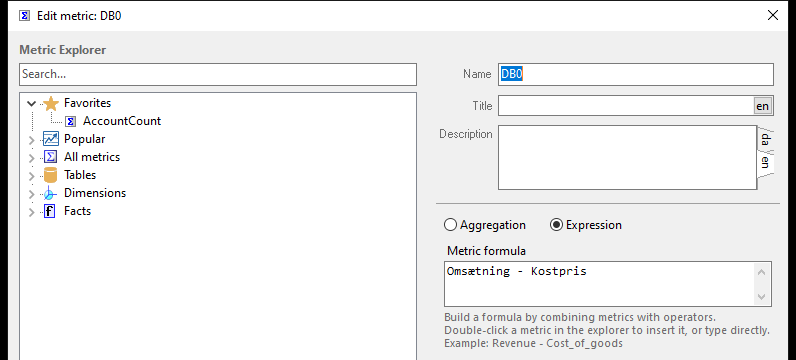 An expression metric: contribution margin as turnover minus cost.
Choose Expression and write the Metric formula:
- Use metric names, numbers,
+ - * /and parentheses, e.g.(Turnover - Cost) / Turnover * 100. - Double-click a metric in the Metric Explorer to insert it. Favorites, Recent (created in the last 14 days) and Popular (the most used) help you find it.
- Double-click a fact, column or dimensional unit to insert a metric built on it – or choose New metric for "…" to create one on the spot.
- Ctrl+click a name in the formula to open that metric.
Functions such as IF or ABS aren't available in metric formulas.
Totals of expression metrics are calculated from the totals of their parts – the total margin is total turnover minus total cost, not the sum of the margins.
Advanced Settings
Advanced... opens two tabs. Most metrics don't need them.
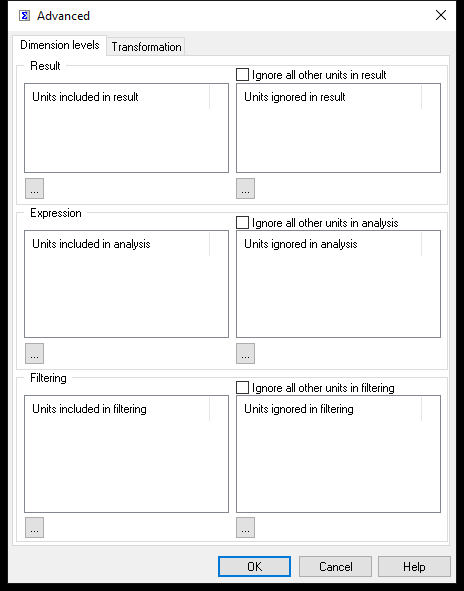 Dimension levels: control which dimensions the metric is calculated and filtered by.
Dimension levels has three groups, each with an included and an ignored list (add dimensional units with ...):
| Group | Units ignored | Units included |
|---|---|---|
| Result | The metric is calculated as if the unit weren't in the visual – e.g. ignore Customer to show the total for all customers on every customer row | The metric is always calculated per this unit. With Ignore all other units in result, only per these units. |
| Expression (expression metrics only) | – | The level at which the formula is calculated before the result is totalled – e.g. Item, to multiply quantity by price per item and then add up |
| Filtering | Filters on the unit don't affect the metric – e.g. a market total that ignores the Region filter | Only filters on these units apply (with Ignore all other units in filtering) |
Transformation applies a classic transformation from the data model – see 10.7 Classic Transformations. For new work, use quick transformations instead.
Tips – Creating and Editing Metrics
- Give metrics a clear title and description – nikolAI uses them to choose the right metric for your questions.
- Build complex metrics in steps: create the parts as their own metrics, then combine them in an expression.
- To calculate something for one visual only, use Combine with or a quick transformation instead of a new metric – see 10.5 Combining Metrics.
Common Issues – Creating and Editing Metrics
Problem: A metric with this name already exists. - Solution: Names are unique in the whole project. Choose another name – the title can still be the same.
Problem: Metric "X" not found or Circular reference found for metric "X". - Solution: Check the spelling of the metric names in the formula. A metric can't refer to itself, directly or through other metrics.
Problem: I can't open a metric from the main window. - Solution: Editing metrics requires Datashop Expert.