10.6 Targets
No budget in the data model? Create your own targets in a visual: Datashop adds a target for each row, pre-filled from the actual figures plus an adjustment, and shows how each row is doing against it – as a difference, an index and arrows or colors.
Creating Targets
In design mode:
- Right-click the visual in the Element Structure panel → Enter own data → Create targets....
- Set up the targets in the Target configuration dialog (below) and click OK.
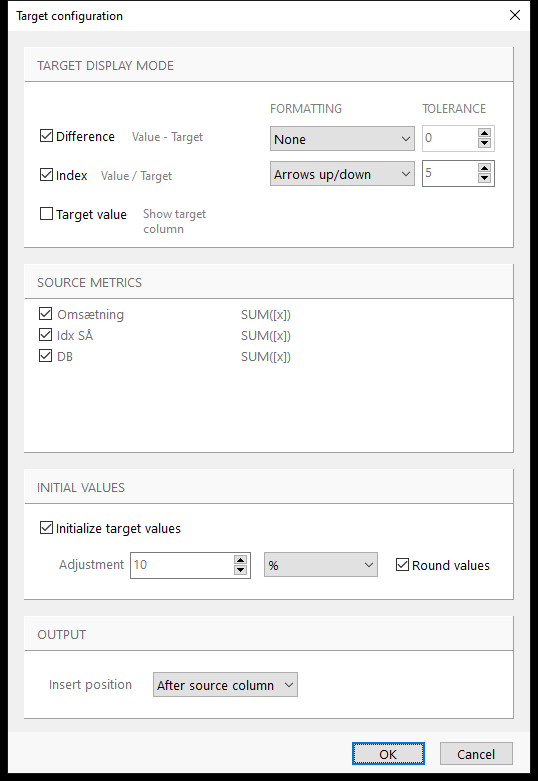 Targets for three metrics: difference and index columns, arrows on the index, targets initialized at actual + 10 %.
Target Configuration
| Section | Setting | Default |
|---|---|---|
| TARGET DISPLAY MODE | Difference – a column with Value − Target | On |
| Index – a column with Value ÷ Target × 100 | On | |
| Target value – show the target column itself (it's hidden when Difference or Index is shown) | Off | |
| FORMATTING for Difference and Index: None, Arrows up/down or Colors | None / Arrows up/down | |
| TOLERANCE: how close to the target counts as neutral – e.g. index 5 means 95–105 shows neutral | 0 / 5 | |
| SOURCE METRICS | The metrics that get targets. Metrics already marked as budget are left out. | All, or the one you right-clicked |
| INITIAL VALUES | Initialize target values – fill the targets from the current figures | On |
| Adjustment – add a percentage (%) or an amount (Value) to the actual figures | 10 % | |
| Round values – round to natural values, e.g. 1,824,199 → 1,800,000 | On | |
| OUTPUT | Insert position: After source column or At the end | After source column |
Above the target, the arrows point up and the color is green; below, down and red.
What Gets Created
- A table named Target Values in the workbook, with one row per row of the visual and a target column per metric. It's saved with the workbook.
- In the visual, for each metric: a hidden target column (marked as budget), and the Diff and Index columns you chose, with the formatting as rules.
The targets are per row of the visual as it was when you created them – e.g. per customer. Create the targets when the visual shows the rows you want targets for.
Editing the Targets
Edit the target values in the Target Values table like other tables of your own – see Chapter 16 Input Tables and Your Own Data. The difference and index columns update when you refresh.
To remove the targets, delete the target, difference and index columns in the Element Structure panel.
Tips – Targets
- Keep Initialize target values on and adjust the result, instead of typing every target from scratch.
- Use Colors for a quick overview in large tables, Arrows up/down where the number itself matters.
- If your data model already has budget figures, use Index to budget and Diff to budget instead – see 10.4 Quick Transformations.
Common Issues – Targets
Problem: Please select at least one display mode (Difference, Index or Target value). (Before build 20111 the message said Absolute instead of Target value.) - Solution: Tick at least one of Difference, Index or Target value.
Problem: New rows in the visual have no target. - Solution: Targets are created for the rows that existed at the time. Add the missing rows to the Target Values table.