23.1 Dimensions and Units
A dimension groups related dimensional units – the things users analyze by. The Customer dimension, for example, has units such as Customer, Customer City and Customer Country. Each unit gets its values from a lookup table: an ID such as the customer number, and usually a name.
Creating Dimensions and Units
- New Dimension (Ctrl+D): HOME → New, or right-click Dimensions in the Object Tree.
- New Dimensional Unit (Ctrl+U): select the dimension first, then create the unit. Modeller switches to the Dimension tab.
Rename with F2. New objects are called New dimension and New unit until you rename them.
A dimension itself only has a Name, Title and Description; the settings are on its units.
Unit Settings
Select a unit in the Object Tree to see its settings under Properties:
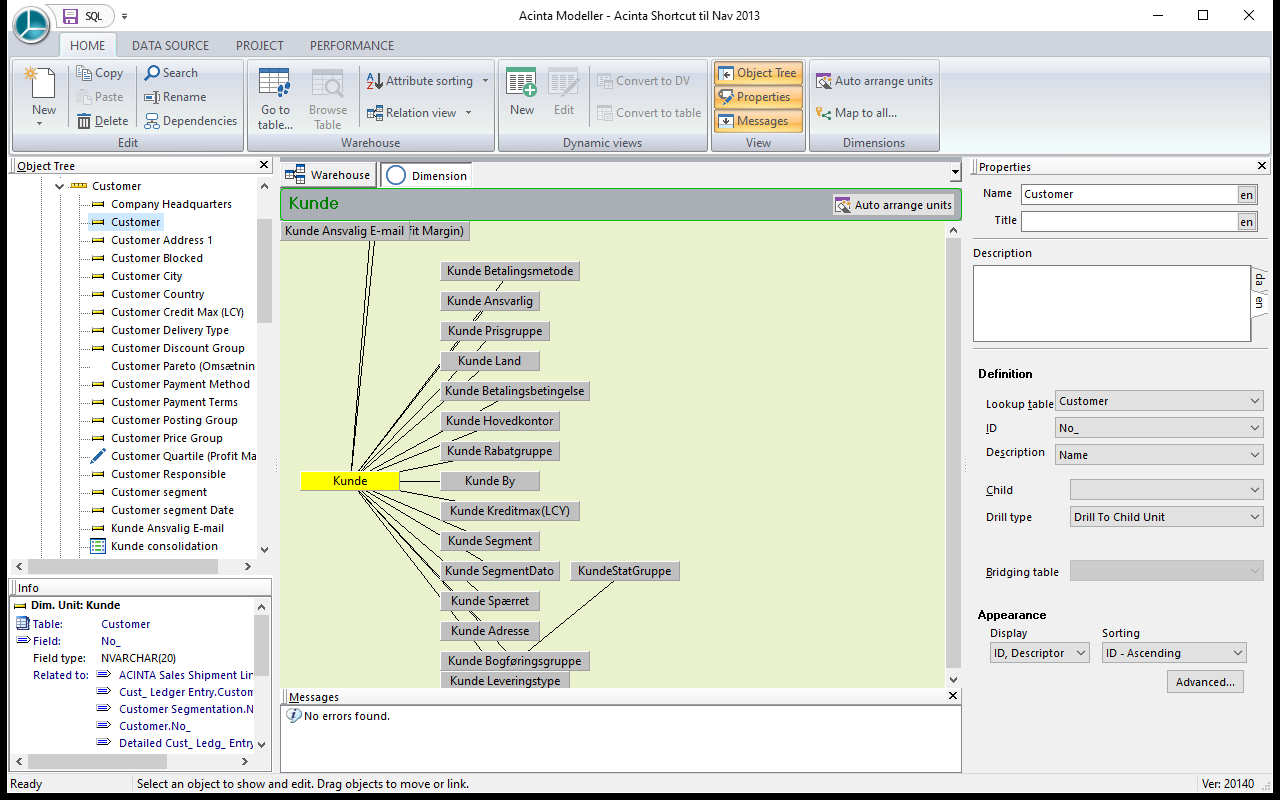 The Customer unit: lookup table Customer, ID No_, description Name, displayed as ID and name.
| Setting | What it does |
|---|---|
| Lookup table | The table that lists the unit's values, e.g. Customer. Press Tab or Enter to confirm a change. |
| ID | The key field, e.g. the customer number. Only fields not already used as another unit's ID are listed. |
| Description | The name field shown next to or instead of the ID, e.g. the customer name (optional) |
| Child | The next lower level, e.g. Customer is the child of Customer Country. (related) after a unit means the tables are linked. |
| Bridging table | A table linking the unit and its child, when their lookup tables aren't linked directly |
| Display | What Datashop shows: ID, Descriptor, Descriptor, ID, ID or Descriptor (default ID; choosing a description switches to ID, Descriptor) |
| Sorting | ID - Ascending (default), ID - Descending, Description - Ascending or Description - Descending |
| Drill type | Where double-clicking a value in Datashop goes – see below |
| Advanced... | Partitioning, padding, keys, roles, name script and value loading – see 23.4 Advanced Unit Settings |
The unit's data type follows its ID field.
The Dimension tab shows the dimension's units as boxes, connected from parent to child. Drag the boxes to arrange them, or click Auto arrange units (double-click it to keep arranging automatically).
Drill Settings
Drill type decides what happens when a Datashop user double-clicks a value of the unit:
| Drill type | Effect |
|---|---|
| Drill To Child Unit (default) | Drills to the Child unit; without a child, the user chooses |
| Drill To Custom Dim Unit | Drills to the unit chosen in Drill-down to |
| Always Prompt | The user always chooses where to drill |
| No Drill Down | Double-clicking does nothing |
A drill hierarchy set on a column in a Datashop workbook overrides this setting – see 13.5 Drill Settings for Designers.
Dates Used in Several Roles
A fact table often has several dates – order date, posting date, due date. Each needs its own unit, as a field can only be linked to one unit per table. The usual approach is a separate dimension per role, e.g. Date, order and Date, posted, so users can tell them apart.
Deleting a Dimension
New in build 20284.
Deleting a dimension also deletes its dimensional units and hierarchies. This applies wherever you delete a dimension – in Modeller, in Datashop, in the dialogs that list objects, and in Project Cleanup.
- If nothing in the dimension is used elsewhere, the delete dialog says how much goes with it, e.g. Its 5 units and 1 hierarchy are deleted too. Delete removes it all.
- If a unit or hierarchy is used outside the dimension – by workbooks, metrics, filters or units in other dimensions – the dimension can't be deleted. The message "
" cannot be deleted, because these units or hierarchies in it are in use: lists up to 10 of them, each with up to 3 objects that use it, and ends with Move them to another dimension or delete them first. - Fields mapped to a unit don't block the delete; they just lose the mapping.
Dependencies (Modeller) and View dependent objects (Datashop) for a dimension also list the objects that use its units and hierarchies – check them before you delete.
Orphaned Dimensional Units
Build 20289 and later.
Every saved dimensional unit belongs to a dimension – also a segmentation saved as its own object. Only units that are part of another object, e.g. a segmentation made inside a table visual, have no dimension of their own.
Before build 20284, deleting a dimension left its units behind without a dimension – orphaned units – and they were no longer shown in the Object Tree. When Modeller opens a project with orphaned units, it lists them and asks whether to move them to a new dimension Recovered dimension. Yes moves them there; from there, move each unit to the right dimension or delete the ones you don't need, and save the project. No changes nothing – Modeller asks again the next time. You can also find and fix the units later: Validate in Modeller or Tools → Cleanup... in Datashop reports each unit as
Tips – Dimensions and Units
- Give units a clear Title – it's what Datashop users see, and what nikolAI uses to understand questions.
- Set Display to Descriptor for units where the ID means nothing to users.
Common Issues – Dimensions and Units
Problem: You need to select a dimension first! - Solution: Select a dimension (or one of its units) in the Object Tree before creating a unit.
Problem: Lookup table for dimensional unit "…" is undefined. - Solution: Choose the unit's Lookup table and ID.
Problem: Incorrect display mode … Only ID display mode is supported if no description field is specified. - Solution: Choose a Description field, or set Display to ID.
Problem: "…" cannot be deleted, because these units or hierarchies in it are in use. - Solution: Move the listed units or hierarchies to another dimension, or delete them – or replace them in the listed objects – first. Then delete the dimension.
Problem: When the project opens, Modeller asks to move units to Recovered dimension. - Solution: The units are orphaned – they have no dimension, e.g. left behind when a dimension was deleted in an older version. Click Yes, then move them to the right dimensions or delete them, and save.