5.3 The Ribbon
The ribbon at the top of the workbook window holds the commands for viewing, analyzing and designing the workbook. It adapts to what you are doing: in normal view it shows only what you need to read and analyze, while design mode and selected visuals bring more tabs and commands.
Normal View and Design Mode
When you open a workbook, it opens in normal view – showing data, ready for analysis. The ribbon has the tabs HOME, THEME, PAGE and VIEW.
 In normal view, the HOME tab shows the Refresh, Report and Edit groups.
Switch view with HOME → Design (or Alt+D). Click the small arrow under Design to choose the view directly:
| View | What it shows |
|---|---|
| Normal | The workbook with data, for analysis |
| Interactive design | Design mode with data, so you see the effect of your changes right away |
| Design | Design mode without data – fast when you rearrange a large workbook |
In design mode the ribbon adds the ELEMENT and ANIMATION tabs, the Format, Adjustment and Numbers groups on HOME, and the formula bar and panel buttons below the ribbon.
 Design mode: more groups on HOME, more tabs, and the formula bar with the panel buttons underneath.
Design mode is available in Datashop Expert. Datashop Workbook only shows normal view.
The Tabs
HOME
| Group | Commands |
|---|---|
| Refresh | Refresh (F5) reloads the data. The arrow offers Clear cache and refresh (Ctrl+F5), which fetches fresh data from the database instead of from the cache. Cancel (F6 or Esc) stops a query that takes too long. Datashop Expert also offers Current data in this workbook and Current data in all workbooks (this session) – see 27.2 Materialized Dynamic Views and Caching (build 20306 and later). |
| Report | Filter Panel shows or hides the Filter Panel. Design switches view (see above). nikolAI opens the nikolAI assistant. |
| Edit | Copy (Ctrl+C), Paste (Ctrl+V), Cut (Ctrl+X), Format painter |
| Format (design mode) | Font, size, B/I/U/strikeout, borders, margins, font and fill colours, lists, Conditional Formatting and table styles for the selected visual |
| Adjustment (design mode) | Alignment and text rotation |
| Numbers (design mode) | Number format, percent, currency, thousands separator, more/fewer decimals |
The formatting commands are greyed out until you select a visual or cells. See 11.2 Formatting from the Ribbon and 12.1 What are Rules.
THEME
Apply a Theme (colours and fonts for the whole workbook) and a Template (a layout to start from). See Chapter 7 Designing Workbooks.
ELEMENT (design mode)
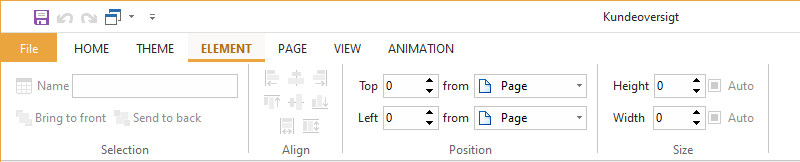
Name and position the selected visual precisely:
| Group | Commands |
|---|---|
| Selection | Name, Bring to front, Send to back |
| Align | Align several selected visuals left, centre, right, top, middle or bottom; give them the same width or height |
| Position | Top and Left, measured from the page or from another visual |
| Size | Height and Width, or Auto to fit the content |
PAGE
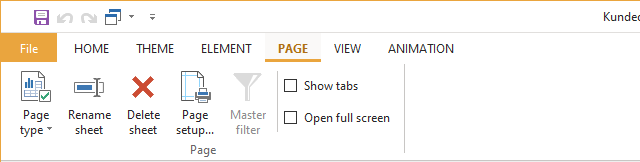
Work with the sheets of the workbook – see 5.4 Sheets and Tabs.
VIEW
| Command | What it does |
|---|---|
| Status bar | Shows or hides the status bar |
| Full screen | Shows the workbook full screen, without ribbon and window frame |
| View errors | Shows why the selected visual couldn't load its data |
| View statistics (Ctrl+Shift+S) | Shows how the selected visual's data was fetched – useful when a visual is slow |
| HTML source (Ctrl+Shift+H) | Shows the workbook's HTML source – mainly for troubleshooting |
ANIMATION (design mode)
| Group | Settings |
|---|---|
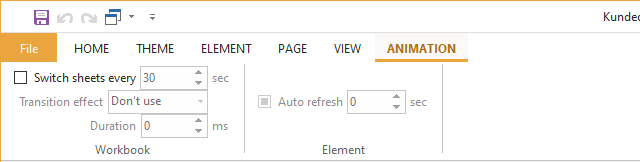
| Workbook | Switch sheets every N sec rotates through the sheets automatically, with an optional Transition effect and Duration. Used for displays on a wall screen. |
| Element | Auto refresh every N sec reloads the selected visual's data |
Tabs for the Selected Visual
When you select a visual in design mode, a tab for that kind of visual appears to the right, under a heading such as Grid tools: GRAPH, GRID, GAUGE, POLAR DIAGRAM, FILTER, IMAGE or BUTTON. The ACTION tab for links to other workbooks appears too, and the Format and Numbers groups on HOME become available.
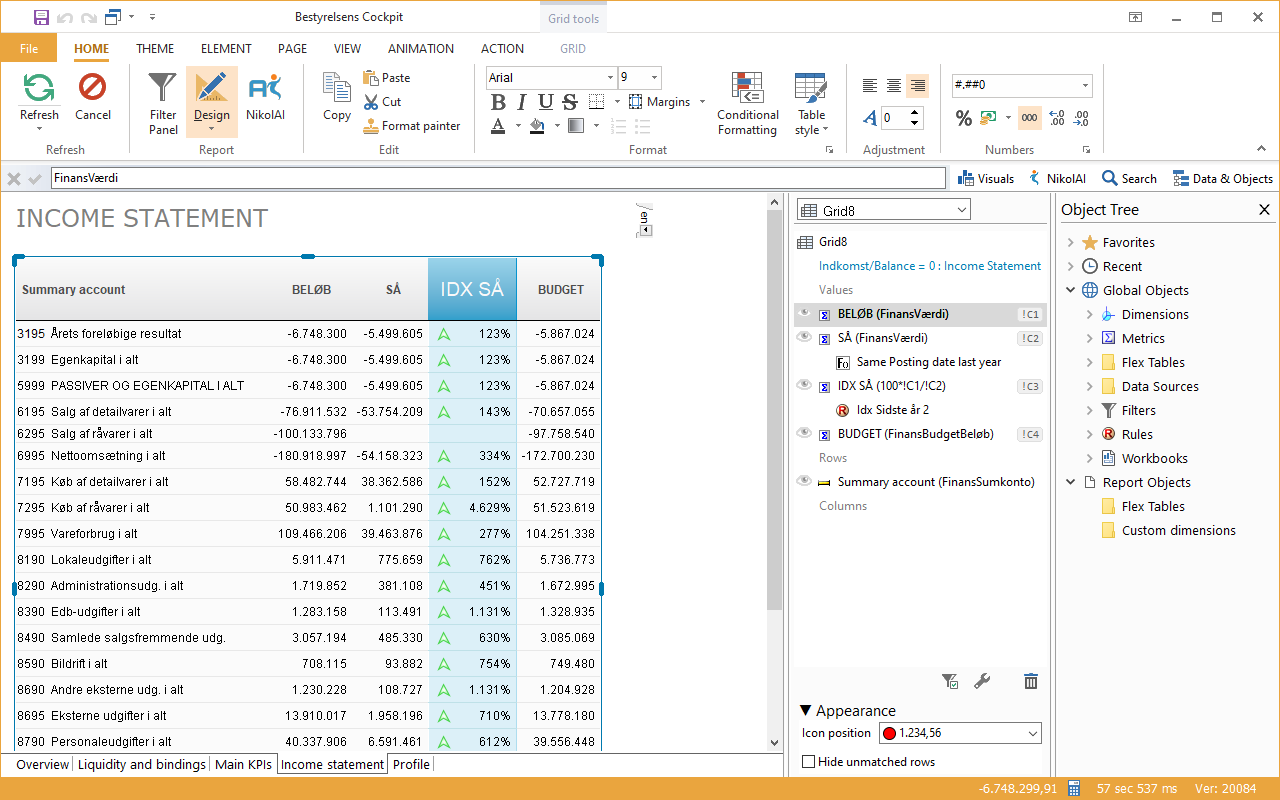 A table is selected: the GRID and ACTION tabs appear, the formula bar shows the selected column's metric, and the Element Structure panel shows how the table is built. They are described with each visual type in Chapter 8 Visual Types, and actions in Chapter 13 Actions and Interactivity.
The File Menu
Click File in the top left corner:
| Command | What it does |
|---|---|
| New... (Ctrl+N) | Creates a new workbook |
| Open... (Ctrl+O) | Opens another workbook |
| Save (Ctrl+S) | Saves your changes to the workbook (design mode) |
| Save as... | Saves a copy under a new name or in another folder |
| Properties | Workbook settings (design mode) – see 7.6 Workbook Properties |
| Distributions | Datashop Expert, in all modes: New distribution... creates a distribution that sends this workbook (an unsaved workbook is saved first). Below it are the distributions that send this workbook, with their phase – click one to open it (build 20072 and later). See Chapter 18 Distributions |
| Print (Ctrl+P), Page setup... | Prints the workbook |
| Save as HTML, Save as PDF | Saves the workbook as a file |
| Send by email | Sends the workbook as an attached PDF |
| About Datashop... | Version information |
Printing and exporting are described in Chapter 17 Printing, Exporting and Sharing.
The Quick Access Toolbar
The small buttons above the File menu are always at hand: Save (Expert), Undo, Redo, and Window, which switches between your open windows.