18.3 Recipients and Personal Reports
A distribution's recipients are defined in recipient lists. A list can be a fixed set of addresses, the result of a query, or a dimension in your data model – e.g. the e-mail addresses of all salespeople. Each recipient can get a personal report, filtered to their own data.
On the General tab, the Recipient lists list shows the distribution's lists. Click New... to add one, or select one and click Edit.... Rename a list embedded in the distribution by clicking its name (or F2). In the list editor, choose where the addresses come from:
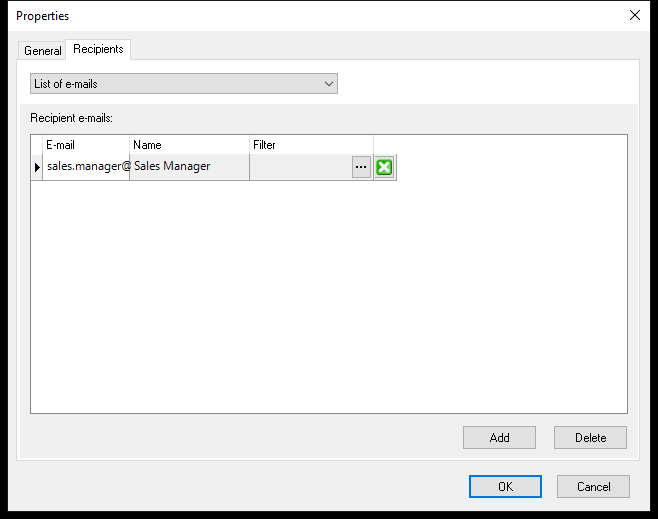
List of E-mails
Type the addresses in the grid:
| Column | What it holds |
|---|---|
| The address | |
| Name | The recipient's name, used in the {Name} merge field. Left empty, it is made from the address. |
| Filter | Optional: click … to give this recipient a personal filter, e.g. Region = North |
| Additional columns | Your own columns, e.g. Region or Target – each is a merge field, see Additional Columns |
Type like in a spreadsheet (build 20181 and later): Tab moves to the next cell, and Tab in the last cell adds a new row; Shift+Tab goes back. The X on a row deletes the recipient. Right-click for Add recipient, Duplicate recipient, Delete recipient, Add column..., Rename column... and Remove column. Drag a column heading to move the column.
Empty rows are removed when you click OK. Column widths are saved with the list, so everyone sees the same layout.
Dimensional Unit
Take the recipients from the data model – the list stays up to date by itself.
| Setting | What it does |
|---|---|
| Email address from | Required. The dimensional unit whose values are the e-mail addresses, e.g. Salesperson e-mail |
| Filter each report by | Optional. Each report is filtered to the value on the same row as the address, e.g. Salesperson – so every salesperson only sees their own figures. Leave it at (none) to send the same report to all. |
| Recipient name from | Optional. The unit that provides the name for {Name} |
| Only include recipients where | Optional filter, e.g. only active salespeople |
| Additional columns | Units whose values become merge fields – drag them from the tree of dimensions on the right, e.g. Salesperson region. Remove one by dragging it back or pressing Del. |
A description under the settings explains in plain words what will happen, e.g. Every email address in "Salesperson e-mail" receives its own report, filtered to that address.
SQL Query
For special cases, an SQL query can return the recipients. Choose which columns hold the Email and the Name. Every other column the query returns is an additional column – a merge field. Rename a column with AS in the query, e.g. url AS Website.
Choose where the query runs under Database: (new in build 20185; before, a Use Warehouse tick box or an OLE DB connection string):
| Choice | Runs the query on |
|---|---|
| A data source, by name | One of the project's database data sources, e.g. the data warehouse |
| Metadata repository | The project's own repository database – only for administrators, and only for database repositories, as the query can read every repository table |
| Custom connection... | A connection set up for this list only. Choosing it opens the connection dialog: enter server, database and login, and test it. Once set up, it shows as Custom: |
Point at Database: to see the selected database's settings – type, server, port, database, schema and login (user name or Windows authentication). Passwords are never shown.
Edit SQL (the SQL editor), the column list and View data all use the chosen database.
Per-Recipient Filter
To give each recipient a personal report, fill in both fields of the Per-recipient filter group:
| Field | Meaning |
|---|---|
| Assign this column value: | The query column holding each recipient's value, e.g. a salesperson code |
| to this dimension: | The dimensional unit the value filters, e.g. Salesperson. (none) means no per-recipient filter |
Set both or neither – OK warns if only one is set. OK also checks that a custom connection has been set up.
Additional Columns
New in build 20177.
Each list type has an Additional columns section: Additional columns - available as merge fields in the email editor. Every additional column becomes a merge field you can use in the subject, the body and the AI instructions, written {ColumnName}:
| List type | Additional columns are |
|---|---|
| List of e-mails | The columns you add to the grid |
| Dimensional unit | The units you drag in – named after the unit's base (untranslated) name |
| SQL query | All columns the query returns, except those used for e-mail, name and filter |
See 18.4 Email Content and Merge Fields.
Preview
For a dimensional unit list, click Preview...; for an SQL query list, click View data. Both show the recipients exactly as Acinta Server will calculate them: one row per e-mail, with the filter and merge field values for each. Datashop also checks that the list is complete when you click OK or the preview button. A list of e-mails needs no preview – the grid is the list.
If the list isn't complete when you click OK, Datashop tells you what's missing and asks Save the incomplete recipient list anyway? – click Yes to finish it later. Until it's complete, a run of the distribution reports the problem (build 20189 and later; before, an incomplete list couldn't be saved). If saving fails, the error is shown and the dialog stays open.
For an SQL query list, the View data window shows the query's rows as returned – the title gives the count, e.g. Recipients: 1,234 rows of the SQL query:
- The columns used for e-mail, name and per-recipient filter come first, in the Recipient band, which stays visible while you scroll. Their headers show the role, e.g. Email: Mail_Address.
- All other columns follow in query order in the Merge fields band.
- Each row becomes one e-mail. Rows aren't combined, so an address in several rows gets several e-mails. Rows with the same per-recipient filter value share one report; without a filter, all rows share one report.
- The data can't be edited here – change the query instead.
How Personal Reports Work
- With a per-recipient filter, the workbook is run once per recipient row, each time with that row's filter added to the distribution's filter.
- Without a per-recipient filter, all recipients get the same report.
- If an address appears on several rows (e.g. a manager responsible for three regions), it gets one e-mail per report – or one e-mail with all of them if you collate, see 18.5 Attachments and Collated Emails.