7.5 Element Structure and Appearance
The Element Structure panel, next to the workbook in design mode, is where you shape a visual: which metrics and dimensions it shows, in which order, how they look, and which filters apply to it. Select a visual to see its structure.
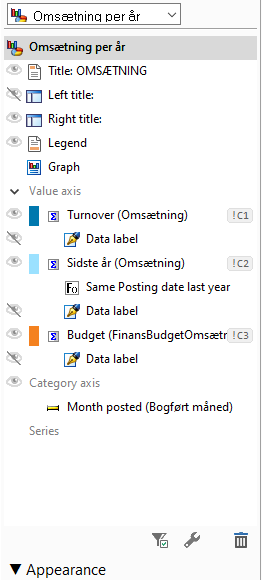 The structure of a chart: title, legend, the metrics on the value axis (each with its data label and cell reference), and the dimension on the category axis.
What the Structure Shows
The items depend on the type of visual:
| Visual | Main parts |
|---|---|
| Table | Values (metrics), Rows and Columns (dimensions) |
| Chart | Title, Left title, Right title, Legend, Value axis (metrics), Category axis and Series (dimensions) |
Under each metric you may see a transformation (e.g. Same Posting date last year), a rule for conditional formatting, or a filter that applies to that metric only.
Working with the Items
- Show or hide an item with the eye icon to its left – e.g. hide a chart's legend or a column you only need for a calculation.
- Reorder items by dragging them within the tree, and add items by dragging from the Object Tree.
- Remove an item by dragging it out of the tree, by selecting it and clicking the bin at the bottom, or with right-click → Delete.
- Double-click an item to open its settings, e.g. title, format and drill behaviour for a column.
Right-click an item for more options, such as:
| Command | What it does |
|---|---|
| Edit / Rename | Change the item's settings or title |
| Transformation | Add a quick transformation such as prior period, % of total or running total – see 10.4 Quick Transformations |
| Combine with... | Add a calculated column from this metric and another one – see 10.5 Combining Metrics |
| Segmentation, Consolidation, Histogram | Group a dimension's values – see Chapters 14 and 15 |
| Enter own data | Create targets... or a New empty table to type values into – see Chapter 16 Input Tables and Your Own Data |
| Add criteria | Add a filter on this item |
| Display, Sorting, Show values | How a dimension is shown – see Appearance below |
| Visibility | Whether a custom dimension is available Only here, in the Entire workbook, or Everywhere |
| Convert to global filter / Convert to local filter conditions | Move a filter between the visual and the whole workbook |
Filters for One Visual
The buttons at the bottom of the panel control how workbook filters affect the selected visual:
- Ignore filters – choose filters the visual should not use, e.g. a total chart that should always show all regions.
- Modify filter – change the effect of a workbook filter for this visual only, e.g. shift the date range one year back to show last year next to this year.
Filters are explained in Chapter 9 Filters.
Appearance
Select a dimension in the tree and open Appearance at the bottom of the panel:
| Setting | Options |
|---|---|
| Display | Automatic, ID, Description, ID + Description, Description + ID – e.g. show customer numbers with names |
| Sorting | Automatic, ID ascending/descending, Description ascending/descending |
| Show values | Automatic, Values with data points (only values that have data), Show all values (also values without data, e.g. all months) |
| Icon position | Where a rule's icon is shown: Left, Right or No text |
| Hide unmatched rows | Hides rows that have no match in the data |