13.2 Adding Actions
Actions are added in design mode with the ACTION tab, which appears when you select a button, or a dimension or metric in a table or chart. For more than one action, or actions that depend on the clicked value, use the action list in the element's settings.
Adding actions requires Datashop Expert.
The ACTION Tab
- In design mode, select the button – or the dimension or metric in the Element Structure panel.
- On the ACTION tab, choose:
- Open workbook – pick the workbook to open;
- Open browser – enter the web address;
- Other action – choose another type in the Edit action dialog.
- Choose which filters to pass on – see 13.3 Opening Workbooks and Passing Filters.
- Switch to normal view and click to try it.
 A button with an Open workbook action that passes all filters on.
Clear removes all actions of the element.
In a chart, add the action to the dimension on the X axis.
The Edit Action Dialog
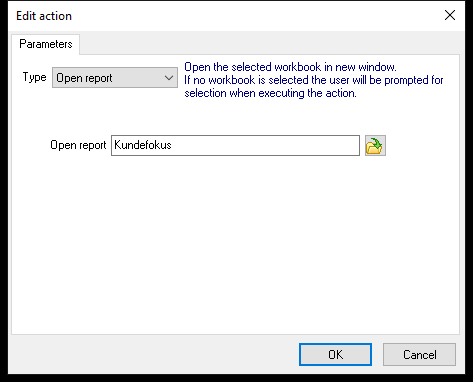 An Open report action: the workbook to open.
Choose the Type; the description below it explains the type, and the field next to it takes what the action needs:
| Type | Setting |
|---|---|
| Open report | The workbook. If empty, the user picks one when clicking. |
| Open web page | The address, e.g. https://crm.example.com/customer?id={SelectedValueID} |
| Go to page | The sheet number (1 = the first sheet) |
| Launch application | The program. If empty, the user picks one when clicking. |
| Script, SQL script | See 13.4 SQL Script and Program Actions |
| Refresh, Close report | Nothing to set |
Using the Clicked Value
Web addresses and program paths can contain fields that are replaced by what the user clicked. Click Insert field... to add one:
| Field | Becomes |
|---|---|
{SelectedValue} |
The clicked value as shown, e.g. Fabrikam, Inc. |
{SelectedValueID} |
Its ID, e.g. the customer number 10000 |
{SelectedUnitName} |
The name of the clicked dimension unit, e.g. Customer |
{SelectedUnitID} |
The ID of that unit |
In web addresses, {Name of a filter} is also replaced by the filter's current value, e.g. {Region}.
Example: an Open web page action on the Customer dimension with https://maps.example.com/?q={SelectedValue} shows the clicked customer on a map.
Several Actions and Conditions
The ACTION tab sets one action. For more, click the small corner button of the Manage group (Advanced settings) with a table dimension or metric selected. This opens the element's settings on the Action tab:
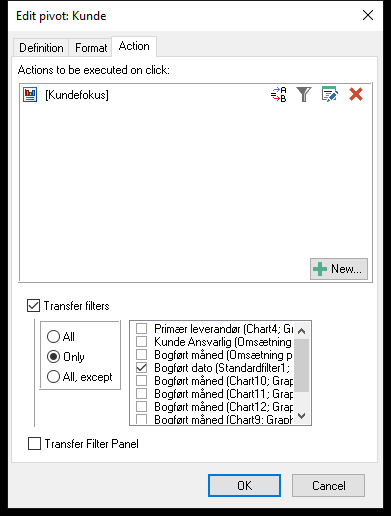 Actions to be executed on click, with the buttons for conditions, filter, edit and delete on each row.
- New... adds an action; double-click an action to edit it; drag to change the order; Del removes it.
- All actions in the list run in order.
- Conditions (first button on the row) decides for which clicked values the action runs – e.g. open one workbook for customers in Denmark and another for the rest. Without conditions the action always runs.
- Filter (Open report only) adds fixed filters to the opened workbook, e.g. Year = 2026.
Tips – Adding Actions
- Test every action in normal view before saving – especially web addresses with fields.
- Use conditions instead of several near-identical workbooks with buttons.
Common Issues – Adding Actions
Problem: The ACTION tab is missing. - Solution: Switch to design mode and select a button, or a dimension or metric of a table or chart. Texts, pictures and gauges can't have actions.
Problem: A web address doesn't open correctly.
- Solution: Start the address with https:// or http://. Datashop adds http:// to anything else, so mailto: links and file paths don't work.
Problem: Other action shows SQL script although the element has another action. - Solution: Choose the right type again in the dialog, or click Cancel to keep the action as it is.