4.2 The Main Window
The main window is your home base in Datashop Expert. It works like a file explorer for your project: folders on the left, their contents on the right. From here you open workbooks, create new objects and reach the tools.
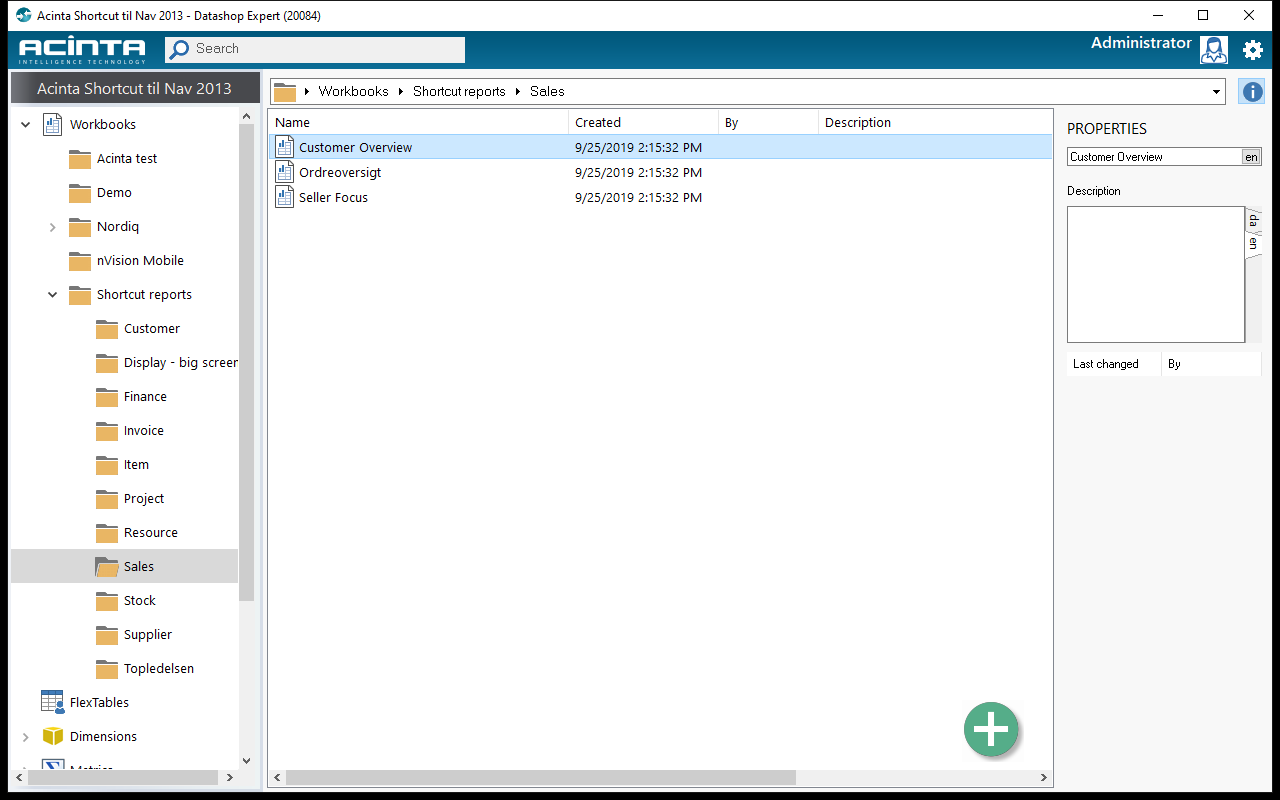 The main window: folder tree on the left, the Sales folder's workbooks in the middle, and the PROPERTIES pane on the right.
Layout
| Area | What it does |
|---|---|
| Settings button (top right, cog) | Opens the main menu – see below |
| Search box (top) | Finds objects by name or description – see 4.3 Searching, Favorites and the Startup Workbook |
| Your name and picture (top right) | Click the picture to open your user settings – see 4.5 Your User Settings |
| Folder tree (left) | The project's folders. The project name is shown above the tree. |
| Contents list (right) | The objects in the selected folder, with a breadcrumb path above it |
| + button (bottom right) | Creates a new object of the kind that belongs in the selected folder |
The Folder Tree
The tree shows these top-level folders (a folder only appears if your project has it):
| Folder | Contains |
|---|---|
| Search results | Appears at the top after you search |
| Favorites | Objects you have marked as favorites. Always shown; empty until you add your first favorite, and then it tells you how to add one (build 20090 and later). |
| Workbooks | Dashboards, reports and displays. If your administrator has given you a private folder, that folder is shown here instead, under its own name. |
| FlexTables | Tables you can type data into, e.g. budgets and targets |
| Dimensions | The dimensions of the data model, with their units, consolidations and segmentations |
| Metrics | The measures you analyze, e.g. Revenue or Profit Margin |
| Filters | Saved, reusable filters |
| Rules | Conditional and sequential formatting rules |
| Styles | Reusable formatting styles |
| Distributions + actions | Scheduled e-mail distributions and actions used by buttons and links |
| Templates | Layout templates for workbooks |
You can create your own subfolders in most of these (right-click → New → Folder), rename a folder by selecting it and pressing F2, and drag objects between folders.
The Contents List
Click a folder to list its contents. The columns depend on the folder, e.g. Name, Type, Created, By and Description; distributions also show Status, Report, Recipients, Schedule, Next run and Last run. Last run shows when the distribution last ran and how it went, e.g. today 06:00: OK, 37 emails, It needs the audit log (new in build 20228). Up to build 20378, its header also showed whether Acinta Server was running, e.g. Last run - Acinta Server: running on SRV01. See Last Run in 18.1 What Distributions Are. A red ! badge on a distribution means it can't be sent, an amber T that it is in the test phase – see 18.1 What Distributions Are. Click a column header to sort.
- Double-click an object (or press Enter) to open it. A workbook opens for viewing; other objects open in their editor. Double-clicking a folder opens the folder.
- Press Backspace to go up one folder level.
- Click a selected object's name once more to rename it.
- Right-click for more commands – see 4.4 Creating and Managing Objects.
- Click the Show info button (above the list, to the right) to show the PROPERTIES pane. It shows the selected object's name and description, and a Last changed / By list of changes. Double-click a change to open the object.
The Main Menu
Click the cog button in the top right corner.
| Menu | Commands |
|---|---|
| File | Export metaobject..., Import..., Load changes |
| Edit | Design, Delete (Del), Copy (Ctrl+C), Paste (Ctrl+V), Search (Ctrl+F) |
| Tools | SQL explorer (Ctrl+Q), Project options... (build 20134 and later), Job Monitor (Ctrl+Shift+J), Language, Debug mode, Load changes, Take memory snapshot, Change log, Audit log settings..., Cleanup..., Edit translations |
| Window | The open workbook windows – click one to bring it to the front |
| Info | Help (F1), Project properties, About Datashop... |
| Exit | Closes Datashop (Alt+F4) |
Tools → Language switches the language of names and descriptions, when the project has translations.
The tools are described in Chapter 19 Datashop Tools.