11.4 Table Styles
A table style formats a whole table in one click: header colors, borders, banded rows, font size and spacing. Hover over a style to preview it on your table, click to apply it. Fine-tune afterwards with the size, border and color galleries, or format single parts by hand.
Choosing a Table Style
In design mode, select a table, then HOME → Table style.
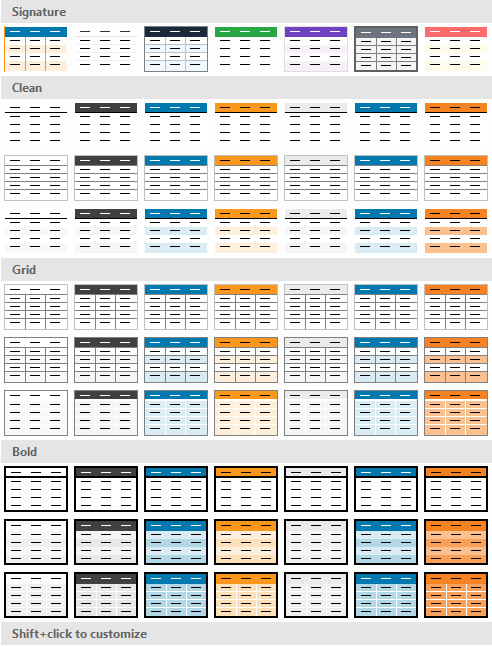 HOME → Table style: Signature styles at the top, then Clean, Grid and Bold patterns in eight colors.
| Group | Styles |
|---|---|
| Signature | Complete designs: Acinta, Web Modern, Finance, Sales, Marketing, Logistics, Playful, Minimal |
| Clean | Header only, Subtle lines, Banded |
| Grid | Light grid, Banded grid, Solid grid |
| Bold | Statement, Banded bold, Solid bold |
The Clean, Grid and Bold patterns come in eight colors: neutral, slate, blue and orange, followed by your corporate colors (green, purple, teal and brown if none are defined).
A table style sets colors, borders, font size and spacing on every part of the table, and adds an Alternating rows rule for banded styles. Metrics and dimensions you add later get the same look.
New tables start with Web Modern, or with the look of the workbook's theme – see 7.8 Themes and Templates.
Fine-Tuning: Size, Borders and Colors
The GRID tab → Visual style group changes one aspect at a time, also with a live preview:
| Gallery | Choices |
|---|---|
| Size | Font size 8–12 pt, each with spacing Very Tight, Tight, Normal, Loose or Very Loose |
| Borders | Recommended sets (None, Clean, Subtle, Grid, Classic, Bold), or separately for the Header (None, Underline, Thick Underline, Box), the Data (None, Horizontal, Vertical, Grid Light, Grid) and the Frame (None, Light, Medium, Heavy) |
| Colors | Recommended (None, Subtle Gray, Professional, Classic, Corporate), Mono, Header Only and Alternating in gray, blue, green, orange and corporate colors |
Example: apply Finance, then Size → 9pt, Tight for a compact report table.
After Applying a Style
- A table style is a starting point: you can still format any part by hand – see 11.2 Formatting from the Ribbon.
- A metric column whose metric has its own number format keeps it when you apply a table style (build 20381 and later).
- Applying a new style replaces the colors, borders and sizes, including your manual changes to them.
- Remove the banding by deleting the Alternating rows rule in the Element Structure panel.
- Undo (Ctrl+Z) takes back a style in one step.
Tips – Table Styles
- Define your corporate colors once (Edit... under Corporate Colors in any color gallery), and the table galleries offer them – the quickest way to on-brand tables.
- Use the same table style throughout a workbook; save it in a theme to reuse it in others.
Common Issues – Table Styles
Problem: Table style isn't on the ribbon. - Solution: It appears only when a table is selected in design mode.