12.2 Rule Conditions and Styles
Every Rule in Datashop consists of one or more Rule Conditions. Each Rule Condition defines both when formatting should apply and what that formatting should look like. Understanding how Rule Conditions work—and how they combine—is essential for creating sophisticated formatting that adapts to your data.
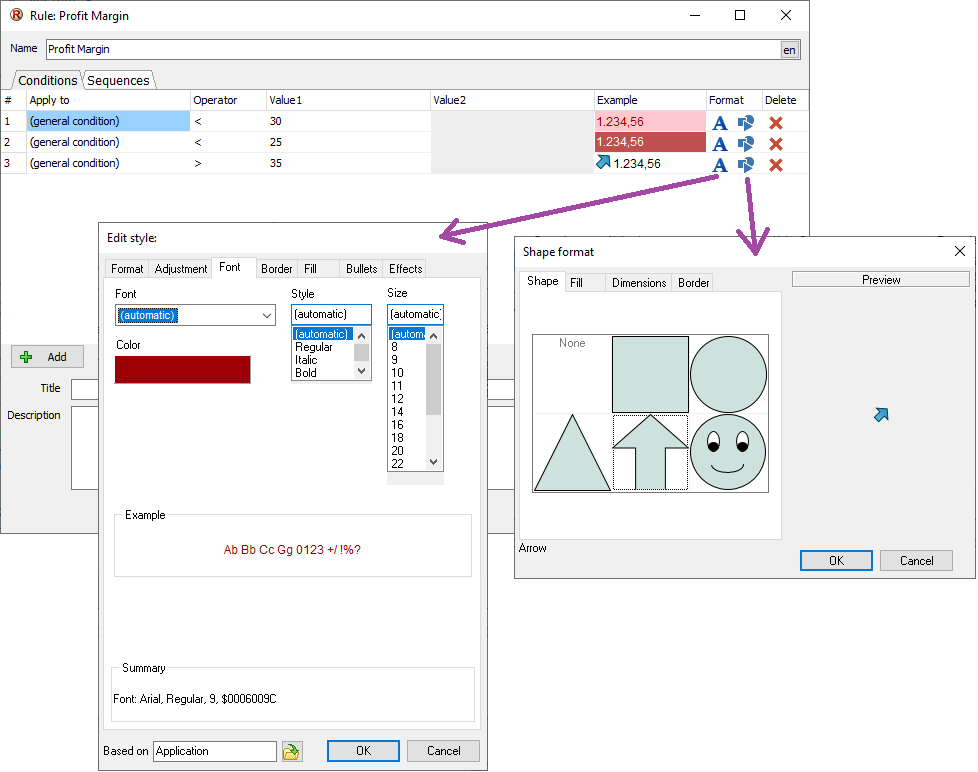
This chapter explains the anatomy of Rule Conditions and how they use Style objects and Shape objects to control visual appearance.
Anatomy of a Rule Condition
A Rule Condition contains three key components:
1. Condition Logic (Conditional Rules Only)
For Conditional Rules, each Rule Condition includes: - Operator: Defines the comparison type (=, <, >, ≤, ≥, between, not between) - Range values: The threshold(s) that trigger the formatting - Data source: Either a specific metric or "the column this Rule is applied to"
For example: "Apply when Profit Margin < 10%" or "Apply when Index to Last Year is between 95% and 105%."
Sequential Rules don't use condition logic—they simply apply formatting in order (see 12.4 Sequential Rules).
2. Style Object
The Style object contains a complete set of formatting properties: - Font family, size, weight (bold, italic) - Text color and background color - Fill patterns and gradients - Borders (color, width, style) - Text alignment and rotation - Number format (decimals, currency symbols, percentages)
By default, all properties in a Style object are set to "Automatic", meaning they won't override existing formatting. Only properties you explicitly set will be applied to the target. This allows you to layer formatting—for example, one Rule Condition might set the background color while another sets the font weight, and both combine in the final result.
[!NOTE] Style objects are covered in detail in 11.5 Style Objects and the Style Editor. This chapter focuses on how Rules use Styles.
3. Shape Object
The Shape object adds visual indicators like arrows, symbols, or icons to your data. Common examples include: - Up/down arrows for trend indicators - Traffic light symbols (red, yellow, green) - Stars for ratings - Custom symbols from system Rules
Shapes are particularly useful in KPI dashboards where you want to show performance direction or status at a glance.
How Rule Conditions Combine
When multiple Rule Conditions match a single value, Datashop merges them to create a "result style." This happens in the order the conditions appear in the Rule:
- Start with the visual's base formatting (fonts, colors, etc.)
- Apply Rule Condition 1's Style properties (only non-Automatic properties)
- Apply Rule Condition 2's Style properties (overwriting any overlapping properties from Condition 1)
- Continue for all matching conditions
- The final merged style is rendered in the visual
Example: Imagine a table showing customer profit margins: - Rule Condition 1: "Profit Margin < 0%" → Background: Red, Font: Bold - Rule Condition 2: "Profit Margin < -10%" → Background: Dark Red
For a customer with -15% profit margin: - Both conditions match - Condition 1 applies first: Red background, bold font - Condition 2 applies second: Dark red background (overwriting red), bold font retained - Result: Dark red background with bold font
This merging behavior allows you to build sophisticated formatting logic by layering simple conditions.
Applying Rules to Data Elements
Rules can be applied at different levels:
Applied to specific data elements: When a Rule is assigned to a particular metric (e.g., "Profit Margin") or dimension (e.g., "Customer"), only that element's values are formatted. Other metrics and dimensions in the same visual remain unaffected.
Applied to entire visual: When a Rule is assigned to the whole visual, it formats all data elements within that visual. This is useful for Sequential Rules (like alternating row colors) or broad Conditional Rules (like highlighting all negative values).
Tips – Rule Conditions and Styles
- Layer simple Rule Conditions to build complex formatting. Instead of one complex condition, create multiple simple ones that combine.
- Remember that later conditions override earlier ones. Order your Rule Conditions intentionally to achieve the desired effect.
- A rule condition should have some kind of assigned formatting or indicator shape to have any effect on a visual, but it doesn't need both. You can use a font or fill color to highlight data, an arrow up/down - or any combination you need.