14.3 How To Create A Segmentation
You can create any number of segmentations in Datashop, either as global objects that become part of the data model, or as embedded objects that only exist within the context of a visual.
Global segmentations are considered part of the dimension of the unit that the segmentation is built on. If the segmentation is built on Item Group then it will be part of the Item dimension.
Global or embedded?
When considering if a segmentation should be global or embedded, consider the following guidelines.
Make it global, if:
-
It represent an organizational standard. I.e. it's important that all users see and use the same definition. Changes made to a global segmentation will take effect in all visuals in all workbooks where it is used.
-
Must be used as filter. Only global segmentations can be used as filters on other visuals.
- It's complex to make. Save yourself and others the hassle of creating it again (although embedded segmentations can be copied). This is typical for Custom segmentations.
Make it embedded, if:
- It's experimental. Start embedded if you're unsure. When you're done experimenting you can always create a global variant.
- It's very basic/guided. Like a "Top 10 Customers by Profit Margin". Most guided types are very simple to make and might not be worth it to make global.
- Comes in many variations. Top/Bottom 20/10/5 Customer/Item/Vendor/Country/Sales Person etc. Making global objects for all these combinations will clutter your data model, which should be kept lean and clean.
- Needs local filtering. Sometimes a segmentation needs filtering that is tied to a certain workbook or visual. This makes the segmentation unlikely to be used elsewhere.
Creating the segmentation
Global segmentation
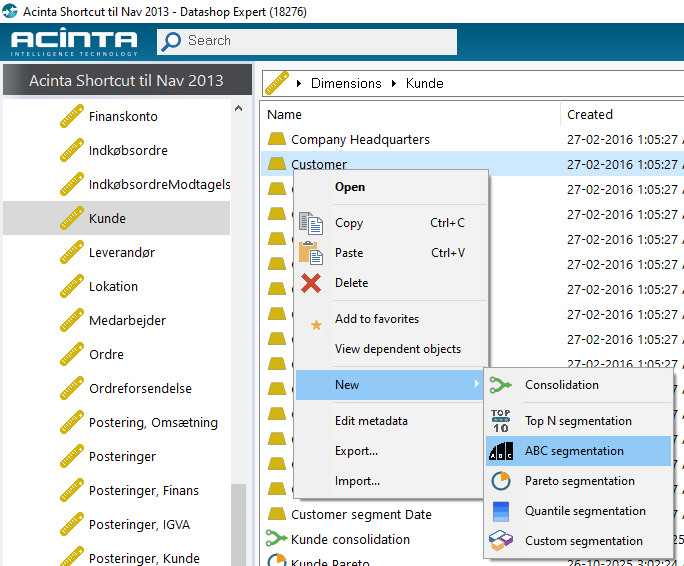
- Go to the main window in Datashop
- Go to Dimensions and locate the dimensional unit that shall be the basis of the segmentation, e.g. Customer
- Right-click on the desired unit, navigate to the "New" submenu and choose the desired segmentation type
Embedded segmentation
- Open the workbook with your visual
- Switch the workbook to design mode
- Right-click in the visual; Be careful to select data from the dimensional unit, you want to segment
- Navigate to the "Segmentation" sub-menu and selected the desired type
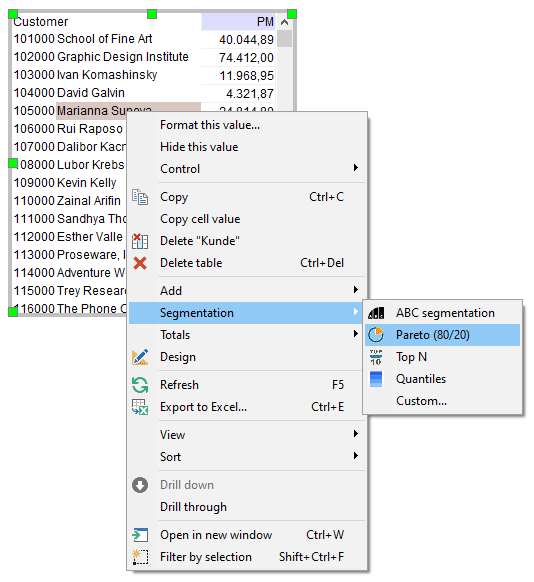
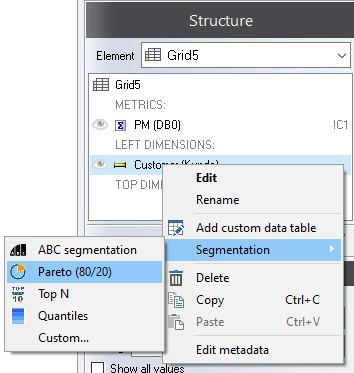
Note: The Segmentation menu is also available from the Element Structure tree that you see in the right side of the screenshot. This is sometimes more convenient, for example if the visual didn't return data or the data you want to click is not visible or hidden.
Tips – How To Create A Segmentation
- Only create global segmentations when needed. Most segmentations can be created very easily and are better defined directly in your visual (embedded) so as to not clutter the global data model.
- Embedded segmentations only exist within the context of a visual. Once you delete that visual, you also delete the segmentation. Likewise, if you copy a visual with an embedded segmentation, then the copy of the visual contains a copy of the segmentation.