18.4 Email Content and Merge Fields
The Email content tab holds the e-mail's subject and text. Merge fields make each e-mail personal: {Name} becomes Anna in Anna's e-mail and Peter in Peter's.
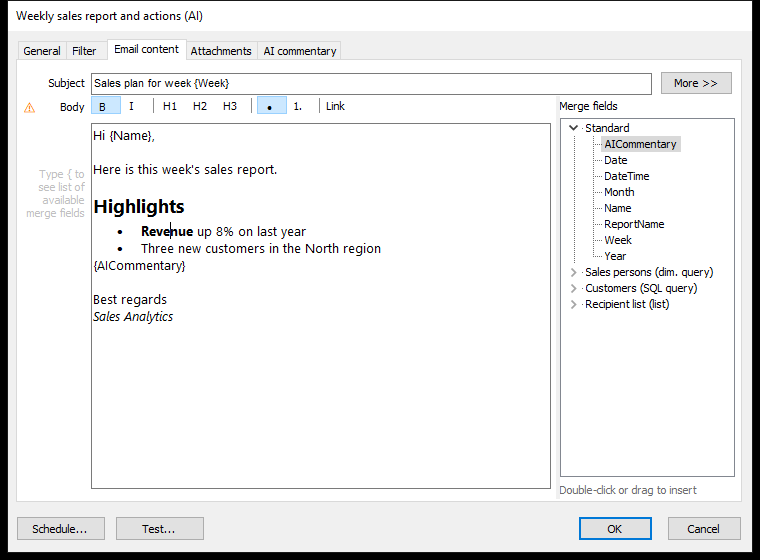 The body with a heading, a bullet list and merge fields. The toolbar shows the format at the cursor (here bold in a bullet list); the merge fields are on the right.
Subject and Body
Type the Subject, and leave it empty to use a standard subject with the workbook and distribution name.
The Body is a formatted editor: you see the formatting as the recipients will (new in build 20209; before, you typed the formatting as Markdown, e.g. **bold**). Use the toolbar above it:
| Button | Does |
|---|---|
| B, I | Bold, italic – or Ctrl+B, Ctrl+I |
| H1, H2, H3 | Heading |
| •, 1. | Bullet list, numbered list |
| Link | A link: enter the text (the selected text is filled in) and a web or e-mail address. https:// is added if missing; an address with @ becomes an e-mail link |
The buttons show the format at the cursor. Click a heading or list button again to turn the paragraph back into normal text. Enter at the end of a heading continues with normal text.
Typing * or - at the start of a line starts a bullet list, and 1. a numbered list (build 20216 and later). Ctrl+Z and Ctrl+Y undo and redo, including bold and italic.
Pasted text loses its formatting – only the toolbar's formats are possible; underline, alignment, fonts and colors aren't available.
The e-mail is sent both formatted (HTML) and as plain text; in the plain text, links appear as text (address). Distributions from earlier versions open formatted – nothing needs converting.
Click More >> for Cc, Bcc and Reply-to addresses, and a Sender name. The sender address is always the one set up on the server.
Inserting Merge Fields
- Double-click a merge field in the list to insert it where the cursor was last – in the subject or the body, or
- drag it to the exact place, or
- type { in the subject or body to pick from a list.
Standard Merge Fields
| Merge field | Becomes |
|---|---|
{Name} |
The recipient's name |
{DateTime} |
The date and time the e-mail is sent |
{Date} |
Today's date (new in build 20124, as {Week}, {Month} and {Year}) |
{Week} |
The ISO week number, e.g. Sales plan week {Week} → Sales plan week 42 |
{Month} |
The month name, e.g. October |
{Year} |
The year, e.g. 2026 |
{ReportName} |
The workbook's name |
{AICommentary} |
The AI commentary – only listed while AI commentary is on, see 18.6 AI Commentary |
Dates, month names and week numbers are filled in by Acinta Server when the e-mail is composed, in the server's date format and language.
Merge Fields From Recipient Lists
Every additional column of a recipient list is a merge field – there's nothing to declare (build 20177 and later; before, merge fields were declared per distribution). A list of e-mails with a column Region gives you {Region}; see 18.3 Recipients and Personal Reports.
The merge field list shows them as a tree: Standard with the built-in fields, then one entry per recipient list, e.g. Sales persons (dim. query), with that list's columns. Double-click a field, or right-click to insert it.
- Upper and lower case don't matter:
{Region}and{region}are the same field. - Columns with the same name in several lists are the same merge field – give them the same meaning in each list.
- A column named like a standard field, e.g. Name, is ignored in favour of the standard field; Datashop warns you.
When Merge Fields Don't Match
After you add, change or delete a recipient list, Datashop warns if the subject, body or AI instructions use merge fields that no list provides any more – e.g. after renaming or removing a column. Such fields would appear unchanged in the e-mails, as {Region}. Change the texts, or give a list a column with that name.
Distributions From Earlier Versions
Merge fields declared in earlier versions become columns of the recipient lists automatically. Where a merge field's name differed from the SQL column or unit it came from, the subject, body and AI instructions now use the real name – e.g. {Website} becomes {url}. To keep the old name, rename the column in the SQL (url AS Website) and change the texts back.
Warning Icons
When Send one email per recipient with all its reports (collate) is on (on the Attachments tab), a ⚠ icon (new in build 20069) appears next to the subject or body if it contains a merge field that can differ between a recipient's reports – e.g. {Region} for a manager with three regions. The values of the recipient's first report are used.