8.1 Visual Types Overview
Datashop has 20 types of visuals, grouped in a few families: tables, charts, gauges, the rose diagram, text and pictures, buttons and filters. This topic helps you choose; the following topics describe each family.
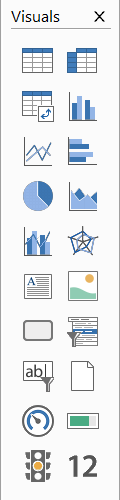
The Visuals Palette
In design mode, open the palette with the Visuals button below the ribbon. Hold the mouse over an icon to see its name. In palette order:
| Family | Types | Use it for | Topic |
|---|---|---|---|
| Tables | Table, Cross-tab, Pivot table | Exact figures, lists, comparisons across two dimensions | 8.2 |
| Charts | Bar, Line, Horizontal bar graph, Pie chart, Area graph, Combo chart | Trends, rankings, shares, comparisons at a glance | 8.3 |
| Rose diagram | Rose diagram | One metric across a circular dimension such as months or directions | 8.5 |
| Text and pictures | Text, AI commentary, Picture | Headings, explanations, AI comments on the figures (build 20147 and later), logos | 8.6 |
| Buttons | Button | Opening another workbook or a web page, printing, refreshing | 8.7 |
| Filters | Combo-filter, Standard filter | Letting users choose values directly on the sheet | 8.8 |
| Sheet | Sheet | Adds a new sheet to the workbook | 5.4 |
| Gauges | Circular gauge, Linear gauge, Numeric gauge, Indicator gauge | A single KPI against a target or scale | 8.4 |
Ctrl+Shift+T inserts a table.
Choosing a Visual
| You want to show … | Choose |
|---|---|
| Exact numbers for many items | Table |
| One metric by two dimensions, e.g. revenue by customer and month | Cross-tab |
| Totals that users can expand and collapse | Pivot table |
| Development over time | Line or Area graph |
| Comparing items, e.g. sales by region | Bar or Horizontal bar graph (horizontal works well with long names) |
| Shares of a whole | Pie chart – best with few slices |
| Two metrics with different meaning on one timeline, e.g. revenue and margin % | Combo chart (bars + line), possibly with a secondary axis |
| One key figure against a target | Gauge |
| A headline number | Numeric gauge |
| Status as a traffic light | Indicator gauge |
Inserting and Converting
- With nothing selected, clicking a type in the palette inserts an empty visual of that type at the first free spot. Fill it by dragging dimensions and metrics onto it – see 7.4 Inserting and Arranging Visuals.
- With a visual selected, clicking another type converts it. Within a family – e.g. bar to pie, or table to pivot table – only the presentation changes. Between families – e.g. table to chart – a new visual is built with the same dimensions, metrics and filter, at the same place.
[!WARNING] Text, Picture and Sheet are not converted to: with a visual selected, clicking Text or Picture replaces the visual with an empty one. Click an empty spot on the sheet first, so nothing is selected, before you insert these. If it happens anyway, use Undo.
Gauges keep only the metrics when converted to or from other types, and filters keep only the first dimension.
Where the Settings Are
Each family has its own ribbon tab, which appears when you select a visual of that kind in design mode: GRID, GRAPH, GAUGE, POLAR DIAGRAM, FILTER, IMAGE and BUTTON. Text uses the HOME tab. More settings open when you double-click the visual's name at the top of the Element Structure panel, or an item in it – see 7.5 Element Structure and Appearance.