16.3 The FlexTable Editor
The FlexTable editor works like a simple spreadsheet: type, paste, fill down, sort and format. What makes it more than a spreadsheet is binding columns to dimensions, so the table fits your data model.
Open a table by double-clicking it – in the main window's FlexTables folder, in the Object Tree, or as Input table in a visual's Element Structure panel.
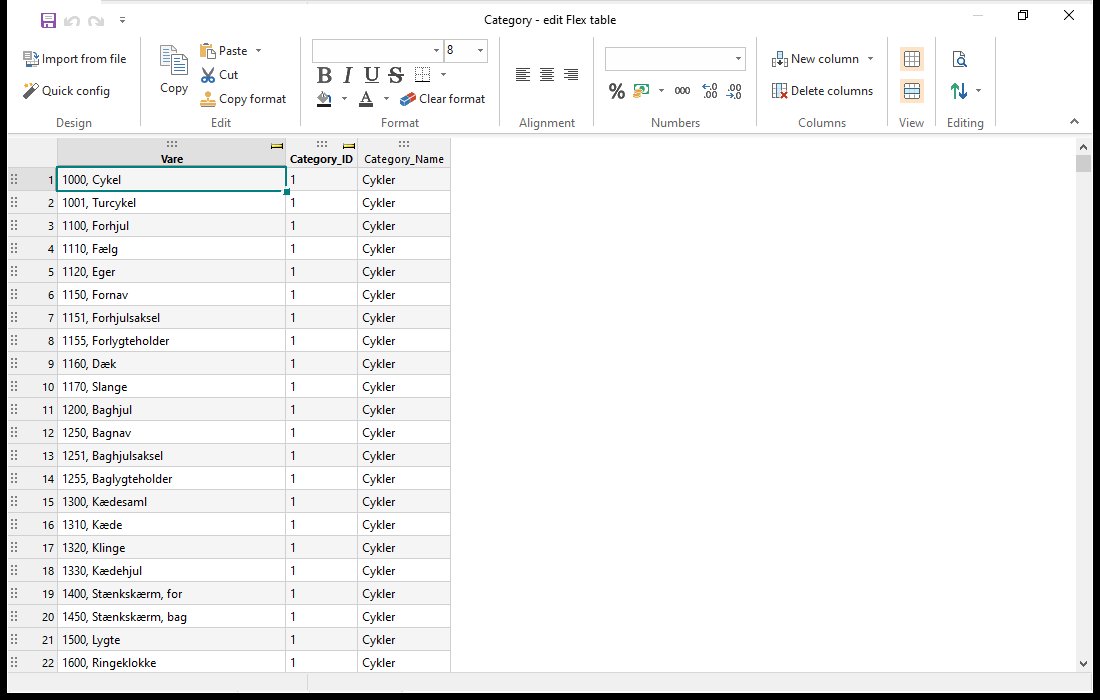 A FlexTable mapping items to categories; the Vare column is bound to the Item dimension.
The Ribbon
| Group | Commands |
|---|---|
| Design | Import from file, Quick config – see 16.2 Creating FlexTables |
| Edit | Copy, Paste (also Paste without formatting), Cut, Copy format |
| Format, Alignment, Numbers | Fonts, colors, borders, alignment and number formats for the cells |
| Columns | New column (text, number, date/time or yes/no), Delete columns |
| View | Grid lines, Alternating rows |
| Editing | Find... (Ctrl+F, Ctrl+H to replace), Sort (Sort column, Sort all columns, Advanced sort) |
Save (Ctrl+S), Undo (Ctrl+Z) and Redo are at the top left.
Columns
Right-click a column for:
| Command | What it does |
|---|---|
| Rename column | Also by double-clicking the heading |
| Insert column left / right | Adds a text column |
| Data type | Number, Text, Date or Yes/no, and Allow empty values. Values that can't be converted are cleared – Datashop lists them first. |
| Bind to dimension | Links the column to a dimension unit – see below |
| Filter column | For bound columns: limits which dimension values are offered |
| Editor type | For dates: Date, Date and time or Time |
Drag a column heading to move the column.
Binding Columns to Dimensions
Right-click the column → Bind to dimension, and pick a suggested unit – shown with how well the values match, e.g. Customer (85%) – or Select dimensional unit.... The column takes the unit's name, and its cells get a drop-down list of the unit's values: type to filter, Enter to pick.
Values that don't exist in the dimension are marked as invalid. Unbind from "…" removes the link.
Months, Quarters and Other Periods
When a column is bound to a period such as Month, Grain translation decides how the values meet day-level data:
| Choice | A budget for March 2026 is stored on |
|---|---|
| First date in period (default) | 1 March |
| Last date in period | 31 March |
| All dates in period | Every day of March – number columns are then either Spread (divided over the days, for budgets) or Repeated (the same value every day, for rates) |
| None | The month itself |
You still see and type months; the translation happens behind the scenes. Use All dates in period with Spread when the budget must also add up correctly per week or day.
Entering Data
- Type into a cell; new rows are added as you go past the last row.
- Drag the small square at the corner of the selection to fill values down, as in Excel. Double-click it to fill a date column with dates (Fill Dates, up to a date you choose) or a bound column with all remaining dimension values.
- Yes/no cells: Space or Enter toggles them.
- The status bar shows Sum, Count and Avg of the selected cells.
Invalid Cells
Cells with wrong values – text in a number column, an unknown customer number, an empty required cell – are marked; point at one to see why. Right-click it to Clear cells, or Convert column to text.
When you save, Datashop lists invalid cells and offers to clear them; Cancel takes you to the first one.
Saving
- Save keeps the editor open and refreshes the visuals that use the table.
- Closing with changes asks whether to save.
- A new table asks for a name. Names must be unique in the folder or workbook.
Global FlexTables are saved in the project right away; workbook and visual tables are saved when you save the workbook.
Tips – The FlexTable Editor
- Bind before you type: the drop-down list prevents typing errors in customer or item numbers.
- Keep one table per purpose – e.g. one budget table per year, or one with a year column – rather than many small tables.
Common Issues – The FlexTable Editor
Problem: Values in a bound column are marked invalid. - Solution: They don't exist in the dimension, e.g. a customer number that isn't in your system yet. Correct them, or unbind the column.
Problem: A changed grain translation wasn't kept. - Solution: Make another change too, or save explicitly with Save – a change of grain translation alone may not be detected as a change.