1.3 Opening Your First Workbook
Workbooks are your gateway to data in Datashop. Whether it's a dashboard, report, or display - it all starts with opening a workbook. This section shows you the different ways workbooks open and how to navigate to the one you need.
The Automatic Way: Startup Workbooks
The easiest first experience is when your administrator has assigned you a Startup Workbook. This is a default workbook configured just for you (or your role) that opens automatically when you launch Datashop.
What You'll See
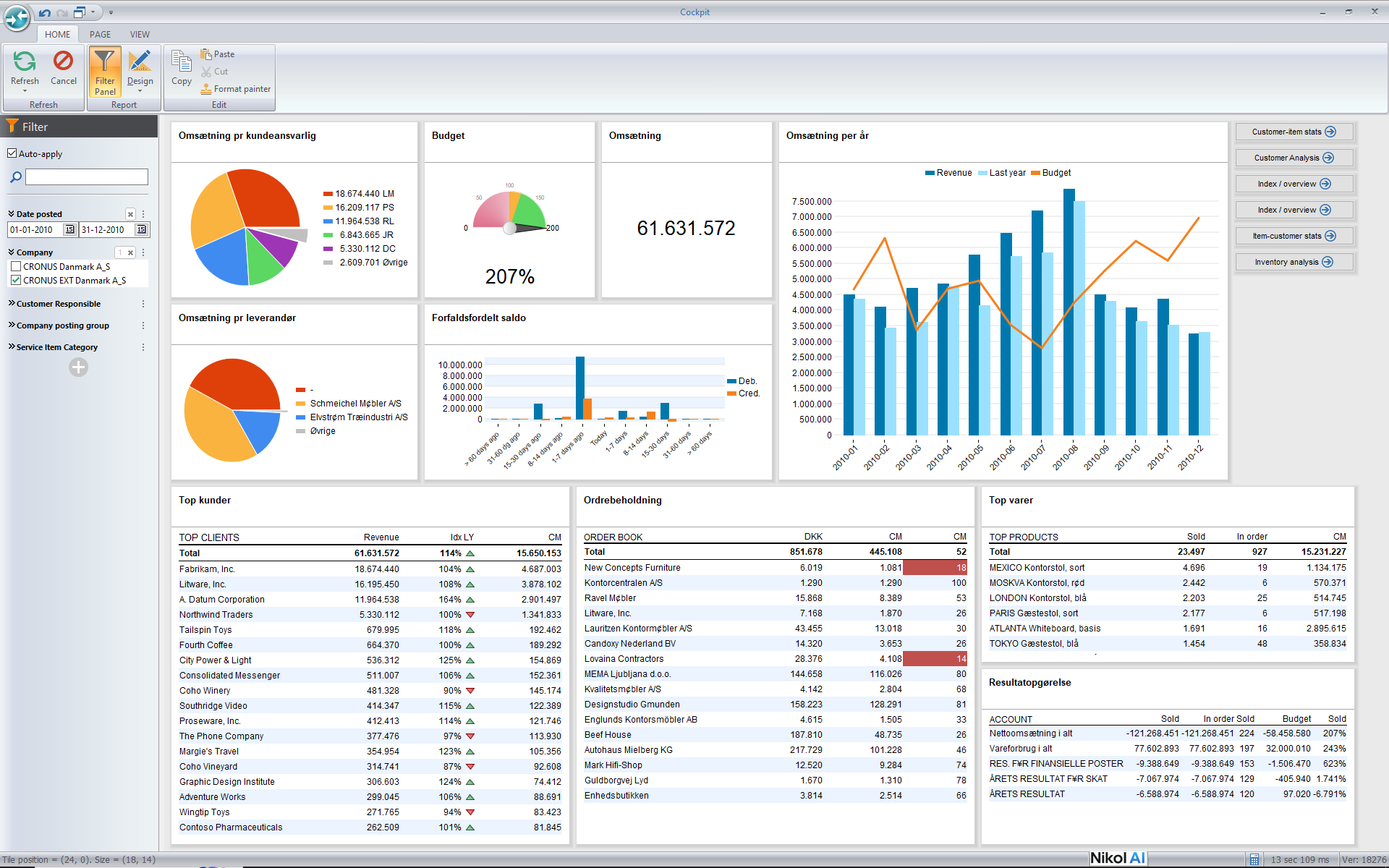
If you have a Startup Workbook configured: - It opens immediately after Datashop launches - You go straight to viewing data - no extra steps needed - It typically contains the most relevant information for your role
💡 Pro Tip
Startup Workbooks are great for daily use. They save you time by opening your most important dashboard automatically. Ask your administrator if you'd like one configured! The Startup Workbook is also referred to as your personal Cockpit.
The Manual Way: Choosing from the Catalog
If you don't have a Startup Workbook (or you want to open a different one), you'll see the Workbook Catalog - a dialog that shows all workbooks you have permission to access.
Datashop Workbook: The Catalog Dialog
In Datashop Workbook, if no Startup Workbook is assigned, you'll see a simple catalog dialog:
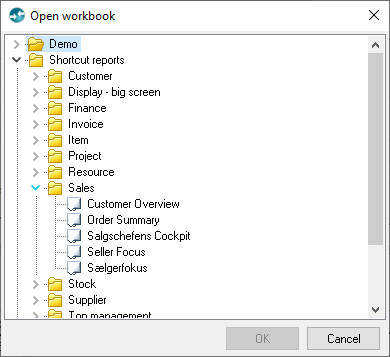
How to use it: 1. Browse through the list of available workbooks 2. Click on a workbook name to select it 3. Click OK (or double-click the workbook name)
The workbooks are typically organized by purpose or department - look for names like "Sales Dashboard", "Inventory Report", or "Executive Overview".
Datashop Expert: The Main Form
In Datashop Expert, you have two options:
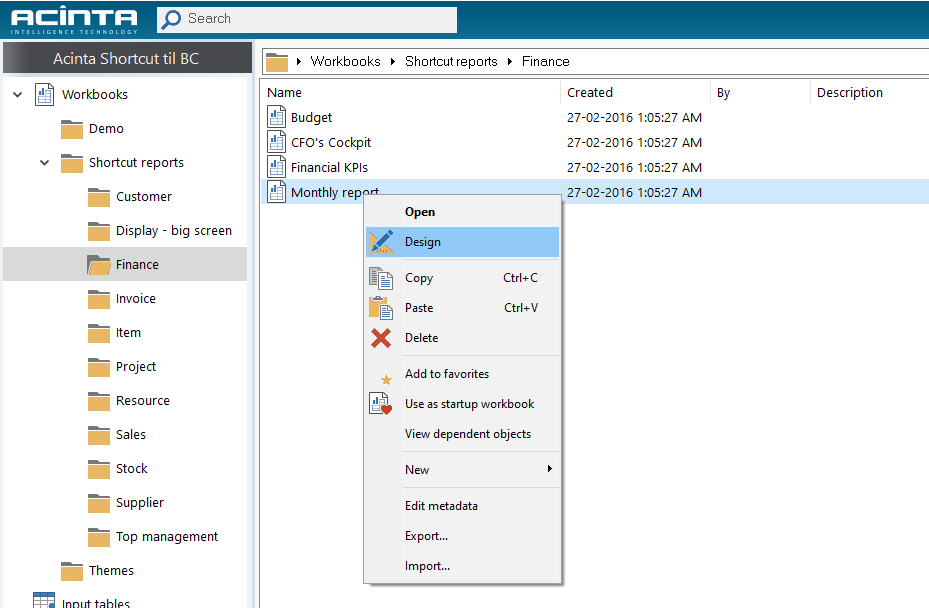
Option 1: Navigate to the workbook folders
- Open the Workbooks folder
- Browse the workbook catalog
- Double-click the workbook you want to open
- Tip! You can open the workbook directly in design mode without loading data: Right-click on the workbook and choose Design
Option 2: Use Search
- Click in the Search box in the top (or press Ctrl+F)
- Type part of the name of the workbook and press Enter
- Open the workbook from the Search results
- Tip! Search can be used to find any global object, like metrics, dimensions etc.
Option 3: Favorites
- If you have marked a workbook as "Favorite" then you can find it in the Favorites folder in the main window (Datashop Expert) or the open dialog (Datashop Workbook)
- To make a workbook favorite, right-click and choose "Add to favorites"
📘 Want More Details?
For comprehensive coverage of all opening methods and navigation techniques, see 5.2 Opening and Navigating Workbooks
Your First Look at a Workbook
Once a workbook opens, here's what you're looking at:
The Canvas
The main area where all your data visualizations (called visuals) appear. This is where tables, charts, and gauges display your data.
The Ribbon (Top)
A toolbar with commands for filtering, analyzing, and interacting with data. Think of it like the ribbon in Microsoft Office.
The Filter Panel (on the left)
Shows active filters and lets you slice your data by different dimensions like time period, customer group, or product category.
Tabs (If Multiple Pages)
Some workbooks have multiple tabs at the bottom, like sheets in Excel. Each tab might show different aspects of your data.
All these features are visible in the screenshot at the beginning of this chapter.
Take It for a Test Drive
Now that you have a workbook open, try these basic interactions:
- Double-click on a chart or table - See what happens (often you can drill down or filter)
- Look at the filter panel - What dimensions can you filter by?
- Check for tabs - Are there multiple pages to explore?
- Read the visual titles - What metrics are being displayed?
Don't worry about breaking anything - you're just viewing data. Exploration is encouraged!
Tips – Opening Your First Workbook
- Keyboard shortcut: Press
Ctrl + Oto quickly open the workbook catalog if you're inside a workbook - Can't find a workbook? Press Ctrl+F to use search, or ask your administrator - you might not have permissions assigned yet
Common Issues – Opening Your First Workbook
Problem: "I don't see any workbooks in the catalog" - Solution: Your user account might not have any workbooks shared with you yet. Contact your administrator to get access to relevant workbooks for your role.
Problem: "The workbook takes a long time to load" - Solution: This is normal for workbooks with lots of data or complex visuals. Large dashboards may take a while to open, depending on how large the source database is, the number of visuals and the complexity of calculation. Inventory calculations are often time consuming. If the data load takes unexpected long time, mention it to your administrator.
Problem: "I accidentally closed my workbook and don't know how to reopen it"
- Solution: In Workbook version, you'll see the catalog again. In Expert, use File → Open Workbook or press Ctrl + O.
Related Topics
- 5.1 What is a Workbook - Deep dive into workbook types
- 5.2 Opening and Navigating Workbooks - Advanced opening methods
- 5.3 The Ribbon - Understanding the toolbar
Next Steps
Great! You've got a workbook open. Now let's learn how to actually explore and interact with your data.