14.9 Using Segmentations in Visuals
Once you've created a segmentation, putting it to work in your visuals is straightforward. Segmentations behave like any other dimension in Datashop—you can drag them to rows or columns, drill down into segments, and apply formatting. The key difference is that segmentations calculate their groups dynamically based on your current filters and data, making them incredibly powerful for interactive analysis.
Whether you're building a dashboard to highlight your top customers or analyzing product performance with ABC groups, segmentations transform cluttered data into clear, actionable insights.
Adding Segmentations to Visuals
There are two ways to add a segmentation to a visual, depending on whether it's an existing, global segmentation, or you want to create an embedded segmentation:
Use global segmentation: Drag and Drop
- Locate the segmentation in your dimension tree (it appears under its source dimension, e.g., "Customer Top 10" appears under "Customer")
- Drag it to the rows, columns, or filter area of your visual
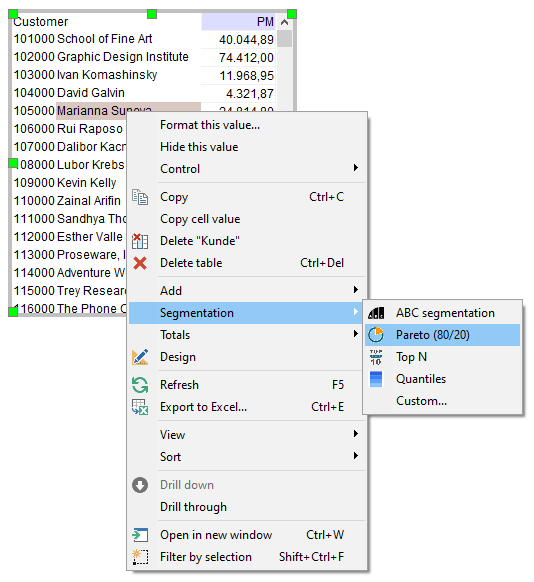
Create embedded: Right-Click Workflow
- Make sure your workbook is in Design mode
- Locate the visual that contains the source dimension, e.g., Customer (or add the dimension first)
- Right-click on the dimension in the visual
- Navigate to Segmentation → Choose your segmentation type (Top N, Pareto, ABC, Quantiles, Custom)
- Configure the segmentation settings (see previous chapters)
- The new segmentation replaces the dimension in the visual
Click OK in the Segmentation editor, and voila:
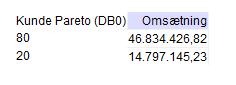
You can add multiple segmentations to the same visual, and they can be based on different dimensions or different metrics for the same dimension (e.g., "Customer ABC by Revenue" and "Customer Top 10 by Profit" together).
How Segmentations Behave
Segmentations act as parent dimensions to their source dimension. This means:
- A "Customer ABC" segmentation behaves like "Customer Group"—but instead of static groups, the ABC segments (A, B, C) are calculated dynamically
- You can use segmentations in the same places you'd use any dimension: rows, columns, or filters
- They work in all visual types except gauges (which don't support dimensions at all)
Dynamic Recalculation: The true power of segmentations is that they adapt to your filters. When you filter to a specific region, time period, or product category, the segmentation recalculates based on the filtered data. Your "Top 10 Customers" automatically becomes "Top 10 Customers in Germany" or "Top 10 Customers This Quarter" without any manual adjustments.
Drilling Down into Segments
One of the most useful features is the ability to drill down into segments to see the individual members:
- Double-click any segment (e.g., the "A" group in an ABC segmentation)
- A new window opens with the same visual, but expanded to show all individual items within that segment
- Close the drill pop-up window after use
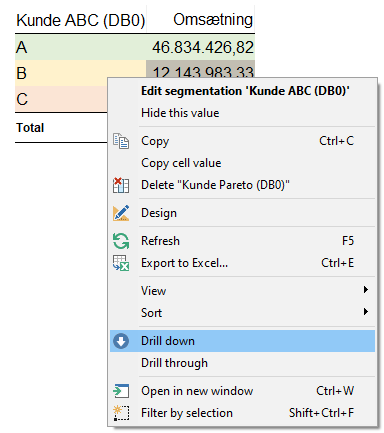
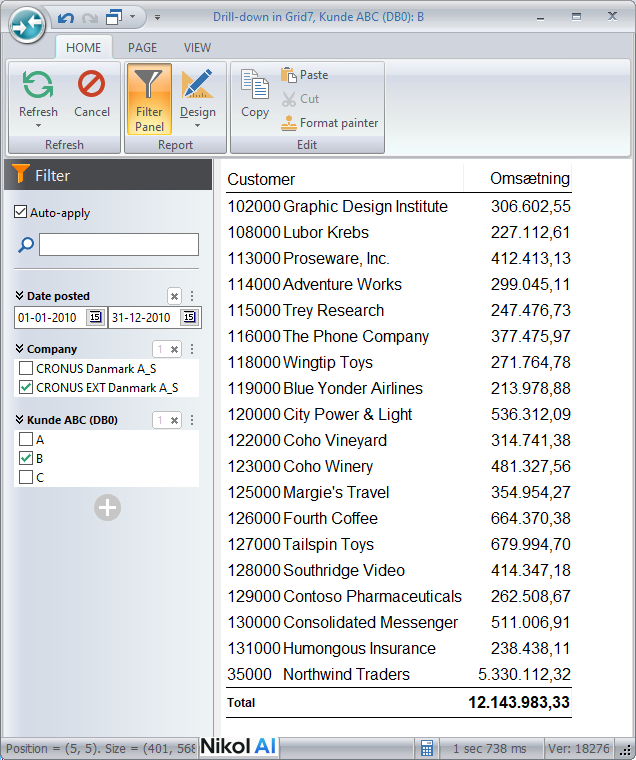
This is particularly valuable when working with residual groups. A "Top 10 Customers" segmentation might show 10 individual customers plus an "All Others" group. You can quickly drill into "All Others" to investigate the remaining customers without cluttering the main view.
Formatting and Customization
Segmentations support the same formatting options as regular dimensions:
- Conditional formatting: Apply color scales, conditional highlights, or icon sets based on segment values
- Color rules: Assign specific colors to segments (e.g., green for "A" group, yellow for "B", red for "C")
- Custom titles: Override the segmentation name in a specific visual without affecting the global definition
Note that while you can override the segmentation's title at the visual level, individual segment names cannot be changed per visual—they inherit from the segmentation definition.
Effective Visual Combinations
Top N in Tables Top N segmentations work exceptionally well in table visuals. Show your top 10 customers individually with an "All Others" residual group that can be expanded when needed. This keeps your dashboard clean while preserving access to complete data.
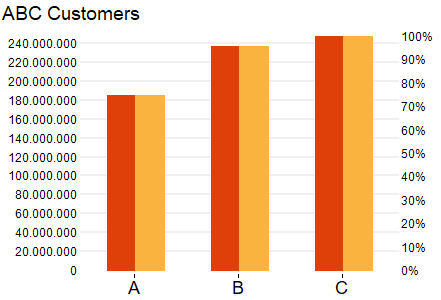
ABC in Bar Charts and Pie Charts ABC segmentations shine in bar charts (showing the cumulative contribution of each group) and pie charts (illustrating the proportion of value by segment). They quickly communicate which items deserve the most attention.
Quantiles for Trend Analysis Use quartile segmentations in line charts to track how different performance tiers trend over time. This reveals whether your top performers are pulling away or if lower tiers are catching up.
Tips – Using Segmentations in Visuals
- Start simple: Add the base dimension first, then right-click to create an embedded segmentation. This workflow is faster than browsing the dimension tree.
- Use drill-down liberally: Train users that they can always double-click segments to see details. This allows you to keep dashboards uncluttered.
- Combine with conditional formatting: Apply color rules to segments to make patterns immediately visible (e.g., green for A-group, red for C-group).
- Remember that segmentations compress information—that's their strength. They make visuals cleaner and more readable by extracting patterns from dense data.
Common Issues – Using Segmentations in Visuals
Problem: Segment values don't change when I apply filters
- Solution: Ensure the segmentation's metric and dimension are not conflicting with your filter logic. Global segmentations always recalculate based on applied filters, but check that your filters are actually affecting the relevant data.
Problem: Too many segments make the visual cluttered - Solution: Use grouped segments (where "Group members in this segment" is enabled) or switch to a segmentation type with fewer segments. For example, use Pareto (2 groups) instead of ABC (3 groups), or Top 5 instead of Top 10.
Related Topics
Next Steps
Explore how segmentations can be used as filters in 14.10 Using Segmentations as Filters, or start applying segmentations to your own dashboards to see the impact on clarity and insight.