9.2 Building Filters
Most filtering happens in the Filter Panel. For filters you want to reuse – or need more control over – Datashop has a filter editor and a condition editor.
Saved Filters
A saved filter is a named filter in the Filters folder of the main window, e.g. Danish customers or Active items. Use it in any workbook; when you change it, every workbook that uses it changes with it.
- Create: main window → Filters folder → right-click → New → Filter (or +).
- Use: drag it from the Object Tree onto a visual, or into another filter – it appears as Filter :
.
The Filter Editor
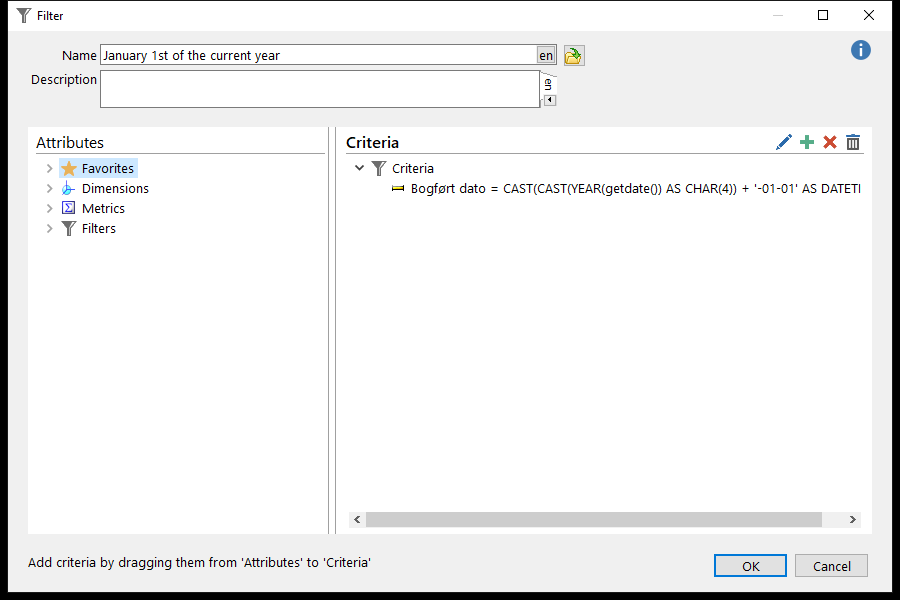 The filter editor: attributes on the left, the filter's criteria on the right.
| Part | What it does |
|---|---|
| Name, Description | The filter's name and description (saved filters) |
| Attributes | What you can filter on: Favorites (your favorite criteria), Dimensions, Metrics and other saved Filters |
| Criteria | The filter's conditions. The buttons above edit, add, delete one or delete all criteria. |
To add a criterion, drag an attribute from Attributes to Criteria (or double-click it):
- a dimension opens the condition editor – see below;
- a metric creates a metric condition, e.g. Revenue > 100.000;
- a saved filter adds a reference to it.
Right-click a criterion for Edit, Copy, Paste, Delete, New filter value (Ctrl+U), New metric condition (Ctrl+M) and Add to favorites (Ctrl+D). Favorites are personal and appear under Favorites in all filter editors.
The Condition Editor
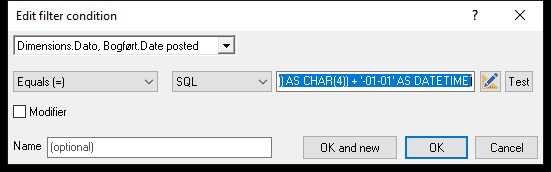
| Part | What it does |
|---|---|
| Dimension (top) | What to filter on, e.g. Date posted |
| Operator | How to compare – see the table below |
| Value type | Normal (a typed value; dates get a date picker), SQL (an SQL expression or sub-select, for database dimensions) or Dynamic Date (for dates – see 9.3 Dynamic Dates) |
| Value | The value. Between and Not Between have two values; Is null / Is not null none. Test shows the result of an SQL or dynamic date value. |
| Modifier | Turns the condition into a modifier – see 9.4 Filter Modifiers and Ignoring Filters |
| Name | Optional name, shown instead of the generated description |
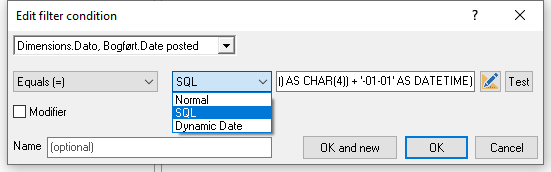
OK and new saves the condition and starts the next one.
Operators
| Operator | Example |
|---|---|
| Equals (=) | Country = Denmark |
| Not equal to (<>) | Status <> Blocked |
| Less than (<), Larger than (>), Less than or equal (<=), Larger than or equal (>=) | Amount >= 1000 |
| Between, Not Between | Date between 01-01-2026 and 31-03-2026 |
| Is null, Is not null | Salesperson is null (no salesperson) |
| Like, Not like | Name like 'A%' (text dimensions only; % matches any text) |
| In, Not in | Region in North, South – separate values with commas, and put values containing commas in double quotes |
Metric Conditions and Top N
A metric condition filters on a figure instead of a dimension, e.g. Revenue > 100.000 – customers below the amount disappear. In the metric condition, Ranking can be set to Top rank or Bottom rank: Top rank <= 10 keeps the ten largest. For most Top N needs, a segmentation is easier – see 14.4 Top N and Bottom N Rankings.
Filtering a Visual or a Column
In design mode:
- Drag a value, a criterion or a saved filter onto a visual to filter it. On a table, dropping onto a metric column filters only that column; hold Shift to filter the whole table.
- Edit a criterion: right-click it in the Element Structure panel → Edit.
- Metric filter for one column: double-click the column in the Element Structure panel → Filter tab → Edit....
Converting Between Local and Saved Filters
Right-click a criterion in the Element Structure panel:
- Convert to global filter saves the visual's criteria as a new saved filter and replaces them with a reference. If an identical saved filter exists, Datashop offers to use it.
- Convert to local filter conditions replaces a saved-filter reference with copies of its criteria, so you can change them for this visual only.