20.2 Starting Modeller and Opening a Project
Modeller works on one project at a time: the data model and everything built on it, stored in a repository – a file, a folder or a database.
Logging In
When projects are registered on your PC, Modeller starts with the login dialog:
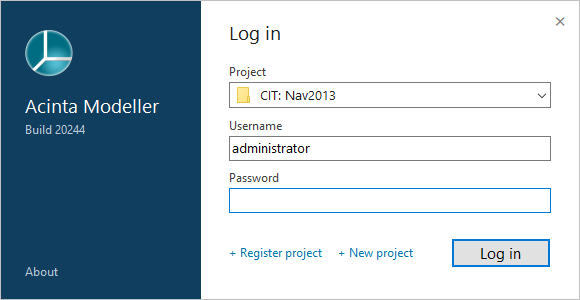 Choose the project, then log in.
- Choose the project under Project. Below each name, in small grey text, is the repository type and where it's stored – point at the list to see all of it. See The Project List in 4.1 Signing In and Choosing a Project.
- Enter your Username and Password and click Log in.
To the left of Log in:
- + Register project adds an existing project – a package, a project folder or a database (SQL Server, PostgreSQL, MariaDB or MySQL). It is added to the list and selected.
- + New project closes the dialog and starts a new, empty project instead of opening the selected one – see Creating a New Project.
Close the dialog without logging in with × or Esc. While Modeller starts, connects and loads the project, the progress indicator shows the current step and how far it has got (build 20296 and later; before, an hourglass) – see Progress Indicator in 4.1.
The same users and passwords as in Datashop apply; any active user of the project can log in. Login or password is incorrect means a wrong name or password, or an inactive user.
Version Messages
Only the user named administrator gets these questions. Other users get Wrong application version, and the project doesn't open.
- Newer Modeller than the project: Modeller asks whether to continue, with a tick box Upgrade project. Upgrading means older Acinta versions can't open the project any more – programs that have it open stop saving, see When the Project Is Upgraded While a Program Is Running in 30.3 Updating Acinta.
- Older Modeller than the project: a warning that you're opening the project with an older version, with a tick box Downgrade project. Better to install the newer version.
Creating a New Project
File (the round button before build 20348) → New Project (Ctrl+N) starts an empty project named New project. + New project in the login dialog does the same. If no projects are registered at all, Modeller skips the login dialog and starts with a new project directly.
The project exists only in memory until you save it. The first Save asks Where do you want to store the project?:
| Choice | Best for |
|---|---|
| File | A single .acproj file – easy to copy and back up; for one person or small projects |
| Project Folder | A folder of files – works with version control such as SVN or Git |
| Database | A SQL Server, PostgreSQL or MySQL database – for several concurrent users |
The project is then registered, so it appears in the login list. Change the name shown there under the project's Properties → Project registration name.
[!WARNING] If you cancel the storage choice while closing a new project, the project may be discarded. Save a new project as soon as you've created it.
Opening Another Project
File → Open... (Ctrl+O) shows the login dialog again; Close (Ctrl+F4) closes the current project. Only one project can be open at a time.
The current project stays open until you have logged in to another one. If you cancel the dialog, the login fails, or you pick the project that is already open, it stays open (build 20251 and later).
[!NOTE] Before build 20251, Open... closed the current project first, even if you then cancelled.
To get a project from another PC or a backup, use Install/Restore – see 26.4 Backup, Restore and Moving a Project.
When the Data Source Can't Be Reached
If Modeller can't connect to a data source, it opens the project anyway and says so in the Messages panel. You can work, but some features – such as checking dynamic views – are disabled until the connection works again.