1.2 Launching Datashop for the First Time
Starting Datashop is straightforward - but what you see when you launch it depends on your role and how your administrator has configured your access. This section walks you through your first launch and helps you understand what to expect.

Two Versions, Two Experiences
Datashop comes in two flavors, each designed for different user needs:
Datashop Workbook
For analysts and business users who primarily work with existing dashboards and reports. This streamlined version focuses on viewing and exploring data.
What you'll see: When you launch Workbook, you'll either go straight to your Startup Workbook (if one has been assigned to you), or you'll see a catalog dialog where you can choose which workbook to open.
Datashop Expert
For power users and dashboard designers who need to create and modify workbooks, metrics, and other objects. Expert gives you the full toolkit.
What you'll see: Expert opens to the main window with access to all design tools, workbook folders, and administrative functions. See 4.2 The Main Window.
💡 Which version do I have?
Check your desktop shortcut or start menu entry - it will say either "Datashop Workbook" or "Datashop Expert". Not sure? Ask your IT administrator or system owner.
Your First Launch
Starting the Application
Simply double-click the Datashop icon on your desktop or find it in your Start menu. The application will connect to your organization's data model (called a "project") automatically.
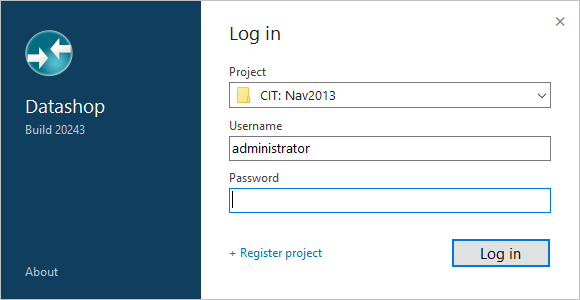
The Login Dialog - What It Means
In most cases, Datashop uses your Windows credentials automatically and you won't see a login screen. However, if you do see a login dialog, here's what it means:
Scenario 1: Password Required
Your administrator has configured password-protected access to the data model. Enter the username and password provided to you.
Scenario 2: User Not Found
If you see an error saying you don't have access, your user account hasn't been created in the data model yet. Contact your administrator or system owner to get set up.
⚠️ Important Note
Access to Datashop is managed through the data model itself, not through Windows permissions. Your IT administrator needs to explicitly create your user account in the project before you can log in.
What Happens Next
Once authenticated, what happens next depends on your version and configuration:
If you have Datashop Workbook: - A Startup Workbook opens automatically (if one was assigned to you) - OR a Workbook Catalog appears, showing all workbooks you have access to
If you have Datashop Expert: - The main window opens, giving you access to all tools and features - From here, you can open workbooks, create new ones, or manage other objects
Quick Orientation Checklist
On your first launch, take a moment to:
- [ ] Verify you can start the application successfully
- [ ] Check if you're using Workbook or Expert version
- [ ] Confirm you can see at least one workbook (or the startup workbook loads)
- [ ] Test basic navigation - can you see data and visuals?
If anything doesn't work as expected, check the troubleshooting tips below.
Common Issues – Launching Datashop for the First Time
Problem: "I see a login dialog but don't know my password" - Solution: Contact your system administrator. They need to either provide your password or configure Windows authentication for you.
Problem: "The application won't start or shows connection errors" - Solution: Verify that you're connected to your organization's network. Datashop needs access to the data model server. If working remotely, ensure your VPN is connected.
Problem: "I'm not sure if I'm in Workbook or Expert" - Solution: Look at the window title bar - it will display either "Datashop Workbook" or "Datashop Expert". Expert users will also see the main window with the project's folders.
Related Topics
- 1.1 About Datashop - Learn what Datashop can do
- 1.3 Opening Your First Workbook - What to do once you're in
Next Steps
Now that you've launched Datashop successfully, you're ready to open your first workbook and start exploring your data!