5.2 Opening and Navigating Workbooks
The main purpose of Datashop is to present data in workbooks from where the user can study and interact with the presented data.
Your Acinta project can contain as many workbooks as you want; One of the workbooks can be assigned a special role as startup workbook, i.e. a workbook assigned to a certain user that will automatically open when that user open Datashop.
Opening Datashop
When Datashop is opened one of three things will happen:
The startup workbook opens
If a startup workbook has been assigned to the user then this will open immediately, regardless which edition of Datashop the user has.
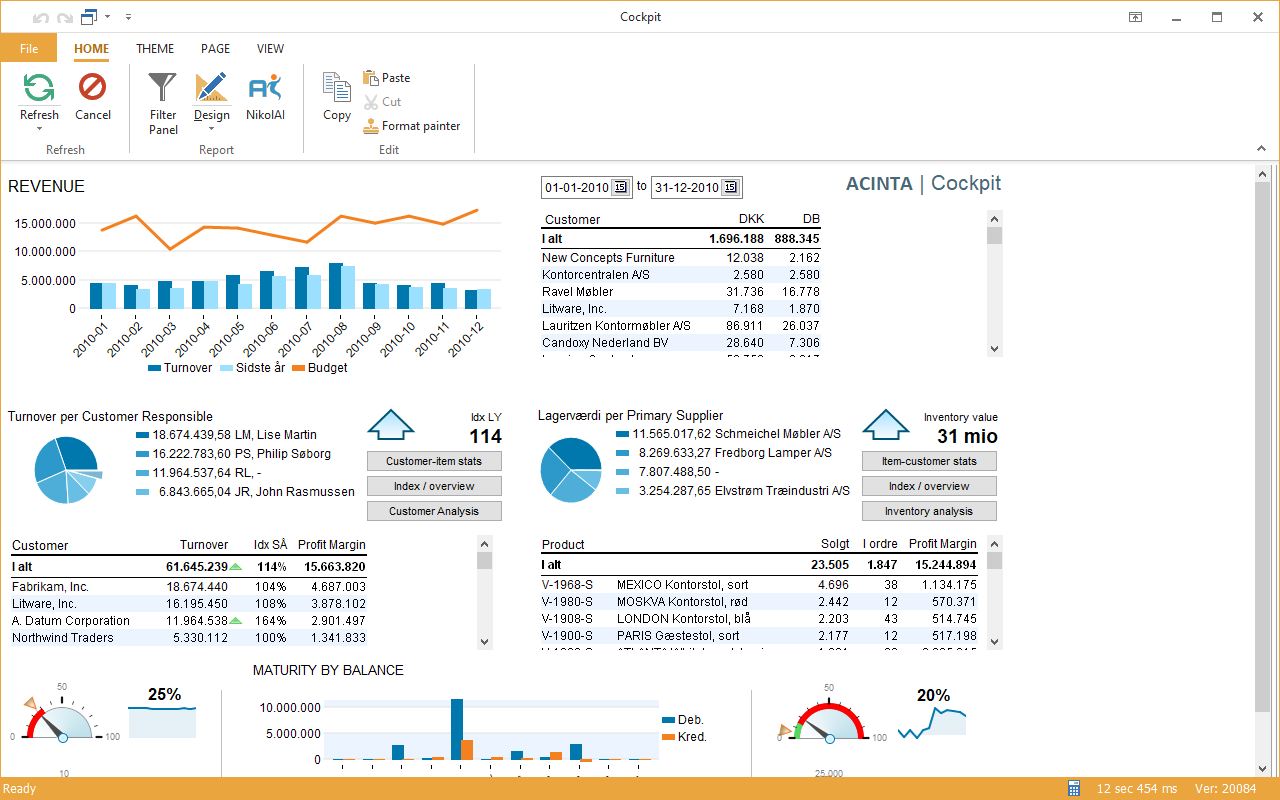
Datashop Expert: The main application form
Users of Datashop Expert will be presented with the main application form. From here the user can inspect the Object structure in the left pane and see which workbooks are available. Workbooks can be opened by double-clicking them.
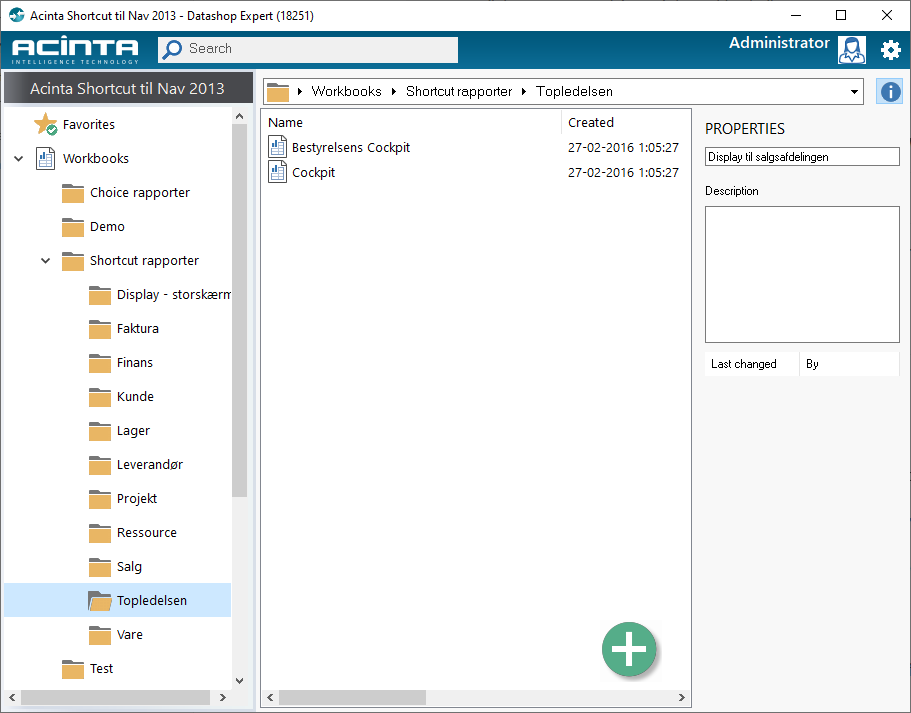
Datashop Workbook: The workbook catalog
Users of Datashop Workbook will be presented with a catalog of workbooks that are available to that user. The user chooses which workbook to open to get started.
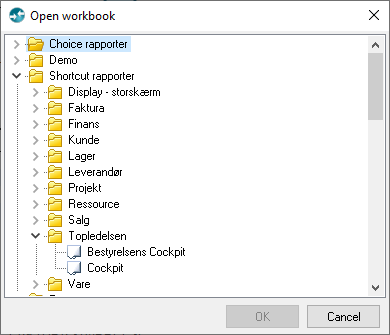
Opening workbooks
Opening workbooks can be done in various ways:
-
From Datashop Expert the workbooks can be explored and opened from the object explorer shown above
-
From inside another workbook you can press Ctrl-O to open the workbook catalog, or use the file menu in the form icon
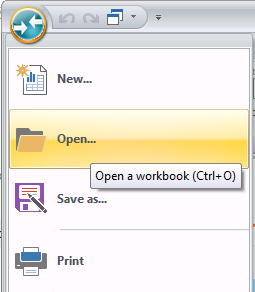
-
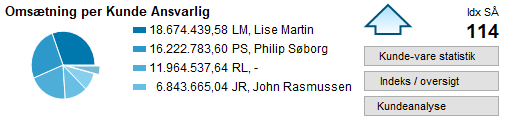
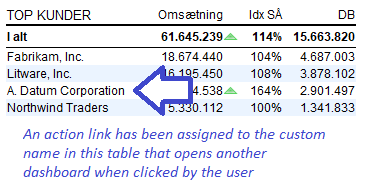
Workbooks can be assigned to links in tables and buttons inside other workbooks as shown below:
Tips – Opening and Navigating Workbooks
- The startup workbook is a convenient way to quickly get to your favorite report or dashboard
- If no workbook opens when you start Datashop and you'd like that then you can either
- Right-click on the workbook you want and select "Use as startup workbook", if you're a Datashop Expert user, or
-
Ask your administrator or super-user to assign a startup workbook to you
-
The startup workbook is sometimes referred to as the user's Cockpit
-
Action links can be assigned to button and tables inside a workbook that opens another workbook. The action link can even transfer filter criteria to the next workbook thus making the workflow more efficient and intuitive.