5.4 Sheets and Tabs
A workbook can have several sheets (also called pages) – like the worksheets in a spreadsheet. Use them to split a large workbook into topics, e.g. Overview, Customers and Products, or to rotate between views on a wall display.
Switching Between Sheets
The sheet tabs are at the bottom of the workbook window. Click a tab to show that sheet.
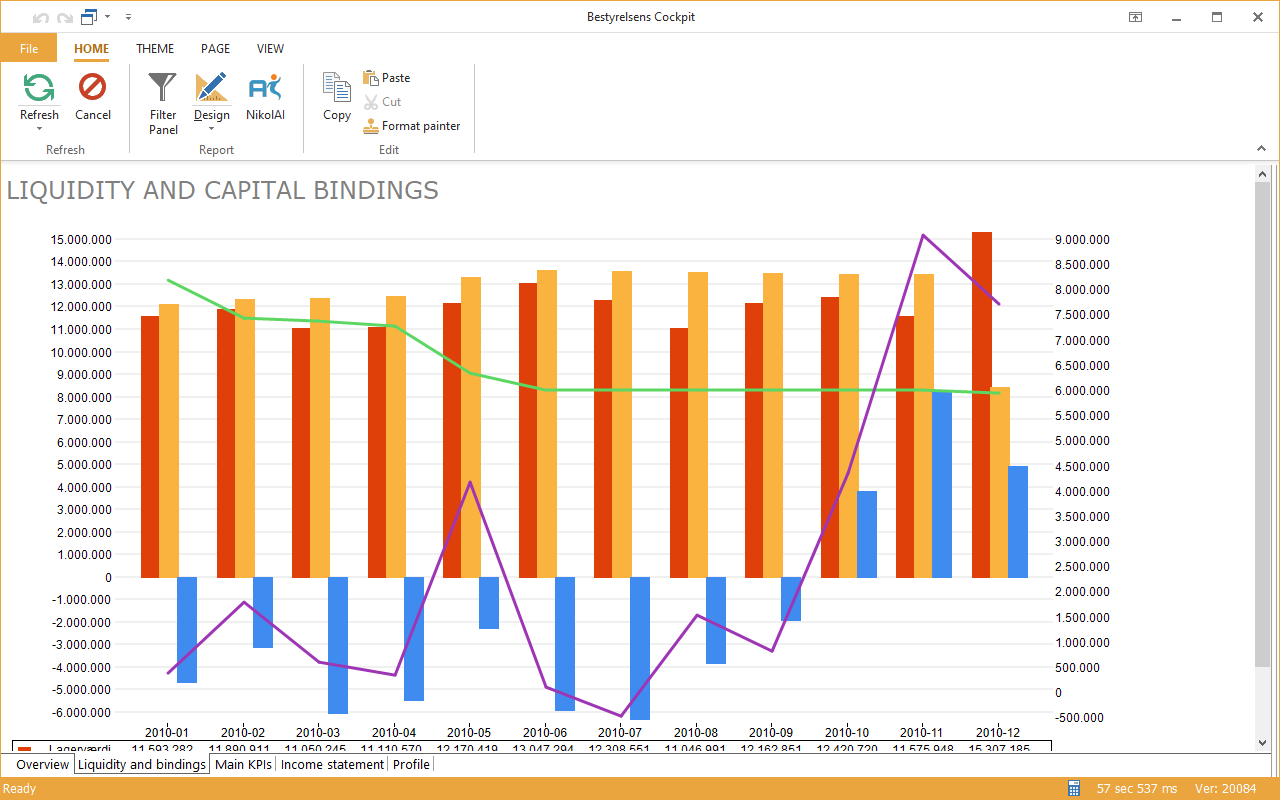 A board cockpit with five sheets: Overview, Liquidity and bindings, Main KPIs, Income statement and Profile.
In normal view, the tabs are only shown if the workbook designer has ticked PAGE → Show tabs. Without tabs, the designer usually provides buttons or links to move between sheets. In design mode the tabs are always shown.
Managing Sheets (Design Mode)
Right-click a sheet tab:
| Command | What it does |
|---|---|
| Insert (Ins) | Adds a new sheet |
| Delete sheet | Deletes the sheet and its visuals |
| Rename sheet | Gives the sheet a new name, shown on its tab |
| Design | Switches to design mode |
| Page type | Free canvas or Tiles – see below |
| Copy page, Paste | Duplicates a sheet with all its visuals |
| Ask nikolAI → Build visual | Lets nikolAI build a new visual on the sheet |
Rename sheet and Delete sheet are also on the PAGE tab of the ribbon.
Page Types
Each sheet has a page type, set with PAGE → Page type:
| Page type | How visuals are placed |
|---|---|
| Free canvas | Place and size visuals freely, anywhere on the sheet |
| Tiles | Visuals sit in tiles on a grid, each in its own frame. Set the number of Columns and Rows, the Spacing and the Tile format in the Tiles group, or use Fit to contents. |
Tiles keep a dashboard tidy and aligned with little effort; a free canvas gives you full control. See Chapter 7 Designing Workbooks.
Other Sheet Settings on the PAGE Tab
| Setting | What it does |
|---|---|
| Page setup... | Paper size, orientation and margins for printing and PDF – see 17.1 Printing and Page Setup |
| Show tabs | Shows the sheet tabs in normal view |
| Open full screen | Opens the workbook in full screen, e.g. for a display |
To rotate through the sheets automatically, use ANIMATION → Switch sheets every N sec – see 5.3 The Ribbon.