18.6 AI Commentary
New in build 20077.
Let the AI read the figures in each e-mail's reports and write a short commentary: what changed, what stands out, what needs attention. Recipients get the key points in a few lines – with your focus and in your words – instead of studying every table.
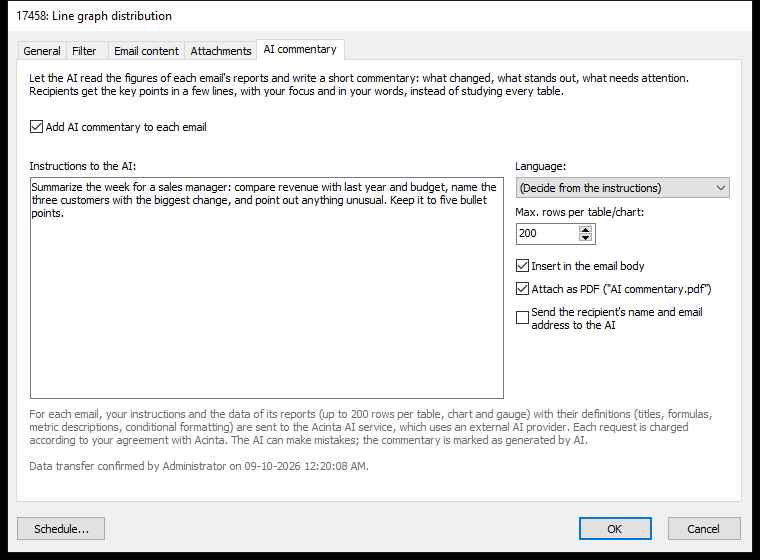 AI commentary with instructions for a sales manager, inserted in the e-mail body and attached as PDF.
Turning It On
On the AI commentary tab, tick Add AI commentary to each email, then:
| Setting | What it does |
|---|---|
| Instructions to the AI | What the AI should comment on, e.g. "Summarise the most important changes compared to last month in max. 5 bullet points." Merge fields such as {Name} work here too, so the instructions can differ per recipient. |
| Templates... | Ready-made instructions to start from, e.g. Executive summary, Early warnings or Top sales opportunities – see Templates (new in build 20140) |
| Language | The language of the commentary. The default, (Decide from the instructions), uses the language you write the instructions in. |
| Max. rows per table/chart | How many data rows per table, chart and gauge are sent to the AI (default 200). More rows cost more and take longer; each e-mail's data is limited to about 100 KB in any case. |
| Insert in the email body | Puts the commentary in the e-mail at the merge field {AICommentary}. Ticking it adds the merge field at the end of the body – move it wherever you like on the Email content tab. |
| Attach as PDF | Attaches the commentary as a PDF file. Its title is the e-mail's subject – or the workbook name if there is no subject. |
| File name | The PDF's file name. Empty: the e-mail's subject as each recipient gets it, e.g. Sales plan week 42.pdf – or AI commentary.pdf without a subject. Your own name can use merge fields, e.g. Commentary {Name} week {Week} – type them, as { doesn't open the list here. .pdf is added. |
| Date in title | Shows the date below the PDF's title (on by default) |
| Send recipient data | Sends the recipient's name, e-mail address and the values of the recipient list's additional columns (e.g. the customer's segment) to the AI. Lets your instructions treat recipients differently, e.g. "For anna@example.com focus on key accounts", and lets the AI address the recipient by name. When off, no personal data about the recipient is sent. |
| Allow web search | Lets the AI search the internet for what your instructions ask for, e.g. "look at the customer's website" or market news. The sources are listed at the end of the commentary. Search terms can contain names from the reports, such as customers or items. Takes longer and costs more (new in build 20143). |
| Visuals... | Which tables, charts and gauges the AI comments on – Entire workbook by default. See Choosing the Visuals (new in build 20222). |
Choose at least one of Insert in the email body and Attach as PDF.
In the PDF's file name, characters Windows doesn't allow (\ / : * ? " < > |) become _, and names are cut at 100 characters. Unknown merge fields are reported as in the subject. If a report attachment has the same name, (AI commentary) is added, e.g. Sales report (AI commentary).pdf.
The commentary ends with Generated by AI - please verify the figures. The AI can make mistakes.
Templates
Click Templates... to pick ready-made instructions from the AI service, e.g. Executive summary, Early warnings or Top sales opportunities. In AI commentary templates, choose a template and click Replace instructions – or Insert at cursor to add it to your own text. Then adapt the text to your reports. Ctrl+Z undoes the change.
The list comes from Acinta's AI service, so it can grow without a new version. If the service can't be reached, you see The templates could not be loaded. Loading the list costs nothing.
Choosing the Visuals
New in build 20222.
By default the AI comments on the data of the Entire workbook – this also includes visuals added later. To narrow it down, click Visuals... and tick the tables, charts and gauges in Visuals for the AI commentary. Text boxes and AI commentary boxes are listed too: they give the AI context, e.g. an explanation next to a chart (build 20225 and later). Untick the ones the AI shouldn't use.
The label next to the button shows the choice. If the chosen visuals are later deleted from the workbook, OK asks you to choose again.
AI Commentary Boxes in the Workbook
New in build 20153.
A workbook can contain AI commentary boxes – visuals in which the AI comments on the report's data. When a distribution sends the workbook, Acinta Server writes these boxes for each report with their own instructions, also when the distribution's own AI commentary is off. Each box is one AI request. The boxes are shown in the PDF. How to insert and set up a box: see AI Commentary Boxes in 8.6 Text and Pictures.
- The AI commentary tab says so: The workbook has AI commentary boxes: they are written for each report with their own instructions and source elements, also when the AI commentary of the distribution is off.
- If you untick Add AI commentary to each email, a warning reminds you that this doesn't affect the boxes. To send the reports without AI commentary, choose another workbook or remove the boxes.
- If the project's AI data policy doesn't allow AI, the boxes show why they are empty.
- The status report's AI COMMENTARY section and the audit log include the boxes.
What Is Sent to the AI
For each e-mail: your instructions, the e-mail text around the commentary (so the AI doesn't repeat your greeting or sign-off), and the data of its reports (up to the row limit per table, chart and gauge) with their definitions – each visual's exact type (e.g. stacked bar chart, cross-tab) and sheet, column titles, formulas, metric descriptions, transformations and conditional formatting. Also sent: the texts of the reports' text boxes and the commentary of their AI commentary boxes (build 20225 and later). Values shown only as a code are sent with their name, e.g. 108000 Kunde A/S, also in the recipient's filter (build 20126 and later). Tables and charts without data are sent as such, so the commentary can say e.g. that there were no orders (build 20136 and later). The data goes to the Acinta AI service, which uses an external AI provider. Each request is charged to the project's customer key according to your agreement with Acinta. When several e-mails would get exactly the same commentary, the answer is reused at no cost.
Data Policy and Confirmation
Your administrator decides in Modeller (Project options → AI sensitivity data policy) whether data may be sent to AI services:
| Policy | Effect |
|---|---|
| Never | AI commentary can't be used. The tab says Not allowed by the project's AI data policy. |
| Per Request | When you save, or click Test..., Datashop lists exactly what will be sent and asks you to confirm – including AI commentary boxes and web searches. Your name and the time are saved with the distribution and shown on the tab. |
| Always | Saved without asking |
The AI Customer Key
AI commentary needs a customer key from Acinta. Without it the tab shows No customer key for the AI service…, and the status report says AI commentary requires an AI customer key in the project options. Contact Acinta to get one.
Your administrator enters the key in Modeller under Project options → AI service customer key:
- Modeller checks the key with the AI service (free of charge) and shows how long it's valid, e.g. The key is valid until 2027-06-30. Tier: full. Customer: … – with a warning if it expires within 30 days.
- If the service rejects the key, the reason is shown and you're asked Save the key anyway?
- To see the status of the current key later, open the option again and click OK.
AI service address in the same dialog can stay empty – it then uses Acinta's AI service (https://api.acinta.dk).
When the key expires within 30 days, has expired or is rejected, Datashop Expert shows a warning when the project opens, asking you to contact Acinta. The check runs in the background; nothing is shown if the AI service can't be reached. The status report and the Acinta Server log warn about an expiring key too.
When There Is No Commentary
The e-mails are always sent, even when the commentary can't be made – e.g. no customer key, the policy forbids it, the report has no data, or the AI service is unavailable or the monthly AI budget is reached. The {AICommentary} merge field is then removed, and the status report's AI COMMENTARY section says why – see 18.8 Status Reports and Troubleshooting.