14.10 Using Segmentations as Filters
Beyond using segmentations directly in visuals, you can apply them as workbook-level filters to analyze specific segments across all visuals at once. Want to see your entire Sales Performance dashboard for only "A" customers? Or analyze trends exclusively for your bottom 20% performers? Segmentation filters make this possible with a single click.
When applied as a filter, a segmentation affects every visual in your workbook—letting you instantly shift your perspective from "all data" to "top performers only" or "specific quartile." This is particularly powerful for executive dashboards where you want to focus attention on key segments without rebuilding visuals.
Adding Segmentations to Filters
Segmentations, like ordinary dimensional units, can be used to filter you visuals. They can be applied on different levels - workbook and individual visual - and can be added in various was, as laid out in 8.1 Filter Concepts. Make sure to get the full picture there!
Quick example: Add a segmentation to the Filter Panel.
Drag and Drop:
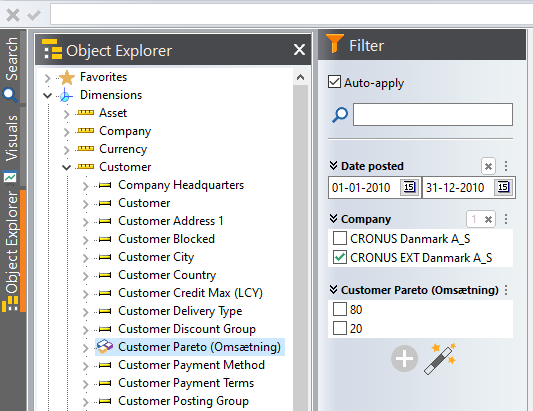
- Open "Object Explorer" in your workbook's left pane
- Locate the segmentation in your dimension tree (under its source dimension)
- Drag it directly to the Filter Panel
Filter Panel Menu:
- Click the [+] button in the Filter Panel
- Navigate through the dimension hierarchy to find your segmentation
- Select it to add it as a filter
Once added, the segmentation appears in the Filter Panel with its segments listed as filter values as shown above.
For more details on working with the Filter Panel, see 7.7 Configuring the Filter Panel.
Selecting Segments to Filter By
After adding a segmentation to the Filter Panel, you can select which segments to include:
- Check specific segments: Select "Q1" and "Q2" to analyze only the top two quartiles
- Exclude segments: Check the segments you want to exclude and set the filter-box to "Exclude values" (⋮ > Options > Exclude values)
For example, in a Customer ABC segmentation, you might: - Check only "A" to focus on your highest-value customers - Check "B" and "C" together to analyze lower-tier customer behavior
[!TIP]
Note as always with filters: Not selecting any value means "All". I.e. to see all values in your report, just leave the filter blank - it means "no filtering".
How Segmentation Filters Work
When you apply a segmentation filter, Datashop:
- Creates a temporary lookup table that maps each member of the underlying dimension (e.g., Customer) to their assigned segment
- Joins this table to the fact data in your visuals through the underlying dimension
- Applies the filter condition to the segment ID based on your selected segments
This means the segmentation filter behaves as if you had added the segmentation directly to each visual—but without the manual work of updating every chart and table individually.
Dynamic Behavior: Segmentation filters are dynamic and responsive. They adapt to other filters in your workbook, including: - Date range filters - Dimension filters (e.g., Item Group, Region) - Even other segmentation filters
For example, if you filter to "2024" and select the "A" segment from a Customer ABC segmentation, the "A" customers are recalculated based only on 2024 data. Change the year to 2023, and you might see a different set of customers in the "A" segment—all automatically.
Combining with Other Filters
You can use both a segmentation filter and its underlying dimension filter simultaneously. For instance:
- Apply a "Customer ABC" segmentation filter for segment "A"
- Also apply a "Customer" dimension filter to select specific customers
- The result shows only the selected customers who also fall within the "A" segment
This flexibility allows for precise multi-layered analysis.
Best Practices for Segmentation Filters
Use Grouped Segments: Segmentation filters work best with segments where "Group members in this segment" is enabled (like ABC, Pareto, or Quantiles). Ungrouped segments (like individual Top 10 customers) are less practical as filters because the Filter Panel cannot calculate the concrete members within the segment; It could be different for each visual.
Focus on Key Segments: For executive dashboards or reports, filter to the most critical segments: - "A" customers for high-value analysis - "Top 10" for performance highlights - "Bottom Quartile" for improvement initiatives
Remember Workbook Scope: All filters in the Filter Panel—including segmentation filters—apply at the workbook level. They affect every visual in the current workbook but do not carry over to other workbooks.
Practical Use Cases
Sales Performance Dashboard: Apply a "Customer ABC" filter selecting only "A" customers. Instantly, every visual in your dashboard—bar charts, tables, trend lines—focuses exclusively on your highest-value customers. This helps executives quickly assess top-tier performance without distraction.
Improvement Analysis: Filter to the "Bottom 20%" using a quantile segmentation to identify underperforming products, regions, or sales representatives. Focus your improvement strategies where they're needed most.
Comparative Segments: Select multiple segments (e.g., "Q1" and "Q4") to compare your top and bottom performers side-by-side across all visuals in the workbook.
Tips – Using Segmentations as Filters
- Segmentation filters are most effective with grouped segments (ABC, Pareto, Quartiles). Avoid filtering by ungrouped Top N segments unless you have a specific reason.
- Combine segmentation filters with date filters to analyze how segment composition changes over time.
- Remember that segmentation filters adapt dynamically—the members within a segment recalculate based on all active filters.
Common Issues – Using Segmentations as Filters
Problem: My segmentation filter does not apply the same way to all visuals
- Solution: Segmentation filters are applied individually to each visual, obeying any filter criteria local to that visual. As a result, the segmentation may group its members differently for each visual. Take this into account when you design the visuals and read their results.
Problem: Combining a segmentation filter with the underlying dimension filter produces no results
- Solution: Ensure the dimension members you selected actually belong to the segment(s) you filtered by. For example, if you filter to Customer "12345" and segment "A," Customer 12345 must be in the "A" segment for any data to appear.
Related Topics
- 14.3 How To Create A Segmentation
- 14.6 ABC Analysis
- 14.9 Using Segmentations in Visuals
- 8.1 Filter Concepts
Next Steps
See also Chapter 15 Consolidations. Consolidations provide another way to group your dimensions that lets you reorganize them to match your actual business model.