18.1 What Distributions Are
A distribution sends a workbook by e-mail automatically, on a schedule – e.g. the weekly sales report to every sales manager each Monday at 8:00, as a PDF. Each recipient can get a version filtered to their own data, and an AI can add a short written commentary on the figures.
Distributions are created in Datashop Expert and sent by Acinta Server, which runs in the background on a server. Your computer doesn't need to be on.
What a Distribution Contains
| Part | What you set | Topic |
|---|---|---|
| Recipients | Who gets the e-mail, and which data each one sees | 18.3 Recipients and Personal Reports |
| Subject and text, with merge fields such as the recipient's name | 18.4 Email Content and Merge Fields | |
| Attachments | The workbook as PDF and/or Excel, plus extra files | 18.5 Attachments and Collated Emails |
| AI commentary | An AI-written summary of the figures in each e-mail | 18.6 AI Commentary |
| Schedule | When it is sent | 18.7 Schedules |
| Filter | A filter for the whole distribution, e.g. only one company | 18.2 Creating a Distribution |
Where You Find Distributions
- Main window: the Distributions + actions folder lists all distributions with their status.
- Workbook window: File → Distributions creates a distribution for the open workbook, or opens one of its existing distributions (new in build 20072).
- Enterprise Manager: the Distributions page, for administrators – with the result of each distribution's last run and its next run (new in build 20228), see 31.1 Enterprise Manager Overview.
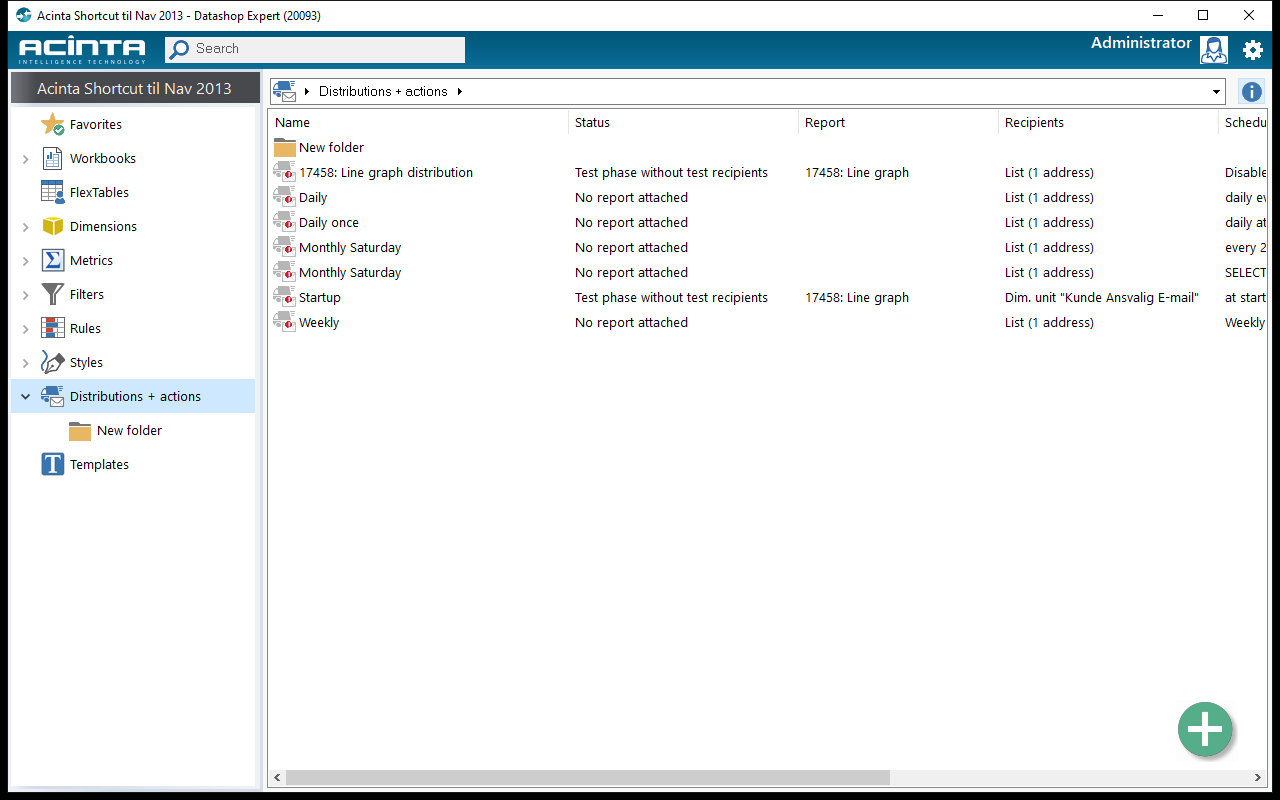 The Distributions + actions folder: each distribution's status, workbook, recipients and schedule. The red ! badge marks distributions that can't be sent.
Status at a Glance
In the Distributions + actions folder, the columns Status, Report (the workbook), Recipients, Schedule and Next run show how each distribution is set up (new in build 20074). The Status column says:
| Status | Meaning | Badge on the icon |
|---|---|---|
| Active | Sends to the real recipients on schedule | – |
| Test phase | Sends to the test recipients only | T (amber) |
| No report attached, No recipients, Recipients "…": …, Test phase without test recipients | The setup is incomplete – fix it before it can be sent | ! (red) |
| Stopped, Schedule disabled, No next run, e.g. the schedule has ended | Not running | – (grey icon) |
Last Run
New in build 20228.
The Last run column shows how each distribution's last run went, e.g. today 06:00: OK, 37 emails, yesterday 06:00: failed, 35 emails (2 failed), never run or not logged:
| Result | Means |
|---|---|
| OK | The run finished without problems |
| OK with warnings | Finished, with warnings in the status report, e.g. about fonts |
| failed | Reports or e-mails failed, or the run stopped |
| running | Acinta Server is sending it right now |
| interrupted | The run never finished – Acinta Server stopped during it |
| not logged | Distribution runs aren't recorded, because Report executions is off in the audit log settings (build 20374 and later; before, "never run") |
The list is read again at most once a minute. Up to build 20378, the column header also said whether Acinta Server was running, e.g. Last run - Acinta Server: running on SRV01; from build 20379 the header is just Last run – see the server status on the distribution's Recent runs tab, or in Enterprise Manager.
The last runs and the server status come from the audit log, so they need it switched on: the runs need Report executions, the server status needs Sessions – see 32.3 The Audit Log. Without it, the column stays empty (before build 20379, the header also said Turn on the audit log to see the server status and the distribution runs). Only scheduled runs by Acinta Server count – not Test..., even though tests are recorded too from build 20375. To read the status reports of the last runs, open the distribution's Recent runs tab – see 18.8 Status Reports and Troubleshooting.
Good to Know
- Changes take effect after a restart of Acinta Server. Datashop reminds you when you save. Ask your administrator to restart the service.
- Distributions run on their schedule – there is no "send now". To see the e-mails without sending anything, click Test... in the distribution editor – see 18.9 Testing a Distribution. To check the real delivery, use the test phase with a schedule a few minutes ahead – see 18.2 Creating a Distribution.
- The e-mail server (SMTP) is set up by the administrator in Enterprise Manager – see 34.1 Email Delivery.
Related Topics
- 18.2 Creating a Distribution
- 18.8 Status Reports and Troubleshooting
- 7.2 Workbook Types – report-style workbooks for printing and PDF