11.5 Style Objects and the Style Editor
A Style object is a named, reusable set of formatting – e.g. Key figure in bold blue with a thin bottom line. Base table parts, charts and rules on it, and they all follow when you change the style. The same style editor is used for every format dialog in Datashop, so this topic also explains the dialogs the ribbon opens.
The Styles Folder
Style objects are kept in the main window's Styles folder.
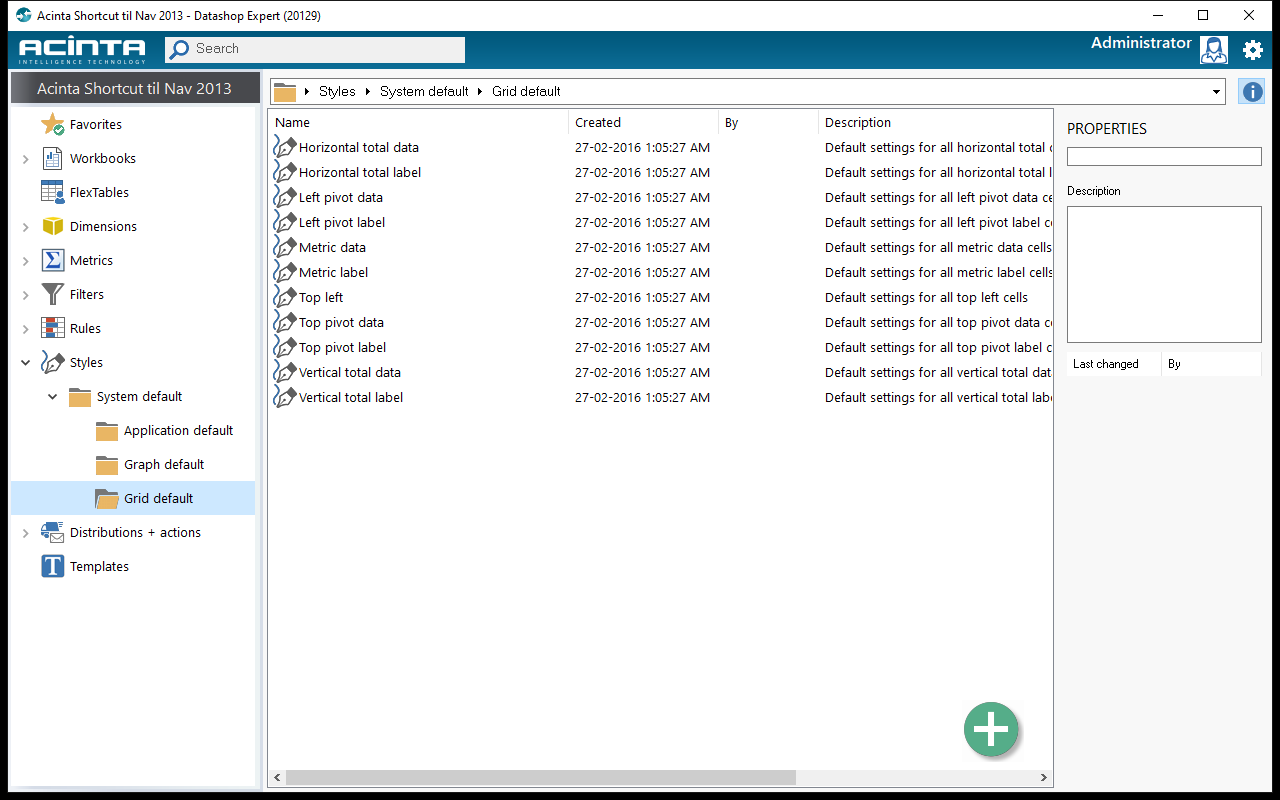 Styles → System default → Grid default: the built-in styles for the parts of new tables.
System default holds the built-in styles:
| Folder | Styles |
|---|---|
| Application default | Application – the base of all styles (Arial 10, black on white) |
| Grid default | The parts of new tables: Metric label, Metric data, Left pivot label, Left pivot data, Top pivot label, Top pivot data, Column total label, Column total data, Row total label, Row total data, Top left |
| Graph default | Graph value axis |
Left pivot means the row dimensions, top pivot the column dimensions; a column total adds up the cells in a column, a row total the cells in a row. In projects created before build 20135 the total styles are called Horizontal total … (column totals) and Vertical total … (row totals). Built-in styles have a Default button that restores their original settings.
Changing Application changes everything that isn't formatted otherwise. Changing a Grid default style affects tables built afterwards.
Creating a Style
- Open the Styles folder (or a subfolder of your own).
- Click + (or right-click → New → Style).
- Give it a Name and Description on the General tab, set the formatting on the other tabs, and click OK.
The style is saved at once and available to everyone in the project.
To use it, open the format dialog of a part – e.g. a rule's style, or a column's Data ... / Label ... in the column dialog – and click the button next to Based on. Everything the part leaves on (automatic) now comes from your style.
The Style Editor
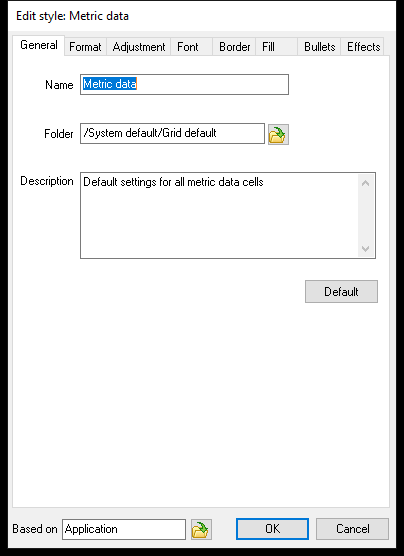 The style editor opened from the Styles folder: General tab and Based on at the bottom.
Every tab can set a value to (automatic) – inherited from the style in Based on. Most tabs end with a Summary of the resulting settings. Which tabs you see depends on where you open the editor: all of them from the Styles folder, only Format from the Numbers group, only Border from More borders....
| Tab | Settings |
|---|---|
| General | Name, Folder, Description (Styles folder only) |
| Format | Category: (automatic) or User defined; Format string for numbers, with ready-made formats to start from – see 11.3 Number and Date Formats; Empty text shown in cells without a value |
| Adjustment | Horizontal and Vertical alignment, Word wrap, Rotation in degrees |
| Font | Font, Style (Regular, Italic, Bold, Bold italic), Size, Color |
| Border | Click the diagram or the buttons to set lines; Line Style, Width and Color; Margin inside the cell (Left, Right, Top, Bottom); Round border size (charts) |
| Fill | Background Color, Gradient with type and Rotation, background Image (Stretch, Tile or Normal with position) |
| Bullets | Type: None, Bullets or Numbers, for cells that show several values; Advanced ... for prefix, suffix and spacing |
| Effects | Show shadow and Transparency (charts) |
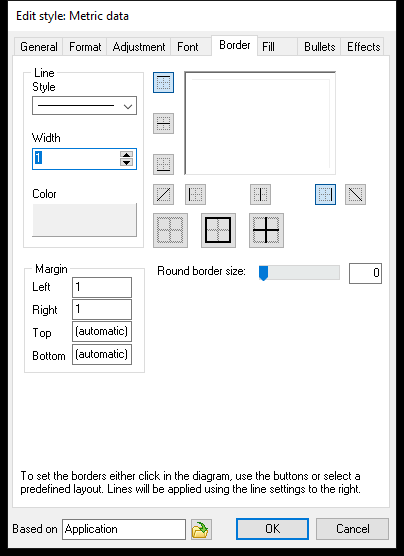 Border: line settings on the left, the diagram and buttons on the right, margins below.
Border Tab in Detail
Choose the line Style, Width and Color first, then click where the line should go – in the diagram, or with the buttons for top, middle, bottom, left, right and diagonal lines. The large buttons clear all borders, add an outer frame or add the inner lines. Right-click a button → Edit line for that line's own settings, or Automatic to inherit it.
Other Format Dialogs
| Dialog | Opened from | Settings |
|---|---|---|
| Format bullets | Bullets tab → Advanced ... | Prefix, Suffix, spacing Left and Right, alignment |
| Format line | Border tab → right-click a line → Edit line | Style, Size, Color (also picked from the screen), Visible |
| Shape format | Rule indicators, gauge indicators, consolidations | Shape, Fill, Dimensions (width, height, rotation), Border |
Text visuals use the ribbon's Bullets and Numbered list buttons instead of the Bullets tab.
Tips – Style Objects
- Create a few Style objects for recurring elements – key figures, headings, notes – and base parts on them. A later design change is then one edit.
- Leave settings on (automatic) unless you need them: a style that sets only the font color keeps everything else from its base.
- Keep your own styles in a folder of their own, apart from System default.
Common Issues – Style Objects
Problem: I changed a Grid default style, but my tables didn't change. - Solution: Grid default styles are copied into a table when a part is added. They affect new tables; change existing ones with a table style or the ribbon.
Problem: Application style does not allow automatic settings. - Solution: Application is the top of all styles, so every setting must have a value. Set the listed settings, or click Default.