14.8 Custom Segmentations
About Custom Segmentations
With custom segmentations you can create a wide variety of segmentations of any dimension in your data model. The custom mode comes in handy when the guided types Pareto, ABC, Top N and Quantiles don't fit your requirements.
How to create a custom segmentation
Create a Custom segmentation (see 14.3 How To Create A Segmentation):
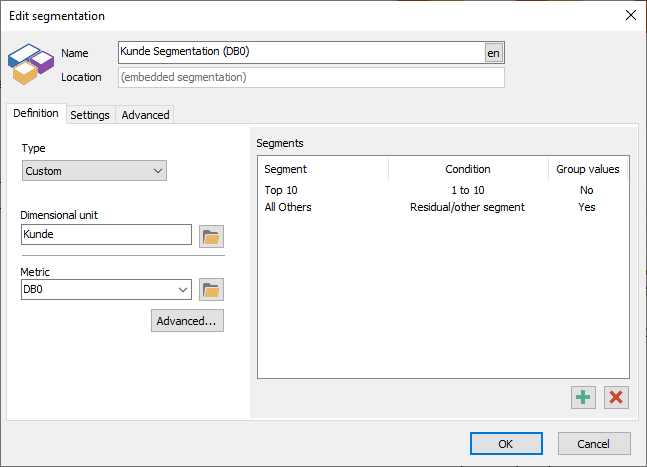
In Custom mode you create and define all segments manually. Use the [+] and [x] buttons to add/remove segments.
Segments
The fundamental part of creating a custom segmentation is that you get to define all segments manually.
Whereas guided types, such as described in the previous chapters, let you enter some basic information, which is then converted to actual segments in the background.
You see a list of defined segments in the right side of the Definition tab.
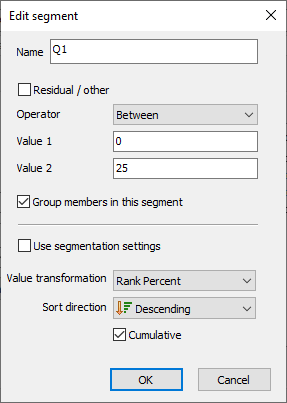
Click [+] to create a new segment, or double-click an existing segment to edit it in the segment editor:
| Setting | Description | ++++++++++++++++++ |
|---|---|---|
| Name | Type a name for the segment that must be shown in visuals | |
| Residual / other | If you enable this option the you can't define conditions for the segment. Instead, all members that don't match the conditions for any other segment it put here, in the Residual group. | |
| Operator | You can define the condition for the segment using a range of operators: =, <, >, <>, <=, >=, "Between" and "Not Between". The operator works in conjunction with Value1 and Value2 below. | 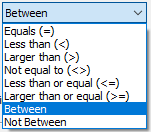 |
| Value 1, Value 2 | These are the segment boundaries, so for example if the operator = "Between", Value 1 = 0, Value 2 = 50 then the segment applies to metric values between 0 and 50. Remember that the metric undergoes processing in accordance with the Value type. See below. | |
| Group members in this segment | When this option is selected, all members in the segment will displayed as one value in your visuals. This is typical of Pareto, ABC and Quantile segmentations, whereas the Top N segmentation doesn't group items, it shows them individually, e.g. the top 10 Customers. | |
| Use segmentation settings | When this option is selected then the settings below are not applied; Instead they are inherited from the general settings of the segmentation. See chapter on Segmentation Settings below. | |
| Value transformation | A value transformation that applies to this segment only. See Segmentation Settings below for a definition of Value type | |
| Cumulative | Defines the segment as cumulative. See Segmentation Settings below for a definition of Cumulative | |
| Sort direction | Defines the sort direction for this particular segment. See Segmentation Settings below for a definition of Sort direction |
Segmentation Settings
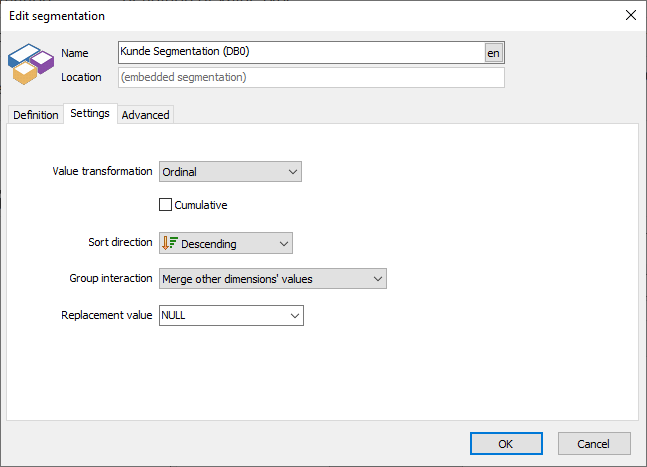
Value Transformation
This setting is vital for how the segmentations works and directly affects how a segment calculates the boundaries based on the segmentation metric's values.
The meaning of each setting is described in the table below. For the sake of giving meaningful examples we assume the following:
- The segmentation's metric is "Profit Margin"
- The segmentation's dimensional unit is "Customer"
- Minimum value is $0, maximum is $90,000
- The total Profit Margin for all customers is $2,835,400
- There are 500 customers
- We're examining the concrete value $16,555
| Value transformation | Description | Common segmentation types | Transformed value | Example |
|---|---|---|---|---|
| Ordinal | The value of the metric is used as-is for testing the segment boundaries, i.e. without transformation. | "Custom" | $16,555 | Fits in segment "Silver Customers" with boundaries [10000, 50000] |
| Percent of Total | The metric value is transformed to a % of the total value, i.e. $16,555 / $2,835,400. Note: This transformation is most commonly used in conjunction with the Cumulative option. | "ABC", "Pareto". Note: The values are cumulated. | 0.58%, or - say - 82% cumulated | Fits in segment "B" of "Customer ABC" |
| Rank | All values in the data are sorted according to the sort direction and transformed to their position in the ordered list. So for example, if 16,555 is the 234th largest value then the transformed value is 234 | "Top N" | 234 | Fits in the "All Others" segment in "Top 10 Customers (Profit Margin)" |
| Rank Percent | The value's Rank is normalized to the range [1..100], i.e. 100 * 234 / 500. This type is required for Quantile segmentations. | "Quantiles" | 46.8% | Fits in segment "Q2" of "Customer Quartiles" |
Cumulative
This options causes the transformed values to be accumulated, meaning, their values are added up from the first value to the current value with respect to Sort Direction.
Example use of Cumulative option with the Percent of Total transformation, sort direction Descending:
| Turnover | Rank | % of total | Cumulative |
|---|---|---|---|
| $134,987 | 1 | 4.76% | 4.76% |
| $98,435 | 2 | 3.47% | 8.23% |
| $76,482 | 3 | 2.70% | 10.93% |
| ... | ... | ... | ... |
| $100 | 500 | 0.003% | 100.00% |
| $2,835,400 |
Sort Direction
The direction in which to sort the values:
- Ascending: From lowest to highest number
- Descending: From highest to lowest number
The sort direction only applies under certain circumstances as shown in the matrix below:
| Not cumulative | Cumulative | |
|---|---|---|
| Ordinal | No | Yes |
| Percent of Total | No | Yes |
| Rank | Yes | Yes |
| Rank Percent | Yes | Yes |
Group Interaction
With this setting you can control how grouped segments interact with other dimensions in the visual's layout:
- Split: Group values are split among the values of the other dimension
- Groups other dimensions: Grouped values force all others dimensions' values to be merged
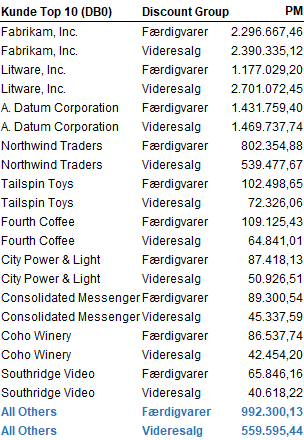
The effect is perhaps best explained using an example. In the below table visual there are the segmentation and the Discount Group dimensional unit. When Group Interaction is "Split", the "All Others" segment is split in two; One for "Færdigvarer" and one for "Videresalg".
Using "Split":
Using "Groups other dimensions":
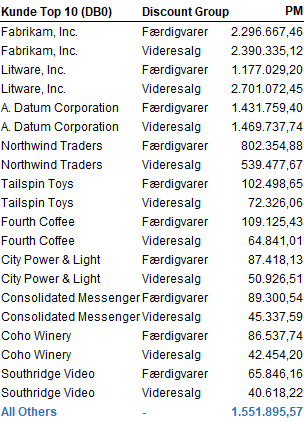
You can choose a Replacement Value to display in the grouped cell.
Replacement Value
This setting applies if you set "Group Interaction" to "Merge other dimensions' values". By default it is empty (NULL).
Advanced
[!NOTE]
The following settings are for advanced purposes only. In most cases you shouldn't need to adjust them.
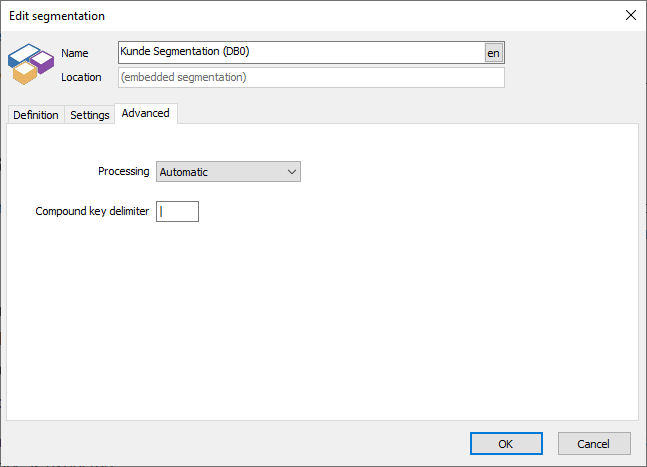
Processing
This option controls whether segmentation calculations are performed in the database or in the client, i.e. on the user's PC. When set to "automatic" Datashop will decide where to process data and will always choose database processing, if it is supported by the database.
Options:
- Automatic: Datashop decides where to process the segmentation. It will usually choose database processing if supported by the database, and use client processing as fall-back option.
- Database: Forces segmentation calculations to be performed on the database server.
- Client: Forces segmentation calculations to be performed on the client (user's PC).
It is recommended to leave this option as automatic, but you can change it if for example you suspect it can improve performance, or your segmentation doesn't work as expected.
Compound key delimiter
During segmentation processing, Datashop will generate sorting keys for the temporary segmentation lookup table that contain both the dimensional unit's ID, the rank, and the segment ID.
For example, consider the segmentation "Customer Top 10". The customer with ID '25000' and rank = 2, falls into segment 0 (the "top 10" segment). The segmentation lookup table will hence store the key '0| 2|25000', where '|' is the compound key delimiter.
There's no need to change this setting unless you suspect it causes problems.
Limitations
- 1 member = 1 segment. Although you may define overlapping segments, every element in a segmentation will always be assigned to only one segment (or to no segment, if no segment is matching).
- Only one residual. It's kind of obvious, but there can only be one residual group in a segmentation.
- Negative numbers and percent of total segmentations. Negative numbers are not expected in percent-of-total segmentations like Pareto and ABC.
Tips – Custom Segmentations
- Only use Custom mode segmentations when a Guided mode doesn't suit the purpose. It's easier to make a mistake in Custom mode.
- Try start by creating a guided segmentation and then switch to Custom mode. This can save you some work and illustrates how segments are built for different scenarios.