21.2 Connecting to a Database
Add a data source with HOME → New → Add data source, or right-click Data Sources in the Object Tree → Add data source. The Database Connection dialog opens.
The Database Connection Dialog
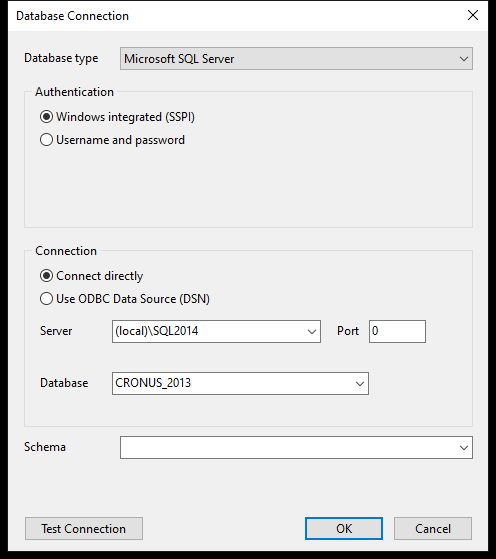 A SQL Server data source with Windows authentication.
| Setting | What to enter |
|---|---|
| Database type | Microsoft SQL Server, PostgreSQL, MariaDB or MySQL |
| Authentication | Windows integrated (SSPI) – SQL Server only, uses the Windows account of whoever runs Modeller, Datashop or Acinta Server – or Username and password |
| Connection | Connect directly to a Server (with Port), or Use ODBC Data Source (DSN) |
| Database | The database – the list shows the server's databases |
| Schema | The schema to use (SQL Server and PostgreSQL), e.g. dbo |
Test Connection checks the settings and shows Connected successfully or the error. Click OK to add the data source: Modeller connects and loads the list of tables and views.
For SQL Server, the port field isn't used – to use a non-standard port, write it in the server name, e.g. myserver,1435.
Credentials and Security
- With Windows integrated, Datashop users and Acinta Server connect with their own Windows accounts, which all need read access to the database.
- With Username and password, everyone uses the same database account. The user name and password are saved in the project. Use an account with read access only, and limit who can open the project repository.
- Avoid
;in database passwords – it breaks the connection string.
Changing a Connection
DATA SOURCE → Connection (Ctrl+Alt+C), or Configure... under Properties. If you point the data source to another server or database, Modeller warns that tables not found in the new database must be renamed, deleted or will become invalid – see 21.3 When the Source Database Changes.
Data Source Options
DATA SOURCE → Options (Ctrl+Alt+O), or Data source options... under Properties, opens the data source's options (the dialog is titled Project Options):
| Folder | Examples |
|---|---|
| Database | Query timeout (600 s), Connection timeout, Data source read only, Maximum number of allowed connections to this source (SQL Server 10, PostgreSQL 5, MySQL/MariaDB 1), Startup script |
| SQL | Temporary tables (Prefix of temporary tables names, Schema for temp tables), Date format, Enforce NULL equality in joins (on), join and table hints, Pre-populate SQL script |
| Dynamic Views | How dynamic views are used and materialized – see 22.2 Dynamic Views. Allow bypassing materialization (off) lets Datashop Expert users query materialized views for current data – see Current Data Instead of the Stored Result in 27.2 Materialized Dynamic Views and Caching (build 20306 and later) |
| Optimization | Caching time (seconds), pre-aggregation – see Chapter 27 |
| Colors | The color of the source's tables in the Warehouse diagram |
Double-click an option or click Edit option to change it. Most projects can keep the defaults.
Startup Script
Startup script is your own SQL that runs on the data source each time the project is loaded – by Datashop, Modeller or Acinta Server. Use it for maintenance, optimizations or special database settings. It's empty by default.
You don't need it to clean up temporary tables: Acinta does that automatically (see Temporary Tables below). An existing startup script is kept and still runs once per project load.
Maximum Number of Connections
Maximum number of allowed connections to this source limits how many connections each client (Datashop, Modeller or Acinta Server) opens to the database server. 0 means no limit. Defaults: SQL Server 10, PostgreSQL 5, MySQL and MariaDB 1.
On MySQL and MariaDB, temporary tables are only visible to the connection that created them. With the default of one connection, reports can reuse each other's intermediate results. With more connections, reports run in parallel but can no longer reuse those results – results stay correct, but reports may be slower overall.
Temporary Tables
While calculating, Acinta creates temporary tables in the data source – in Schema for temp tables, or the current schema if none is set.
On PostgreSQL, Acinta removes leftover temporary tables (named DSTMP<date>_…) automatically: when a project is loaded, and once a day on Acinta Server. Only tables older than yesterday plus the Caching time are removed, tables in use are skipped, and at most 1000 tables are removed per run – the rest follow in later runs.
Removing a Data Source
Right-click the data source → Remove. It can only be removed when none of its tables is used in the model; Modeller removes it without asking, so don't save if you change your mind.
Common Issues – Connecting to a Database
Problem: Unable to connect. - Solution: Check server, database and credentials with Test Connection. For Windows authentication, check that your Windows account has access to the database.
Problem: No tables were found in the specified warehouse data source. - Solution: The account may lack permissions to see the tables, or the wrong database or schema is chosen.