1.4 Your First Analysis - Exploring a Workbook
Now comes the fun part - actually working with your data! This section introduces you to the core interactions that make Datashop powerful: clicking, filtering, drilling down, and understanding what you're looking at. No prior experience needed - we'll start with the basics.
Understanding What You're Seeing
Before diving into clicks and filters, let's decode what's on your screen.
Visuals: Your Data, Visualized
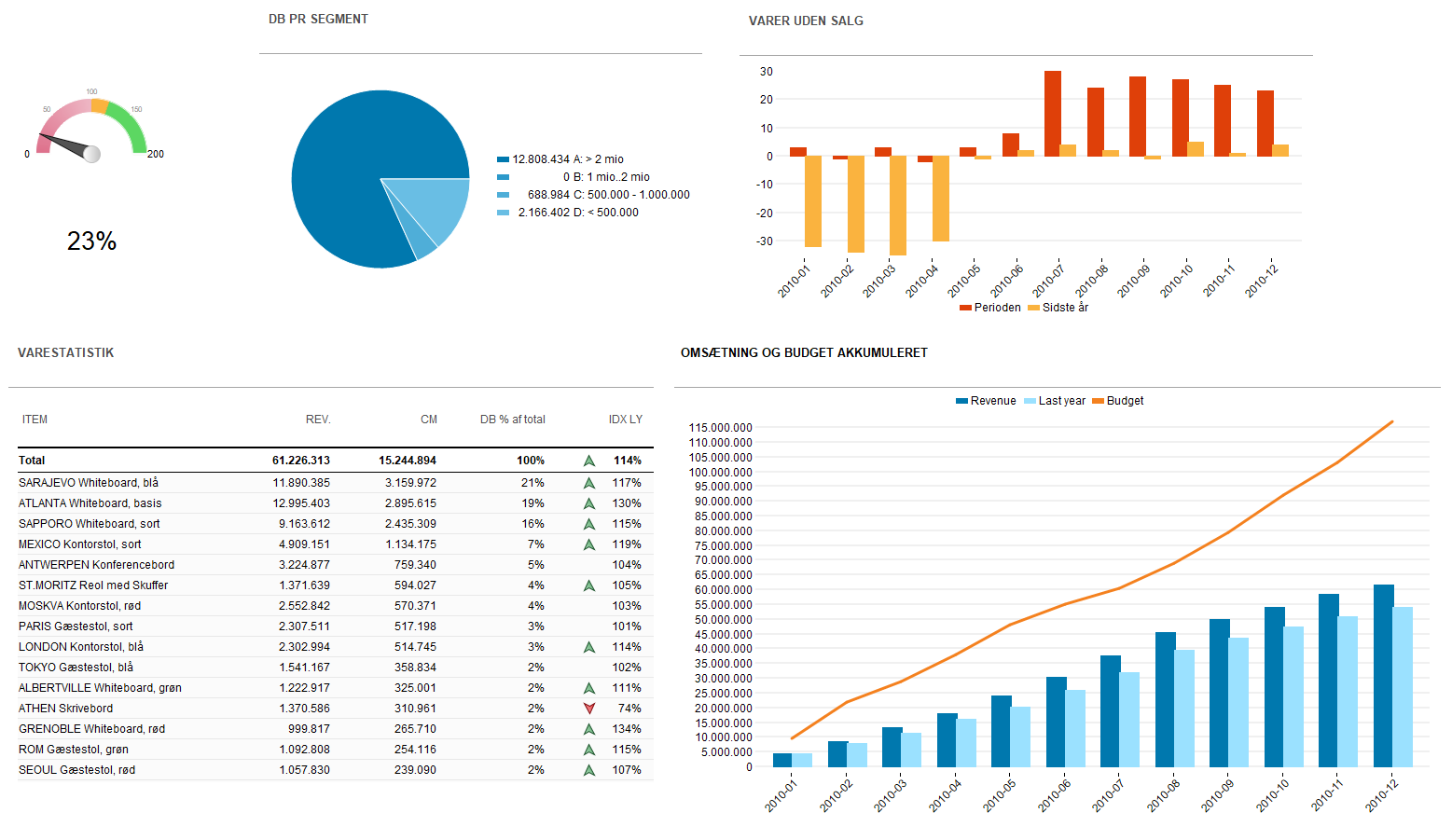
The vital part of a workbook is the visuals that show data from your system(s) - whether it's a table, chart, or gauge. Each visual shows you specific data in a specific way:
Tables & Cross-tables Rows and columns of data, perfect for detailed analysis and finding specific values.
Charts (Bar, Line, Pie, Mixed) Visual representations that make trends and comparisons pop. Bar charts compare categories, line charts show trends over time, pie charts show proportions.
Gauges Single-value indicators that show performance against targets or benchmarks. Think speedometer, thermometer or simple numbers for your KPIs.
Dimensions: The "What" and "Who"
Dimensions are the categorical aspects of your data - the things you group by, filter on, or drill into: - Customer (which customer?) - Product or Item (which product?) - Time (which month, quarter, year?) - Location (which region, country, store?) - Employee (which salesperson, team?)
💡 Think of dimensions as your data's address book They help you organize and navigate to the specific slice of data you want to see.
Metrics: The "How Much"
Metrics are the aggregated numerical values - the actual measurements you care about: - Turnover (sum of sales amounts) - Profit Margin (turnover minus costs) - Quantity Sold (count of units) - Number of Customers (count of unique customers) - Average Order Value (turnover divided by number of orders)
📊 Metrics = Aggregated Facts Behind every metric is an aggregation: SUM, COUNT, AVERAGE, MIN, MAX. Datashop handles this automatically - you just see the result.
Your First Interactions
Click to Drill Down
One of the most powerful features in Datashop is drill down - clicking on a value to see the detail behind it.
Try this:
- Find a table or chart showing data by a dimension
-
Tip! Look for a grouped i.e. higher-level dimension, like Customer Group, Item Group, Month etc; They automatically break down to their child dimension, i.e. Customer, Item and Date respectively
-
Double-click the dimension items:
- Bar graphs -> Any bar
-
Tables -> Any dimension value, e.g. "September 2025"
-
Watch as the data expands to show more detail in a new window
- After viewing the data you can close the pop-up window
Example: Click on "Europe" in a regional sales chart → see sales broken down by individual countries in Europe.
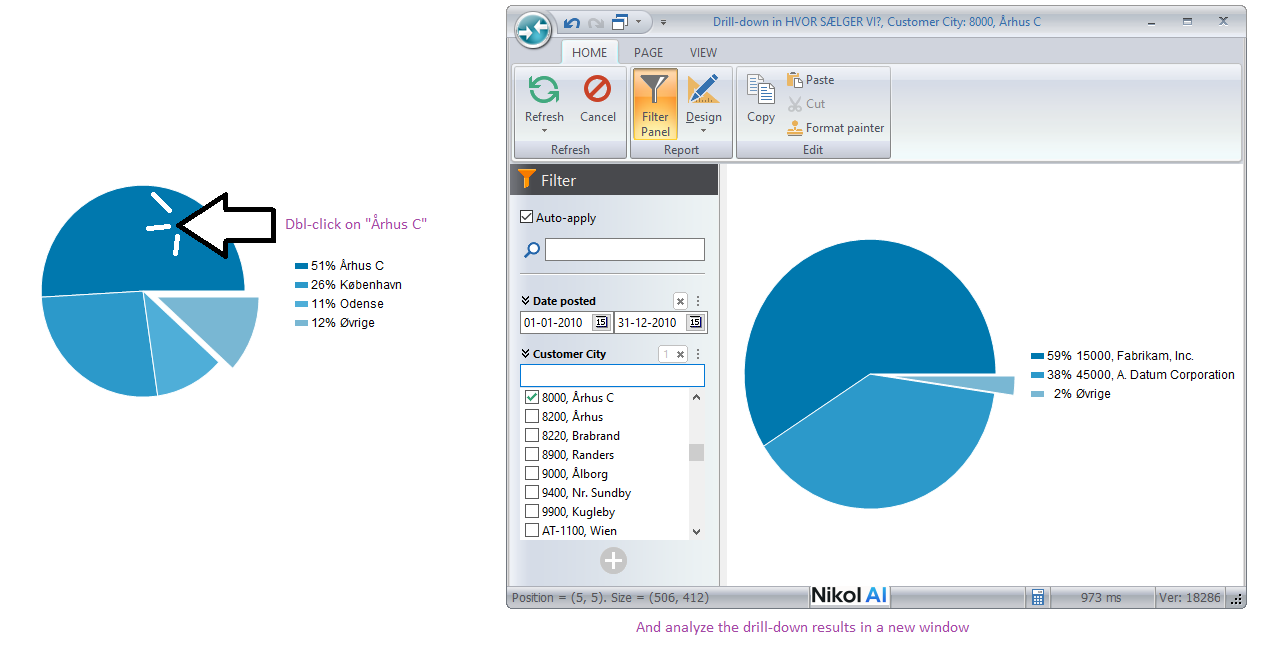
⚡ Power User Tips You can sometimes drill down multiple levels. Click Year → Quarter → Month → Date. Each click reveals more granular detail.
When you reach the lowest level of a dimension, drill-down will lead to a drill-anywhere, where you get to choose a target dimension
You can invoke drill-anywhere at any time using the context menu!
Use the Filter Panel
The Filter Panel on the left side shows you all active filters and lets you control what data you're viewing. You can think of the Filter Panel like shopping shoes online: You can narrow down your search by selecting shoe size, gender, color, material, style etc. Only here you get to choose from all dimensions in your data model, like Customer, Item, Vendor, Period, Location etc.
Try this: 1. Click on any dimension in the filter panel (like "Year" or "Customer Group") 2. Select or deselect values 3. Watch your visuals update in real-time
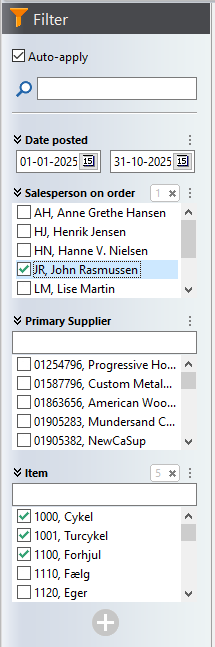
Filter combinations are powerful:
Select Date posted between 2025-01-01 and 2025-12-31, Salesperson = 'JR', Item = [1000, 1001, 1100] → All visuals in your dashboard will now only show data from your selection.
Sort Your Data
Tables can be sorted to find top performers, lowest values, or alphabetical order:
Try this: 1. Hover over a column header in a table 2. Look for sort arrows or right-click 3. Choose ascending (A→Z, smallest→largest) or descending (Z→A, largest→smallest)
![Screenshot: Column header with sort arrows highlighted]
Reading the Story in Your Data
As you interact with your workbook, think about what the data is telling you:
- Trends: Is turnover going up or down over time?
- Outliers: Which customers or products stand out?
- Comparisons: How does this quarter compare to last quarter?
- Distributions: What percentage of sales comes from the top 10 customers?
📘 This is Analysis
You're not just looking at numbers - you're uncovering insights, asking questions, and making data-driven decisions. That's the power of BI!
Key Concepts Recap
Before moving on, let's cement these concepts:
| Concept | What It Is | Example |
|---|---|---|
| Dimension | Categorical data you group or filter by | Customer, Product, Time, Region |
| Metric | Aggregated numerical measurement | Turnover, Profit Margin, Quantity |
| Visual | Any chart, table, or gauge displaying data | Bar chart, Cross-table, Speedometer gauge |
| Drill Down | Click to see more detail | Click "Europe" → see countries |
| Filter | Limit data to specific values | Show only 2024 data |
Tips – Your First Analysis - Exploring a Workbook
- Don't be afraid to click! You're exploring, not editing. You can always reset filters or close and reopen the workbook.
- Start broad, then narrow - Begin with high-level views (yearly totals, all customers) then drill down and filter to specifics.
- Use multiple filters together - Combining filters (Year + Region + Product Category) creates powerful, focused views.
- Look for visual cues - Colors, sizes, and positions in charts often indicate importance or performance.
Common Issues – Your First Analysis - Exploring a Workbook
Problem: "I filtered my data and now I can't see anything"
-
Solution: Check the filter panel - you might have selected filters that result in no matching data. Clear some filters and try again.
-
Problem: "I don't understand what this chart is showing me"
-
Solution: Look at the chart title and axis labels. What dimension is on the X-axis? What metric is being measured? Still confused? Ask nikolAI to explain it!
Related Topics
- 6.1 Exploring Data in a Workbook - More exploration techniques
- 6.2 Drilling Down and Drilling Through - Advanced drilling
- Chapter 9 Filters - Deep dive into filtering
Next Steps
You now know the basics of exploring data in Datashop! But what happens when you get stuck or need help? Let's cover your support resources.