10.4 Quick Transformations
A quick transformation shows a metric column in a different way: last year's figures, the index to last year, year-to-date, each row's share of the total, a running total. It takes two clicks and needs no new metric – the project's metric is unchanged, only this column is transformed.
Applying a Quick Transformation
In design mode:
- Right-click a value in the metric column → Transformation, or right-click the metric in the Element Structure panel → Transformation.
- Choose the transformation, e.g. Other period → Year → 1 year ago.
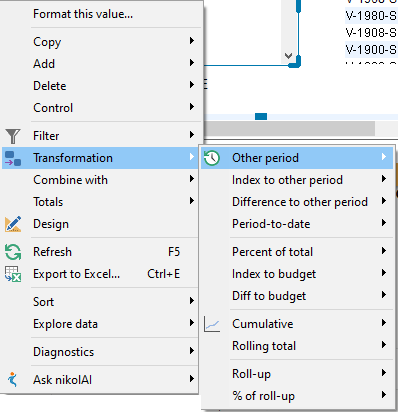 Right-click a metric value in design mode → Transformation.
The column title gets a second line describing the transformation, e.g. Turnover / Last year, and the transformation appears under the metric in the Element Structure panel.
Hold Ctrl while you click the transformation to add it as a new column next to the original – the quickest way to get Turnover and Turnover last year side by side.
Right-click the visual itself in the Element Structure panel → Transformation to apply a period transformation or Cumulative to all its metrics at once.
Period Transformations
These need a metric related to a date dimension. Each opens a grid of periods – Year, Quarter, Month, Week and Day – with 1 to 5 periods back, and Enter value... for another number.
| Transformation | Shows | Example |
|---|---|---|
| Other period | The value for an earlier period | Year → 1 year ago = last year's turnover for the same dates |
| Index to other period | 100 × this period ÷ the earlier period | 112 = 12 % more than last year |
| Difference to other period | This period − the earlier period | +250,000 compared with last year |
| Period-to-date | From the start of the year, quarter, month or week up to the date – year-to-date (YTD), quarter-to-date (QTD), month-to-date (MTD), week-to-date (WTD) or Today, also for earlier periods (YTD 1 year ago …) | Turnover year-to-date compared with year-to-date last year |
| Rolling total | The total of the last 1–5 years, quarters, months, weeks or days up to the date | Month → Enter value... → 12 = rolling 12-month total |
The periods follow the workbook's date filter. If the workbook already filters on the date, Period-to-date works from the filter's date.
The selected metric is not related to any known time dimensions means the metric has no date to shift – period transformations can't be used with it.
Share of Total
Percent of total shows each value as a percentage of a total:
| Choice | Each value as % of |
|---|---|
| Grand total | The total of the whole visual |
| Column total / Column subtotal | The total of its column (top to bottom) / of its subtotal group |
| Row total / Row subtotal | The total of its row (left to right) / of its subtotal group |
| Custom... | The total per a dimensional unit you choose, e.g. each item's share of its item group |
The column is formatted as a percentage.
Comparing With a Budget
Index to budget (100 × value ÷ budget) and Diff to budget (value − budget) are offered on a metric column. Choose the budget metric from the list: first the metrics marked Is budget, then other metrics with budget in their name. To mark a metric as a budget, see 10.3 Creating and Editing Metrics. To enter your own targets, see 10.6 Targets.
Cumulative Values
Cumulative shows running totals:
- Cumulate all values – a running total through the whole visual (tables and charts);
- Cumulate by column / Cumulate by row – restarting for each column or row (tables);
- Cumulate by subtotal column-wise / row-wise – restarting at each subtotal group (tables).
Example: monthly turnover as a cumulative line shows how the year builds up.
Roll-Up
Roll-up shows the value of a group on each detail row – e.g. for each customer, the turnover of the customer's whole country. % of roll-up shows the detail's share of its group. Choose Select roll-up dimension..., then the Detail and Group units, e.g. Customer and Country.
Changing and Removing Transformations
- Right-click a value → Transformation: the transformations already applied are listed at the top with a tick. Click one to remove it.
- In the Element Structure panel, double-click a transformation to change it, or right-click → Delete to remove it. Drag it to another metric to apply it there too.
- Undo (Ctrl+Z) works as usual.
Tips – Quick Transformations
- For this year vs. last year, Ctrl+click Other period → 1 year ago, then Ctrl+click Index to other period → 1 year ago: three columns from one metric.
- Use Percent of total with Custom... for shares within groups, e.g. each product's share of its product group.
- To compare with last year across a whole workbook, a filter modifier can be easier – see 9.4 Filter Modifiers and Ignoring Filters.
Common Issues – Quick Transformations
Problem: The Transformation menu isn't in the right-click menu. - Solution: Switch to design mode, and right-click a value in a metric column – not a row or column heading.
Problem: Index to other period shows 112.35 instead of 112 %.
- Solution: The index isn't formatted automatically. Set the column's number format, e.g. #,##0.
Problem: Index to budget offers no metrics (Sorry, didn't find any budget/benchmark metrics). - Solution: No metric is marked as a budget. Tick Is budget on the budget metric, or create targets – see 10.6 Targets.