21.1 Data Sources
A data source is a database Acinta reads from – usually your data warehouse. Modeller stores how to connect to it and which tables and views it has; Datashop and Acinta Server then query it directly whenever a workbook needs data.
Supported Databases
| Database | Notes |
|---|---|
| Microsoft SQL Server | Windows login or user name and password |
| PostgreSQL | User name and password |
| MySQL and MariaDB | User name and password |
Each can be connected directly or through an ODBC data source (DSN) set up in Windows.
Excel and CSV files aren't data sources in Modeller – bring such data in through Datashop FlexTables, see Chapter 16. Google Analytics is no longer available. Loading data into the data warehouse is done with other tools, e.g. WebSync.
How Data Is Read
- There's no import: Acinta queries the data source live, so users always see the current data.
- The first data source is also used as the staging database: Acinta creates temporary tables there while it calculates, and new dynamic views use it.
- Only materialized dynamic views and cached results keep copies of data – see 27.2 Materialized Dynamic Views and Caching.
Several Data Sources
A project can have more than one data source; Modeller warns when you add the second. Combining tables from different sources in one query requires moving data between them, which can be slow and raises security questions. Keep the data you analyze together in one data warehouse where you can.
The Data Sources in the Object Tree
Expand Data Sources to see each source. Its tables and views are listed in the Source tables pane next to the Warehouse diagram – right-click the data source → Show source tables; see The Source Tables Pane in 22.1 Tables in the Warehouse. Before build 20282, the tables were listed under each data source in the Object Tree. Google Analytics data sources and the Metadata node still list theirs in the tree. Select a data source to see its connection under Properties:
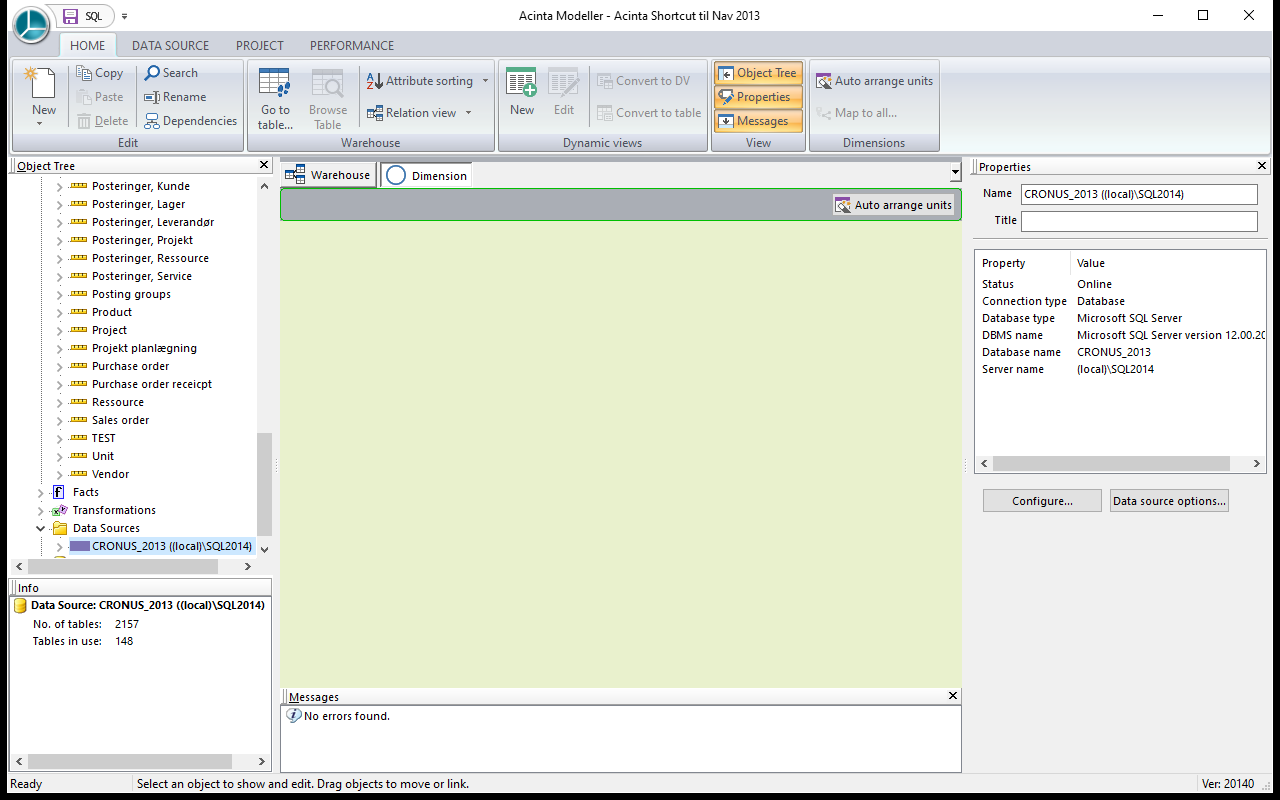 The data source's status, database type, DBMS version, database and server, with Configure... and Data source options... below.
The Info panel shows the number of tables and how many are in use.
The data source's name is made from the database and server, e.g. CRONUS_2013 ((local)\SQL2014), and follows the connection.