17.3 Exporting to Excel
Export a table to Excel to work on with its figures: right-click the table → Export to Excel... (Ctrl+E). Choose whether you want the table as it looks, the raw data, or an Excel pivot table.
Only tables can be exported; charts and gauges can't. One table is exported at a time, to one Excel sheet.
The Export Dialog
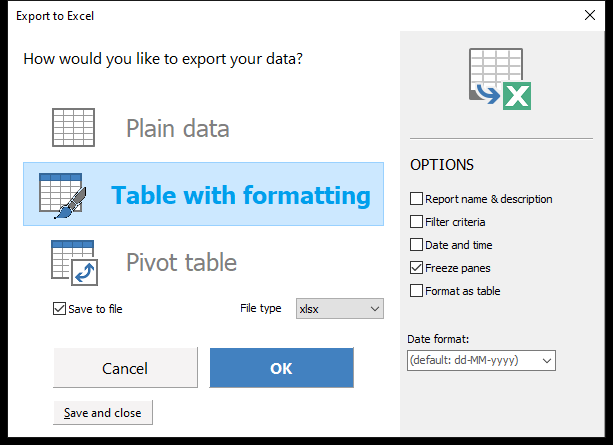 Table with formatting, saved to an xlsx file.
| Choice | You get |
|---|---|
| Table with formatting (default) | The table as shown: headings, totals and subtotals, colors, borders, number formats and conditional-formatting icons |
| Plain data | One row per data row, without totals or formatting – best for further calculations |
| Pivot table | The data plus an Excel pivot table with your dimensions as fields, optionally with slicers (needs Excel on this PC) |
OPTIONS:
| Option | Effect |
|---|---|
| Report name & description, Filter criteria, Date and time | Lines above the data with the workbook's name, filters and the export time |
| Format as table | Makes an Excel table with filter buttons (Table with formatting) |
| Include IDs | Adds ID columns for dimensions that show only names (Plain data) |
| Date format: | How dates are written; empty uses your own date format |
| Create slicers: | Which dimensions get slicers (Pivot table) |
Save to file saves the export – as xlsx, xls or, for Plain data, csv – and shows the file in Explorer. Without it, Excel opens the export directly as a read-only copy; use Save as in Excel to keep it.
Your choices are remembered for the table. Save and close stores them without exporting.
Percentages
Acinta shows percentages as values × 100 (12.5 for 12.5 %). The export divides values with a % format by 100, so Excel shows the same percentage and calculates correctly with it.
Tips – Exporting to Excel
- Use Plain data with Include IDs when the data goes into another system.
- Turn on Filter criteria, so the exported sheet tells which selection it shows.
Common Issues – Exporting to Excel
Problem: There are several tables on this sheet. Please select a table and try again. - Solution: Click the table you want to export first.
Problem: Pivot table is greyed out. - Solution: It needs Excel installed on your PC. Use Table with formatting or Plain data and save to a file.
Problem: The Excel file opens read-only. - Solution: That's intentional – use Save as in Excel, or tick Save to file in the export dialog.