7.4 Inserting and Arranging Visuals
In design mode (HOME → Design, or Alt+D) you build a sheet from visuals: tables, charts, gauges, text, images, buttons and filters. This topic covers getting them onto the sheet and arranging them.
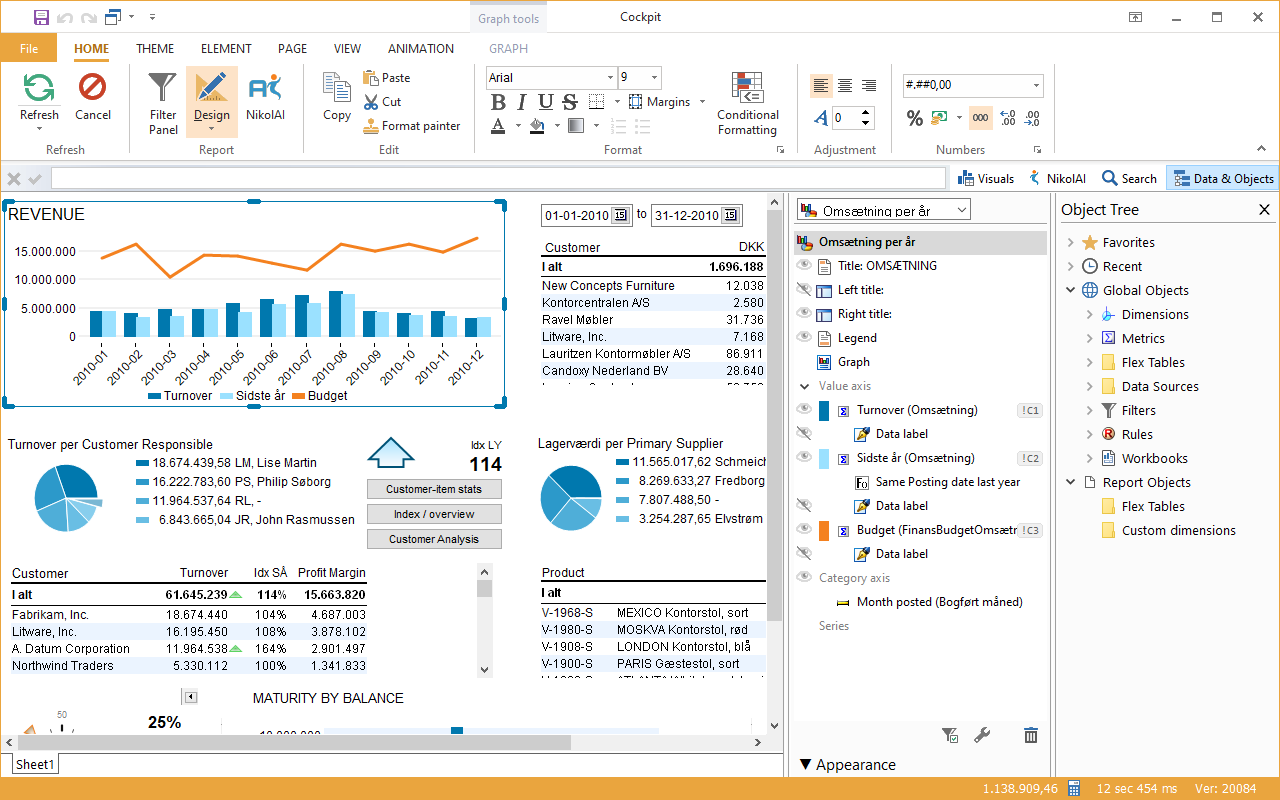 Design mode: the selected chart has handles for resizing, the Element Structure panel shows its parts, and the Object Tree on the right holds the dimensions and metrics you can add.
Adding a Visual
There are several ways – use whichever suits you:
| Way | How |
|---|---|
| Visuals palette | Click a visual type to insert it, or drag it to where you want it. See 5.6 Side Panels. |
| Drag data onto the sheet | Drag a metric or dimension from the Object Tree onto an empty spot – a table is created with it |
| Search and build | Press Ctrl+F, type e.g. bar graph or the name of a metric, and pick the result |
| nikolAI | Describe what you want, e.g. "Show turnover by month as a line chart" |
| Copy and paste | Copy a visual (Ctrl+C) from this or another workbook and paste it (Ctrl+V) |
| Shortcut | Ctrl+Shift+T inserts a table |
Adding Data to a Visual
Drag a dimension or metric from the Object Tree onto a visual. While you drag, coloured drop zones appear over the visual – gold for dimensions, blue for metrics – showing where the item will go: as rows, columns, a new value, or replacing an existing one.
If you drag a raw column from Data Sources, Datashop asks how to use it: a dimension column can be Added as dimension or turned into a histogram; a number column needs an aggregation such as SUM, COUNT, COUNT (distinct), AVG, MIN or MAX.
Converting a Visual
Select a visual and click another type in the Visuals palette to convert it – e.g. a table into a bar chart. The data stays; only the presentation changes.
Selecting, Moving and Sizing
| To … | Do this |
|---|---|
| Select a visual | Click it, or pick it in the drop-down at the top of the Element Structure panel |
| Select several | Hold Ctrl and click each one |
| Move | Drag the visual. It snaps to an invisible grid – hold Alt while dragging to place it freely. |
| Move precisely | Ctrl+Arrow moves 1 pixel, Ctrl+Shift+Arrow 5 pixels |
| Resize | Drag a handle on the edge or corner |
| Resize precisely | Alt+Arrow changes the size by 1 pixel, Alt+Shift+Arrow by 5 pixels |
| Fit to contents | Double-click a handle |
| Delete | Ctrl+Del, or right-click → Delete |
| Undo | Undo in the quick access toolbar |
Aligning and Positioning
The ELEMENT tab lines visuals up exactly:
- Align several selected visuals left, centre, right, top, middle or bottom, and give them the same width or same height.
- Position a visual by Top and Left – measured from the page or from another visual. Anchoring a visual to the one above it keeps it in place when the one above grows, which is important in reports.
- Size: set Height and Width, or tick Auto to let the visual size itself to its contents.
- Bring to front and Send to back decide which visual is on top when they overlap.