6.2 Drilling Down and Drilling Through
Spotted something interesting? Drill into it. Drilling down splits a row into more detail – e.g. from a product to the customers who bought it. Drilling through shows the data behind a single number – e.g. the sales lines that add up to a total.
Both open the result in a new window, so your workbook stays as it was.
Drilling Down
Double-click a name in a table (a row or column heading such as a product or a month), or a bar or slice in a chart. You can also right-click and choose Explore data → Drill down.
What you drill down to depends on how the dimension is set up in the data model:
| Setup | What happens |
|---|---|
| A natural next level, e.g. Year → Quarter → Month | You drill straight to the next level |
| No next level defined | Datashop asks where to drill – pick any dimension, e.g. Customer |
| Drilling turned off for the dimension | Nothing happens |
Hold Shift while you double-click to choose the level yourself, even when there is a next level.
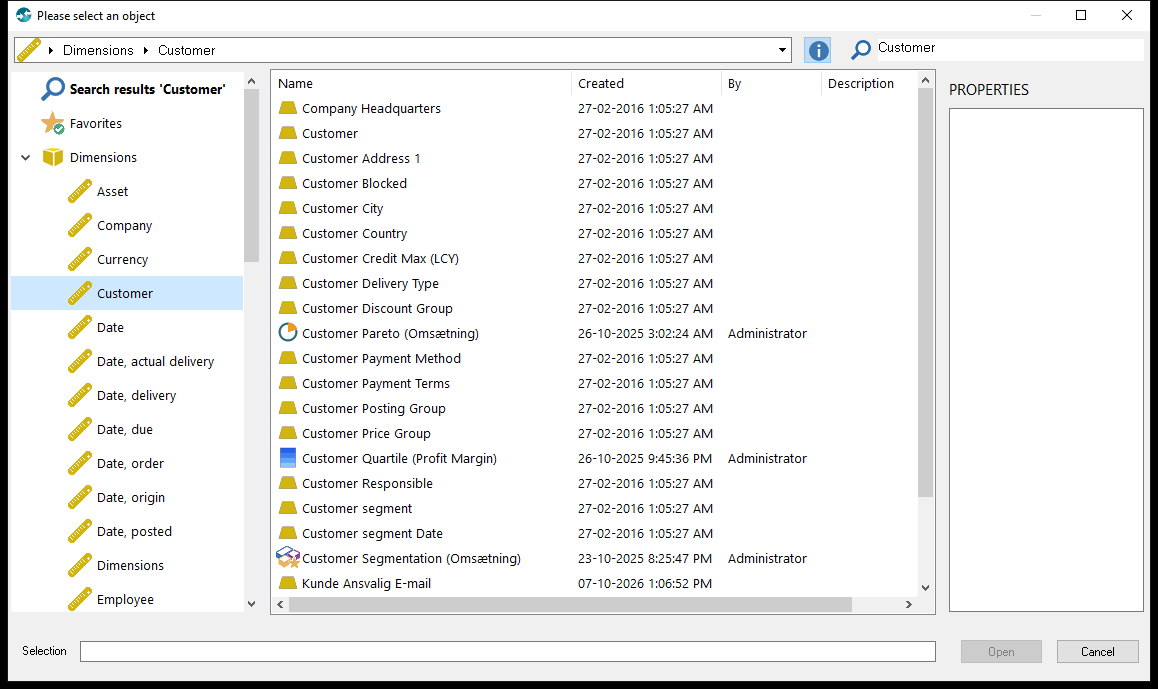 Choosing where to drill: the Customer dimension is open on the left, and its units are listed on the right. Double-click one to drill.
The new window is titled with what you drilled into, e.g. Drill-down in Top 10 varer, Product: V-1968-S, MEXICO Kontorstol. The value you drilled on is added to the window's filters, and the workbook's other filters, such as the date range, are carried over.
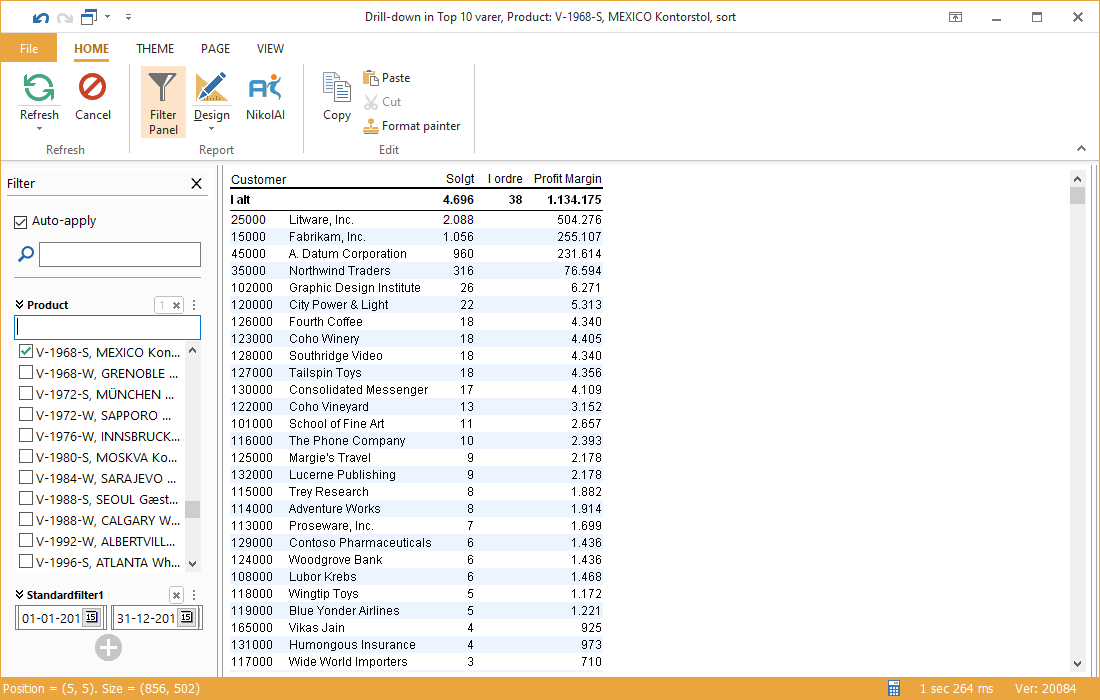 Drilling down from one product to customers: the Filter Panel shows the product as a filter, and the date filter is carried over from the workbook.
You can keep drilling in the new window, step by step, until you reach the level of detail you need.
Drilling Through
Double-click a number in a table, or right-click it → Explore data → Drill through. Datashop shows the data behind that number. What you see depends on the metric:
| Metric | Drill through shows |
|---|---|
| A plain metric, e.g. Revenue | The underlying records from the database, e.g. the individual sales lines |
| A calculated metric, e.g. Profit Margin = Revenue − Cost | The parts of the calculation side by side, so you can see what drives the result |
| A metric from an external source, e.g. Google Analytics | The drill-through layout the designer has set up for it |
Double-clicking a gauge drills through on its value in the same way.
If the data comes from materialized dynamic views, a panel above the records shows when each view was last refreshed. Datashop Expert users can tick Current data (bypass materialization) to see current data instead – see Current Data Instead of the Stored Result in 27.2 Materialized Dynamic Views and Caching (build 20306 and later).
Tips – Drilling Down and Drilling Through
- Drilling never changes the workbook. Close the new window when you're done.
- If drilling shows many rows, use the Filter Panel in the new window to narrow them down.
- Designers decide the drill path for each dimension in Modeller, and can set another one per column – see 13.5 Drill Settings for Designers.