6.1 Exploring Data in a Workbook
A workbook isn't just something to look at. Every table and chart is a starting point: double-click a value to see what's behind it, filter on what you've selected, sort, or open a visual in its own window to dig deeper – without changing the workbook itself.
All of this works in normal view, in both Datashop Workbook and Datashop Expert. Drilling, sorting and opening visuals in new windows never change the saved workbook.
The Quickest Moves
| To … | Do this |
|---|---|
| See the details behind a row, e.g. which customers bought a product | Double-click the row's name – see 6.2 Drilling Down and Drilling Through |
| See the transactions behind a number | Double-click the number |
| Add up some numbers | Select the cells – the sum appears in the status bar (5.7 Formula Bar Status Bar and Calculator) |
| Filter the whole workbook on a bar or slice | Right-click it in a chart → Use selected as filter – see 6.3 Filtering from the Data |
| Get fresh data | Refresh (F5) |
The Right-Click Menu
Right-click a table to see what you can do with it:
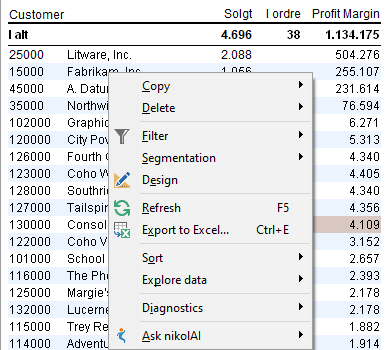
| Command | What it does |
|---|---|
| Copy | Copy the selected cells, or Copy cell value for just the value under the mouse – ready to paste into Excel or an e-mail |
| Filter | Hide this value, plus suggested filters – see 6.3 Filtering from the Data |
| Segmentation | Group the rows, e.g. into ABC classes – see 14.1 What are Segmentations |
| Refresh (F5) | Reloads the data |
| Export to Excel... (Ctrl+E) | Opens the table in Excel – see 17.3 Exporting to Excel |
| Sort | Sort ascending, Sort descending, Restore original sort – see 6.4 Sorting Rotating and New Windows |
| Explore data | Drill down, Drill through, Open in new window, Filter by selection, Rotate layout, View details |
| Diagnostics | View statistics, View dataset, View errors – see 6.5 View Dataset Statistics and Errors |
| Ask nikolAI | Explain data lets nikolAI explain what the table shows; Modify visual changes it on request (Datashop Expert) |
The menu adapts to where you click. Charts and gauges have a shorter menu with the commands that make sense for them, e.g. Use selected as filter on a chart. Delete and Design change the workbook and are for designers – see Chapter 7 Designing Workbooks.