15.2 Creating and Editing Consolidations
Consolidations are built in the consolidation editor: pick the dimension units to group, then define the members – by clicking values or by typing expressions.
Creating a Consolidation
| From | How | Result |
|---|---|---|
| A visual | Design mode: right-click the dimension in the Element Structure panel → Consolidation | Starts with one member per value shown in the visual; merge them into groups. The visual switches to the consolidation. |
| A workbook | Object Tree → Report Objects → right-click Custom dimensions → New consolidation | For all visuals of the workbook |
| The main window | Select a dimension unit in Dimensions, then create a Consolidation | For all workbooks |
To change one, right-click it → Edit consolidation – in the Element Structure panel, on a table heading, in a filter or under Custom dimensions.
Creating consolidations requires Datashop Expert.
The Consolidation Editor
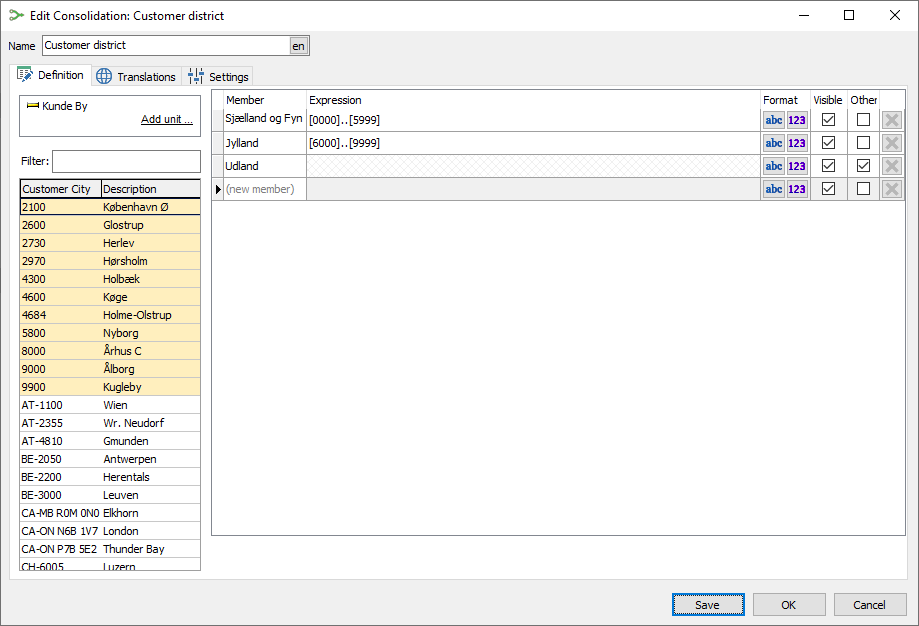 Customer district: two postal code ranges and an Other member for customers abroad. The values of the selected member are highlighted on the left.
Left side – the source:
- The dimension units the consolidation is built on. Add unit ... adds one; drag units from the Object Tree to add them, Delete removes the selected one.
- The values of the selected unit, with a Filter: box. Values in the selected member are highlighted.
Right side – the members:
| Column | Meaning |
|---|---|
| Member | The name shown in visuals |
| Expression | Which values belong to the member, or what it calculates – see below |
| Format | abc formats the member's heading, 123 its values – e.g. bold for a subtotal |
| Visible | Untick to hide a helper member that other members calculate with |
| Other | This member collects all values not in any other member. Only one member can be Other. |
| ✕ | Deletes the member |
Type in the last row, (new member), to add a member.
Settings tab: Description, AI instructions (tell nikolAI how to use the consolidation), and Show empty values – off by default, so members without data are left out.
Save saves and keeps the editor open; OK saves and closes.
Building Members with the Mouse
| Do this | Result |
|---|---|
| Double-click a value | Adds it to the selected member |
| Alt+double-click a value | Creates a new member from it |
| Drag values onto a member | Adds them; several selected values become a set |
| Shift+drag a selection of values | Adds them as a range, from the first to the last |
| Alt+drag several values onto (new member) | Creates one member per value |
| Drag a member onto another | Changes the order |
| Shift+drag a member onto another | Merges the two members |
Typical way to group a visual's values: Consolidation in the Element Structure, then Shift+drag members onto each other until the groups are right, and rename them.
Writing Expressions
| Syntax | Means | Example |
|---|---|---|
[value] |
One value (its ID) | [DK] |
[a]..[b] |
All values from a to b | [6000]..[9999] |
<x;y;…> |
Several values or ranges | <[DK];[SE];[NO]> |
[*] |
All values | |
[a][b] |
A combination, when the consolidation has several units – one value per unit, in the order of the unit list | [1200][DK] |
"Member" |
Another member's result | "Revenue" - "Cost of sales" |
+ - * /, ( ), numbers |
Calculations | "Contribution" / "Revenue" * 100 |
- Dates are written
[2026-01-31]; dynamic dates work too, e.g.[yearday=-365]..[Today]– see 9.3 Dynamic Dates. - Division by zero gives an empty value.
- Renaming a member updates the references to it in other members.
- Errors are underlined in red, and the Save button shows a warning with the list of errors in its tooltip. Correct them before saving – the editor doesn't stop you from saving an invalid consolidation.
Tips – Creating and Editing Consolidations
- Add an Other member, so nothing silently disappears from your totals.
- Build calculated structures, such as an income statement, from hidden helper members.
- Name members uniquely; duplicates give unpredictable results.
Common Issues – Creating and Editing Consolidations
Problem: Some values are missing from the visual. - Solution: They aren't in any member. Add them, or tick Other on a member for the rest.
Problem: A member doesn't appear. - Solution: It has no data in the current filter. Tick Show empty values on the Settings tab to always show it.