18.2 Creating a Distribution
Start a New Distribution
Either:
- open the workbook and choose File → Distributions → New distribution... – the workbook is filled in for you (new in build 20072). If the workbook hasn't been saved yet, Datashop asks you to save it first; or
- in the main window, select the Distributions + actions folder and choose right-click → New → Distribution (or click +).
The distribution editor opens. It has six tabs: General, Filter, Email content, Attachments, AI commentary and Recent runs. Recent runs (new in build 20228) shows the last 10 runs with their status reports – see Recent Runs in 18.8 Status Reports and Troubleshooting.
The General Tab
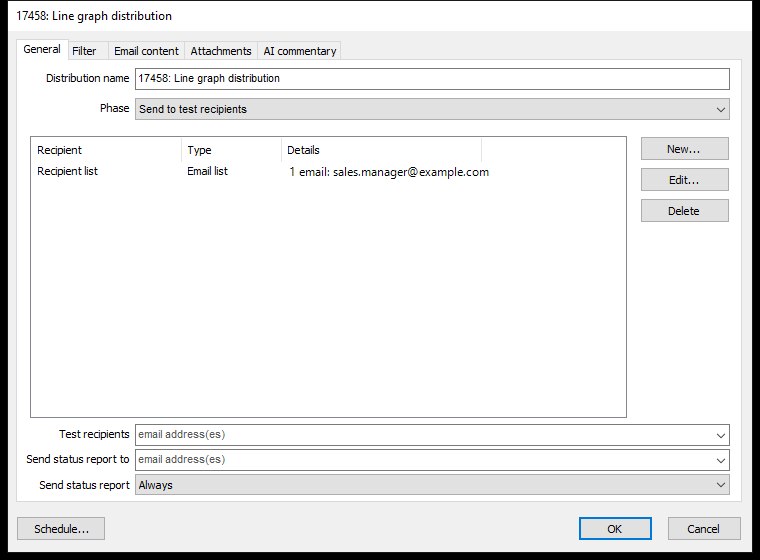
| Setting | What it does |
|---|---|
| Distribution name | The name shown in the main window |
| Phase | Stopped (not sent – the default for new distributions), Send to test recipients (test phase) or Activated (sent to the real recipients) |
| Recipients list | Who receives the e-mail. New... adds a recipient list, Edit... changes it, Delete removes it. See 18.3 Recipients and Personal Reports. |
| Test recipients | E-mail addresses that receive everything in the test phase, separated by commas. The list suggests addresses already used in other distributions. |
| Send status report to | Addresses that receive a report after each run – see 18.8 Status Reports and Troubleshooting |
| Send status report | Always, or only when errors occurred |
The Filter Tab
Apply these filtering conditions to the workbook – a filter that applies to every e-mail of the distribution, on top of the workbook's own filters. Click Edit... to build it, e.g. Company = Cronus Denmark. Each recipient's personal filter is added to it.
Test First, Then Activate
- Click Test... to see the e-mails for a few recipients right away, without sending anything – see 18.9 Testing a Distribution. Repeat until the content is right.
- Set Phase to Send to test recipients and enter your own address under Test recipients.
- Set a schedule a few minutes ahead (Schedule..., see 18.7 Schedules) and click OK.
- In the test phase, every e-mail goes to the test recipients – one e-mail per real recipient, with a note at the top saying who it would have been sent to. CC and BCC are not used.
- When everything looks right, change Phase to Activated and set the real schedule.
Saving
Click OK to save. Datashop checks the distribution first:
- If it can't be sent – e.g. no workbook or no recipients – you see The distribution cannot be sent: … and can save anyway (not checked for stopped distributions) (new in build 20074).
- A new distribution created from a workbook asks which folder to save it in.
- If AI commentary is on, you may be asked to confirm the data transfer – see 18.6 AI Commentary.
After saving, Datashop reminds you that Acinta Server must be restarted for the change to take effect.
Cancel discards all changes, including changes to the schedule.