26.2 Project Options
PROJECT → Project options... holds settings for the whole project: how users log in, the AI service, logging and display limits. Datashop Expert has the same dialog under the cog menu → Tools → Project options....
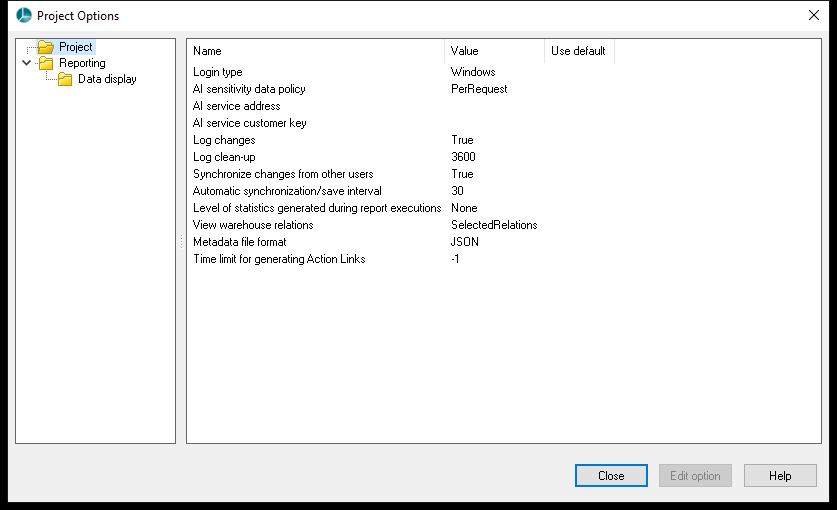 The Project page with the default values.
Select an option to see its explanation, then double-click it (or Edit option) to change it. Changes apply when you click OK in the edit dialog, and are kept when you save the project. Close closes the dialog.
Project
| Option | Values | Default |
|---|---|---|
| Login type | Acinta or Windows – intended to choose between name-and-password and Windows login. In the current version the setting has no effect; see 32.2 Security and Data Access for how users log in. | Acinta |
| AI sensitivity data policy | Never, Per Request or Always – whether data may be sent to AI services; see 18.6 AI Commentary | Per Request |
| AI service address | Address of the Acinta AI service. Leave empty to use https://api.acinta.dk. |
empty |
| AI service customer key | Your organization's key from Acinta – see below | empty |
| Email server | The mail server that sends the distribution e-mails – see The Email Server below (build 20217 and later) | Not set up |
| Log changes | Keep a log of all changes to project objects (shown in Datashop's Change log) | on |
| Log clean-up | Days before log entries are deleted | 3600 |
| Synchronize changes from other users | Load other users' saved changes each time you save. Also needs <SynchronizeMetadata> in the program's settings file – see Synchronization in 20.4. Turning off Log changes turns this off; turning it on turns Log changes on. |
on |
| Automatic synchronization/save interval | Seconds between Acinta Server's saves and synchronizations. Datashop and Modeller synchronize when they save, or with Load changes / Synchronize. | 30 |
| Level of statistics generated during report executions | None, Basic, Detailed or Including SQL | None |
| View warehouse relations | Default for the Relation view in the Warehouse diagram | All Relations |
| Metadata file format | For file repositories: Acinta Native (binary, faster) or JSON (readable text, for version control) | Acinta Native |
| Time limit for generating Action Links | Milliseconds for generating action links in Datashop Web; -1 = no limit | 5000 |
| Time limit for loading report data (minutes) | How long loading a report's data may take when Acinta Server makes the report – distributions, Datashop Web and cache refreshes – and in distribution tests. When the limit is reached, the queries are cancelled and the report fails. 0 = no limit. | 40 (build 20334 and later) |
Without a limit, a database query that never returns would block the report – and its distribution – until Acinta Server is restarted. If some of your reports legitimately take longer than 40 minutes to load, raise the limit. Before build 20334 there was no limit.
Reporting → Data Display
| Option | Default |
|---|---|
| Row warning for graphs – ask the user before showing a chart with more rows | 2000 |
| Row warning for grids – ask before showing a table with more rows | 30000 |
The Email Server
New in build 20217.
Email server holds the mail server (SMTP) that sends the project's distribution e-mails – from Acinta Server, and for tests from Datashop. Without it, Acinta Server uses its own mail settings, see 34.1 Email Delivery. Only the user administrator can change it; others see Only the administrator can change the email server settings. The list shows a short description, e.g. smtp.office365.com:587, Microsoft 365 (reports@example.com), or Not set up.
| Setting | Meaning |
|---|---|
| Server | The mail server's name, e.g. smtp.office365.com. Leave it empty to use Acinta Server's own settings. |
| Port | Usually 587 (with TLS) – the default |
| Encrypted connection (TLS) | Encrypts the connection (STARTTLS). Most mail servers require it. |
| Sender address | The address the e-mails come from, unless a distribution sets its own sender |
| Sender name | The name recipients see as sender |
| Sign in | No sign-in (internal mail relay), User name and password, or Microsoft 365 (app registration) with Tenant ID, Client ID, Client secret and Mailbox – the mailbox the app sends as. Limit the app to that mailbox in Microsoft 365. |
Passwords and client secrets are stored encrypted and never shown – leave the field empty to keep the stored value.
To check the settings before you save them, enter an address under Send test email to and click Send test. The mail server accepted the test email to … means the server took it; if it doesn't arrive, check the spam folder and whether the server may send as the sender address. If the settings are incomplete, OK says Emails cannot be sent with these settings: with the problems and asks Save anyway?
The AI Customer Key
Edit AI service customer key and enter the key you got from Acinta. Modeller checks it with the AI service (free of charge):
- a valid key shows how long it's valid, its tier and customer, and warns if it expires soon;
- Datashop Expert also checks the key when a project opens and warns when it expires within 30 days, has expired or is rejected (build 20114 and later);
- a rejected or unreachable key shows the reason and asks Save the key anyway?
Set the AI service address first if you don't use the default – the check uses the saved address. The key is stored encrypted; the list shows only its last four characters. Leave the field empty to remove the key.
Related Topics
- 21.2 Connecting to a Database – data source options
- 18.6 AI Commentary