18.7 Schedules
The schedule decides when a distribution is sent. Click Schedule... at the bottom of the distribution editor.
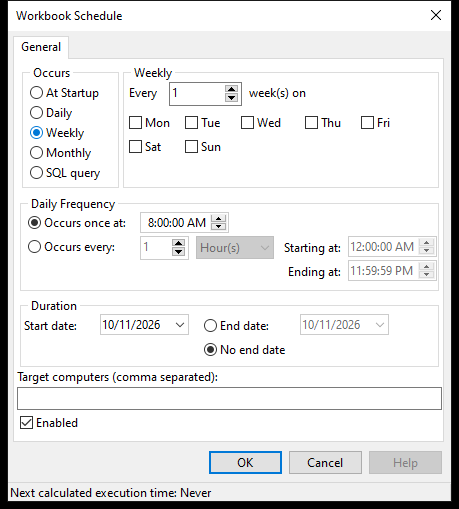 A weekly schedule. Tick the weekdays, set the time, and make sure Enabled is ticked.
Setting Up the Schedule
- Tick Enabled – without it, nothing is sent.
- Under Occurs, choose how often:
| Option | Settings |
|---|---|
| At Startup | Every time Acinta Server starts |
| Daily | Every n day(s) |
| Weekly | Every n week(s) on the ticked weekdays |
| Monthly | Every n month(s), on a given Day (e.g. the 1st) or on The first/second/third/fourth/last weekday (e.g. the first Monday) |
- Under Daily Frequency, choose Occurs once at a time, e.g. 08:00, or Occurs every n hours or minutes between a start and end time.
- Under Duration, set the Start date, and an End date or No end date.
- Click OK – and OK in the distribution editor to save.
The status bar at the bottom shows the Next calculated execution time. It also appears in the Next run column in the main window.
Target computers limits the schedule to the named servers, separated by commas – leave it empty unless your administrator tells you otherwise.
Tips – Schedules
- Schedule heavy distributions outside office hours, when the database is less busy.
- Make sure the data is updated before the distribution runs – e.g. schedule it after the nightly data load.
- Changes take effect when Acinta Server is restarted.