7.2 Workbook Types
Every workbook is built from the same parts – sheets and visuals – but what it is for differs: a dashboard on your screen, a report you print, or a display on a wall. When you create a workbook, you choose a type that sets sensible defaults for that purpose. You can change every setting afterwards.
The Types
| Type (in the New menu) | Made for | Defaults |
|---|---|---|
| Workbook | Anything – the multi-purpose choice | No special settings |
| Dashboard (classic) | Everything on one screen, possibly over several sheets | Free canvas pages, sheet tabs shown |
| Dashboard with tiles | A tidy dashboard with little effort | Tiles pages – each visual in its own frame with a title, locked to a grid and scaled to fit the window. Filter Panel shown when the workbook opens. |
| Report-style workbook | Printing and PDF, e.g. for e-mail distribution | Free canvas pages, sheet tabs shown. Visuals size to their contents, so you often anchor them to each other to avoid overlaps. |
| Display | Unattended viewing on a wall screen (kiosk mode) | Opens in full screen with data, no Filter Panel, no sheet tabs, rotates between sheets automatically |
Dashboards
A dashboard gives an overview at a glance: a handful of tables, charts and gauges that answer the questions of a specific audience – e.g. a sales manager's open orders, top customers and revenue against budget.
- Keep it to one screen per sheet. Use more sheets for more topics.
- Choose Dashboard with tiles if you want an even grid without spending time on alignment; choose Dashboard (classic) for full freedom.
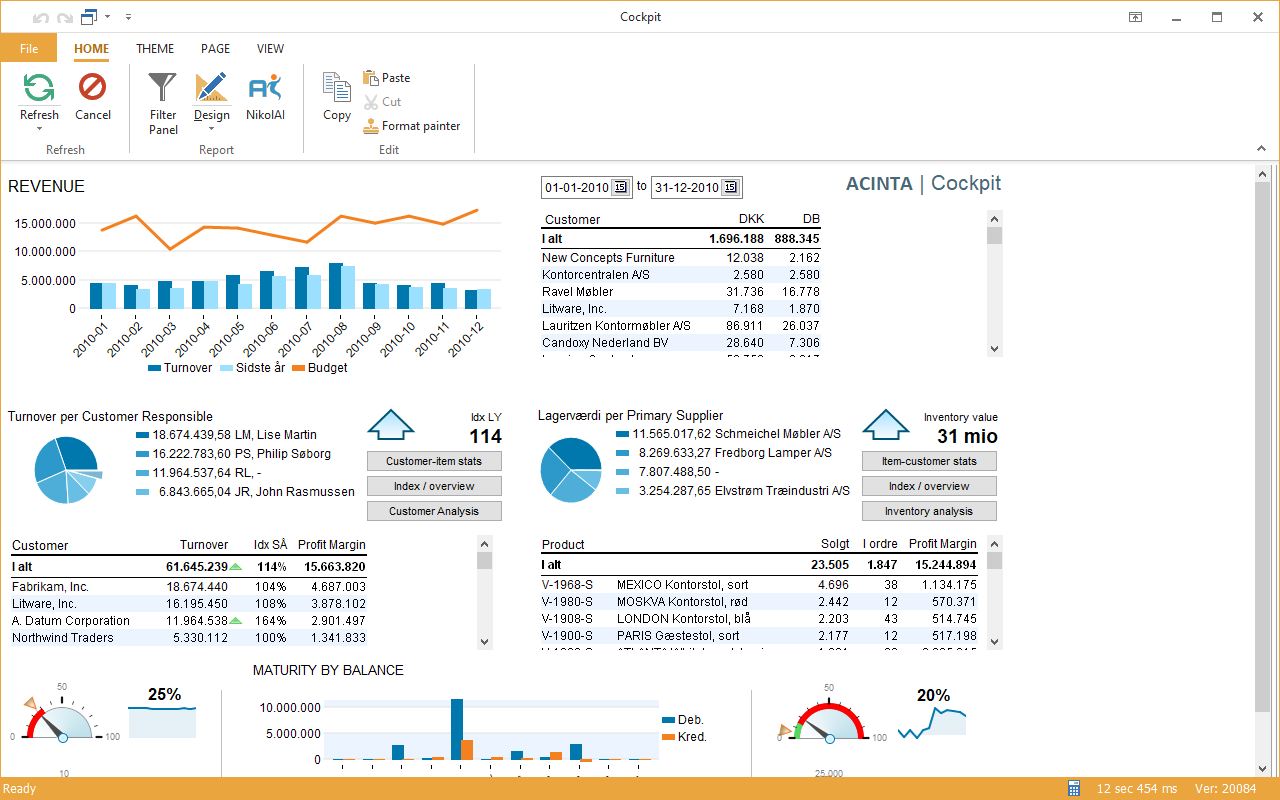 A classic dashboard (free canvas): charts, tables, gauges and buttons on one sheet.
Reports
A report-style workbook is designed to be printed or sent as PDF – often lists and tables with a few filters. Set the paper size and margins with PAGE → Page setup..., and check the result with File → Print. See 17.1 Printing and Page Setup.
Report-style workbooks are the natural choice for scheduled e-mail distributions – see Chapter 18 Distributions.
Displays
A display runs on its own on a screen in the office or production hall:
- It opens in full screen and loads data straight away.
- It rotates between its sheets on a timer (ANIMATION → Switch sheets every N sec).
- Visuals can refresh their data on a timer (ANIMATION → Auto refresh), so the screen always shows current figures.
Design displays with large fonts and few, clear visuals – they are read from a distance.
Changing the Settings Later
The type only sets defaults. You can change them at any time:
| Setting | Where |
|---|---|
| Page type (free canvas or tiles) | PAGE → Page type – see 7.3 Page Types |
| Sheet tabs, full screen | PAGE → Show tabs, Open full screen |
| Sheet rotation, auto refresh | ANIMATION tab, or File → Properties → Refresh |
| Filter Panel when opening, open with data | File → Properties → General – see 7.6 Workbook Properties |