20.3 The Modeller Window
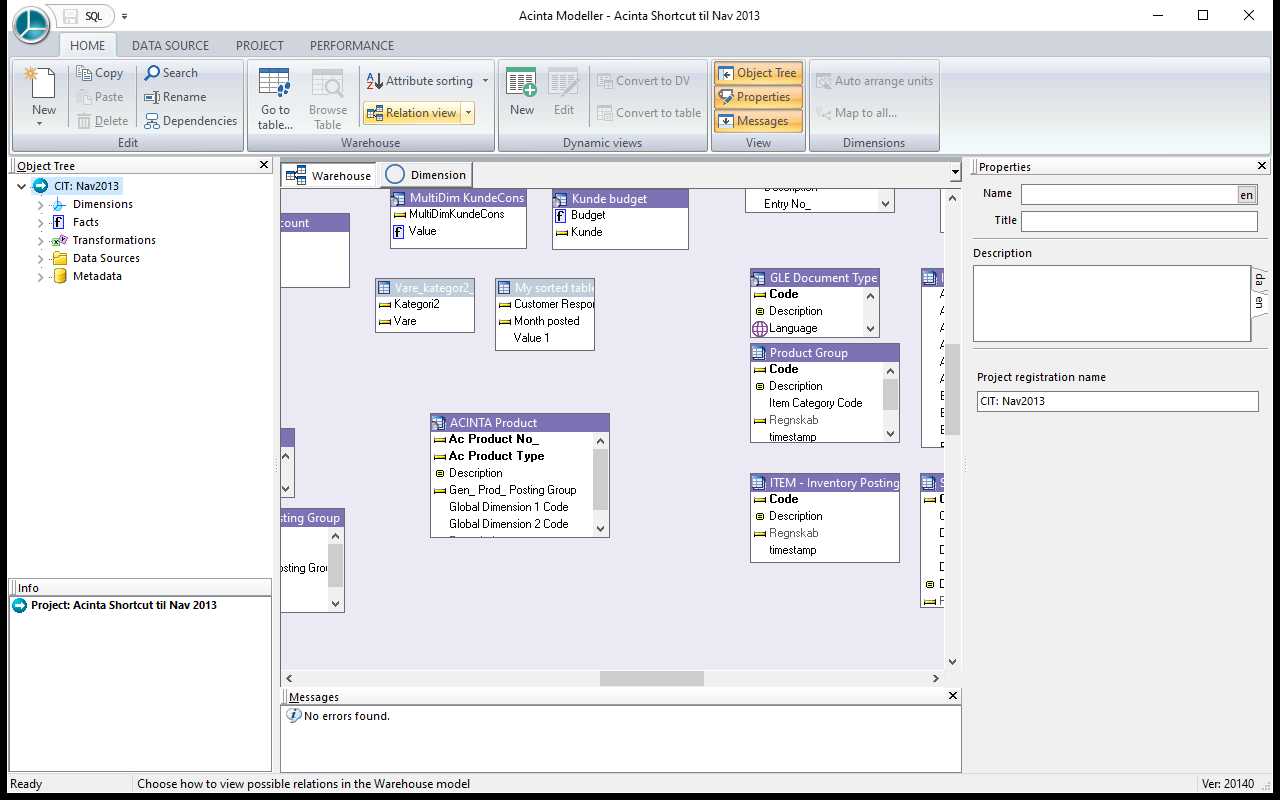 Object Tree on the left, the Warehouse diagram in the middle, Properties on the right and Messages at the bottom.
The Panels
| Panel | What it shows |
|---|---|
| Object Tree (left, F6) | The project's objects: Dimensions, Facts (in folders, see 24.1 Facts), Transformations, Data Sources and Metadata (where the project is stored). Select an object to edit it; drag objects to move or link them; right-click for commands. |
| Info (below the tree) | Key facts about the selected object – click a line to jump to the related object. Related fields, table instances, facts and fact fields are listed in alphabetical order (build 20117 and later). |
| Centre tabs | Warehouse – a diagram of the tables and their relations (see Working in the Warehouse Diagram in 22.1 Tables in the Warehouse); Dimension – the units of the selected dimension. Tools such as Validate, Search and SQL open further tabs (Ctrl+Tab to switch). |
| Source tables (right of the Warehouse diagram) | The tables and views of a data source, ready to drag onto the diagram – see The Source Tables Pane in 22.1 Tables in the Warehouse (build 20272 and later) |
| Properties (right, F7) | Name, Title and Description of the selected object, plus the settings for its type, e.g. a dimensional unit's lookup table |
| Messages (bottom, F8) | Results of checks, e.g. errors in dynamic views – double-click a message to go to the object |
Show or hide panels on VIEW → Panels (on HOME → View before build 20353). Modeller remembers the window layout.
The Ribbon

| Tab | Groups and commands |
|---|---|
| HOME | Edit: New (dimension, unit, data source, fact, hierarchy, transformation, virtual field), Copy, Paste, Delete, Search (Ctrl+F), Rename (F2), Dependencies. Dimensions: Auto arrange units, Map to all... |
| WAREHOUSE | Tables: Source tables (shows or hides the Source tables pane), Add table to warehouse, Go to table... (Ctrl+G), Browse Table (Ctrl+B). Display: Attribute sorting, Relation view. Dynamic views: New, Edit, Convert to DV, Convert to table, Materialize DVs – see Chapter 22 |
| DATA SOURCE | Options, Search data (shows the data search in the Source tables pane; Search DB before build 20370), Connection, Refresh, Add table – see Chapter 21 |
| PROJECT | Project: Validate, Project options..., Audit log settings.... Tables: Select partitions (Select + the unit's name while a dimensional unit is selected), Table/field translations, Get all tables. Repository: Synchronize, Move repository, Repair – see Chapter 26 |
| PERFORMANCE | Tuning guide, Create indexes, Collect statistics – see Chapter 27 |
| VIEW | Panels: Object Tree, Properties, Messages. Navigate: Go to previous object (Ctrl+Alt+←), Go to next object (Ctrl+Alt+→) |
[!NOTE] Before build 20353, there were no WAREHOUSE and VIEW tabs: the table, display and dynamic view commands and the panels were the groups Warehouse, Dynamic views and View on HOME, and Source tables was on DATA SOURCE. Add table to warehouse was only on the diagram's right-click menu, and going to the previous or next object only had its shortcut.
The ribbon has the same look as Datashop's report viewer (build 20348 and later). Right-click it → Minimize the Ribbon to show only the tab names; click a tab to open it.
The File button at the left end of the ribbon opens the application menu (build 20348 and later; before, a round button without text): Save (Ctrl+S), Move repository (see 26.4), Install/Restore (Ctrl+I), Backup (Ctrl+Alt+B), New Project (Ctrl+N), Open... (Ctrl+O), Close (Ctrl+F4), Help on the Web, About Modeller ... and Exit (Help on the Web and Exit: new in build 20348). Help on the Web opens this help's Modeller chapter at docs.acinta.dk (build 20354 and later; before, the Acinta website).
[!NOTE] Builds 20348 to 20352 also have Help in the File menu. It and F1 open an old help file that shows nothing useful – use this help at docs.acinta.dk instead. The quick access bar has Save and SQL – SQL Explorer, see 19.1 SQL Explorer.
Finding Your Way
- Search (Ctrl+F) finds objects by name.
- Go to table... (Ctrl+G) lists all tables to jump to.
- Dependencies shows which objects use the selected one – also Datashop metrics and workbooks. Check it before deleting or renaming. For a dimension, it also lists the objects that use its units and hierarchies (build 20284 and later).
- Ctrl+Alt+← / Ctrl+Alt+→ go back and forward between objects you've visited.
Keyboard Shortcuts
| Keys | Action |
|---|---|
| Ctrl+S | Save |
| Ctrl+D / Ctrl+U / Ctrl+H / Ctrl+T | New dimension / unit / hierarchy / transformation |
| Ctrl+F, Ctrl+G, Ctrl+B | Search, Go to table, Browse table |
| F2 | Rename |
| Ctrl+mouse wheel, Ctrl++ / Ctrl+-, Ctrl+0 | Zoom the Warehouse diagram in / out, back to 100 % (new in build 20335) |
| Shift+1 / Shift+2 | Fit all tables / the selected tables in the Warehouse diagram (new in build 20335) |
| Ctrl+A / Esc | Select all tables / clear the selection in the Warehouse diagram |
| F6 / F7 / F8 | Object Tree / Properties / Messages |
| Ctrl+Q | SQL Explorer |
| Ctrl+Tab, Ctrl+1…9 | Next tab, go to tab 1–9 |