3.4 Exploring Your Data Model
Understanding concepts is one thing—knowing where to find what you need is another. Datashop's Object Explorer (also called the Object Tree) is your window into the dimensional model, showing you all available dimensions, dimensional units, and metrics. Learning to navigate this structure efficiently makes you productive in Datashop.
This chapter teaches you how to explore your data model, find the dimensions you need, and understand what's available for analysis.
Opening the Object Explorer
The Object Explorer is available in two contexts:
In the main Datashop window:
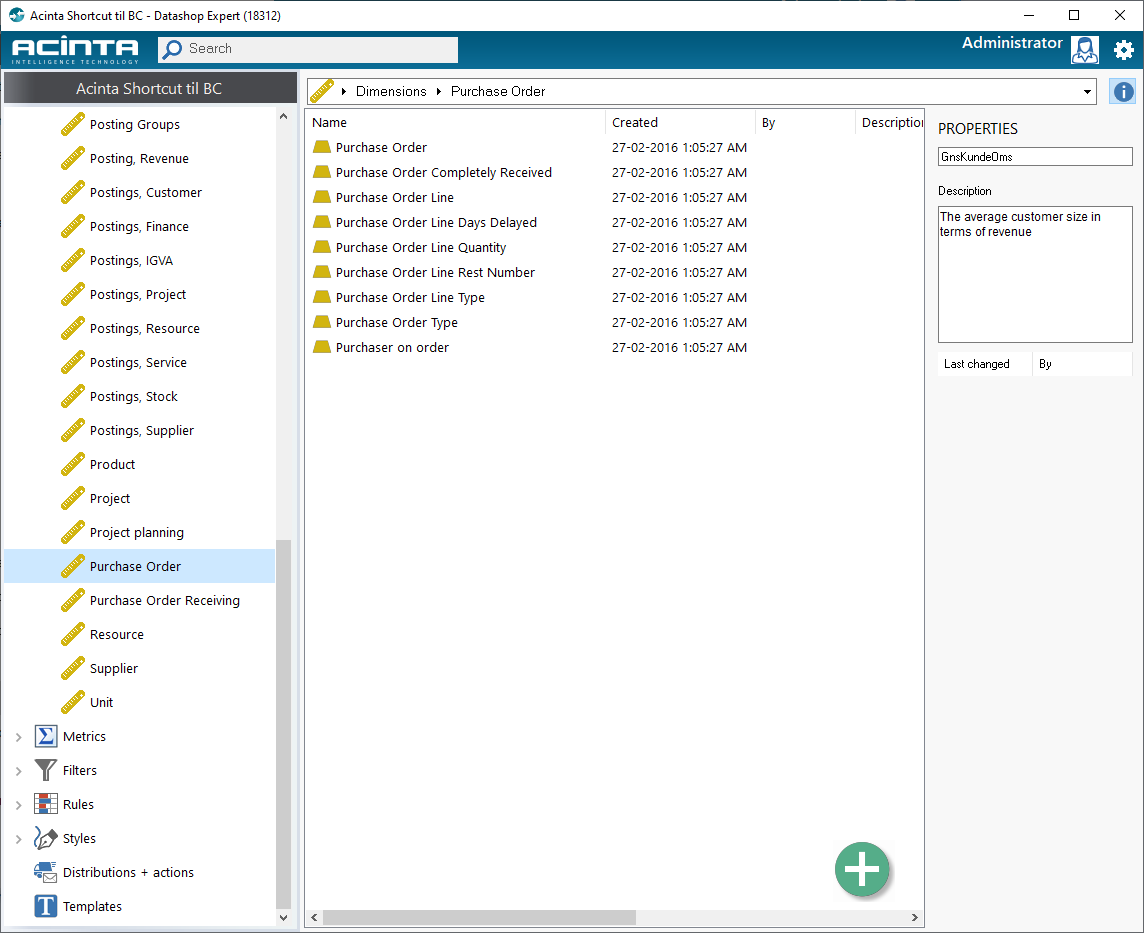
- Shows the complete data model structure
- Used when defining global objects like metrics, distributions, filters, segmentations, or consolidations
- Access: Always visible in the main interface
- Note: Only available in Datashop Expert
- Useful for exploring, designing and organizing global objects
In the Report Viewer (workbook viewer/designer):
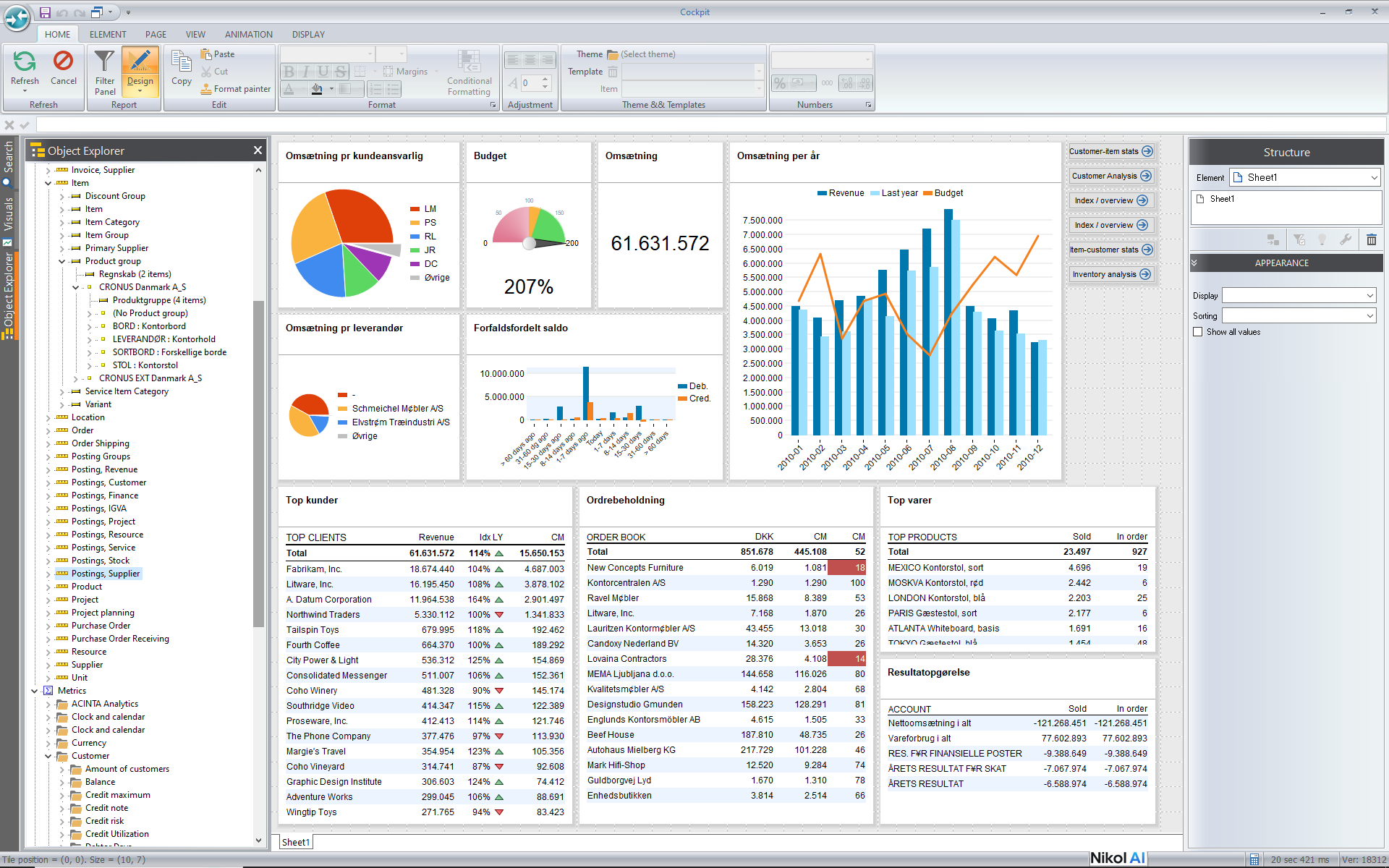
The Object Explorer is also available in the Report Viewer as shown in the screenshot above.
- Appears as a pop-in panel when designing visuals
- Shows the same model structure
- Has the additional ability to browse data in dimensions
- Access: Enter Design mode and click the Object Explorer icon in the left side
- Useful for designing visuals and filters
Understanding the Structure
The Object Explorer displays your data model as a tree with three main branches:
📁 Dimensions
Contains all dimensions in your model (Customer, Date, Item, Location, etc.). Each dimension can be expanded to show its dimensional units.
📊 Metrics
Lists all available metrics (Turnover, Quantity, Profit, etc.). These are the numbers you analyze across dimensions.
See chapter 10.1 Understanding Metrics for more information.
Filters
All global filters in the project / data model.
Global filters are useful for maintaining special conditions that:
- Define certain categories of metrics, like metrics related to Sales facts
- Constitute a commonly used group of criteria, e.g. a collection of Stores that shall be included in common dashboards, a collection of Items to exclude from certain reports.
See Chapter 9 Filters for more information.
Rules
All global rules in the project / data model.
Global rules are useful for defining centralized business rules, e.g. thresholds for KPIs. For example "Profit Margin < 25%" => "Color red".
The project always contains a set of default rules that are installed by the system but can be modified to suit your organization. These include "Corporate colors" where you can add colors that are used throughout your organization for your visual identity. Colors defined in this rule appear in the color palettes in the Report Viewer so you can easily apply them to your visuals.
See 12.1 What are Rules for more information.
Styles
A Style object contains a wide range of formatting options that can be applied in your reports, like fonts, colors, border, text rotation and alignment etc. There's a range of general global style objects that control the fonts and formatting used throughout your reports, but you probably rarely need to create new global style object yourself.
See 11.5 Style Objects and the Style Editor for more information.
Browsing Dimensions
In Datashop's main window you explore dimensions by navigating folder in the treeview in the left side and viewing dimensional units in the listview to the right.
In the ReportViewer everything is embedded in the Object Tree to conserve space.
Click the ▶ arrow next to a dimension name to expand it and see its dimensional units. For example, expanding the Customer dimension might reveal:
- Customer
- Customer Group
- Customer City
- Customer Region
- Customer Country
- Customer Payment Terms
Each entry represents a dimensional unit you can drag into a visual. The list appears "flat"—without explicit parent-child relationships shown—but the hierarchies still exist in the model and work when you build visuals or drill down.
Finding What You Need
As your data model grows, finding the right dimension becomes important. Use these strategies:
Search functionality: Many Object Explorer implementations include a search box. Type "customer" or "sales" to filter visible items.
Logical grouping: Dimensions are typically named to reflect their business purpose. Look for: - Customer-related: Customer, Customer Group, Customer City - Product-related: Item, Item Category, Item Group - Time-related: Date, Month, Quarter, Year - Location-related: Location, Warehouse, Region
Naming conventions: Your organization may use consistent naming. For example, all date-related dimensional units might start with "Date" (Date Year, Date Month, Date Quarter).
[SCREENSHOT: Object Explorer with search box highlighted and filtered results]
Understanding Dimensional Units
When you expand a dimension, you see its dimensional units. Each represents a different level or aspect of that dimension:
Detailed units: Individual records (Customer, Item, Sales Order) Grouped units: Categories or classifications (Customer Group, Item Category) Geographic units: Location-based groupings (Customer City, Customer Region, Customer Country) Temporal units: Time-based groupings (Date Day, Date Month, Date Year)
You can drag any of these into a visual. Choosing a higher-level unit (like Customer Country) automatically aggregates data for all lower levels (regions, cities, individual customers) within each country.
Browsing Metrics
The Metrics branch lists all numbers you can analyze. Expand it to see available metrics, such as: - Turnover - Quantity Sold - Profit - Profit Margin % - Cost - Outstanding Amount - Inventory Value
Metrics are calculated or aggregated from your facts. When you drag "Turnover" into a visual, Datashop sums the relevant transaction amounts based on the dimensions you've selected.
[SCREENSHOT: Metrics list expanded in Object Explorer]
Some metrics are straightforward sums (Turnover, Quantity). Others are calculations (Profit Margin %, Index to Last Year). Hovering over a metric or checking its properties may reveal additional details about how it's calculated.
Hierarchies: Present but Not Visible
A quirk of Datashop's Object Explorer is that hierarchies within dimensions aren't visually depicted. You see a flat list of dimensional units under each dimension, not a tree showing "Country contains Regions, which contain Cities, which contain Customers."
However, these hierarchies absolutely exist in the model. When you: - Drill down in a visual from Country to Region to City - Use filters at different levels (filter by Country, view by City) - Let Datashop aggregate values up the hierarchy
...the relationships work correctly. You don't need to see the hierarchy structure to use it—Datashop applies it automatically based on the model's configuration.
If you're curious about the exact hierarchy structure, consult your data team or check the model definition in Modeller. For day-to-day use, you can rely on intuitive understanding: countries contain regions, regions contain cities, and so on.
Practical Tips for Navigation
Expand dimensions one at a time: Don't try to expand everything at once. Focus on the dimension you need for your current analysis.
Learn your most-used dimensions: After a few sessions, you'll memorize where key dimensions are. This speeds up your workflow significantly.
Use descriptive names: If your organization allows custom naming, dimensional units with clear, business-focused names are easier to find than cryptic codes.
Check metrics regularly: Your data team may add new metrics over time. Periodically browse the metrics list to discover new analytical capabilities.
Dragging into Visuals
Once you find the dimension or metric you need, using it is simple: 1. Locate the item in Object Explorer 2. Click and drag it to your visual's rows, columns, or values area 3. Release—Datashop adds it to your analysis
You can drag multiple items at once, reorder them, or remove them as needed. The Object Explorer stays open so you can continue adding elements.
[SCREENSHOT: Drag-and-drop action from Object Explorer to a visual, showing the item being dragged]
What If You Can't Find Something?
If you're looking for a dimension or metric and can't find it: - Check alternate names: It might be named differently than you expect (e.g., "Customer Group" vs. "Customer Category") - Expand related dimensions: The item might be under a related dimension (e.g., Customer City under the Customer dimension) - Ask your data team: They can tell you if the dimension exists and where to find it, or add it if it's missing
Not every possible dimension exists in every model. The data model is built to support your organization's specific analytical needs.
Tips – Exploring Your Data Model
- Spend time exploring the Object Explorer when you first start using Datashop—it's your roadmap to available analyses.
- Dimensional units within a dimension are related, even if the hierarchy isn't visually shown.
- If you use a dimension frequently, remember its location—you'll navigate faster over time.
Related Topics
- 3.2 Core Concepts - Understanding dimensions and metrics
- 3.3 How Dimensions Work Together - Why dimensions combine seamlessly
- 5.1 What is a Workbook - Using dimensions in analysis
Next Steps
Curious about how Datashop handles complex ERP scenarios like transactional structures and multi-company data? Learn about the extended features: 3.5 Real World Complexity
Or start building your first analysis with: 5.1 What is a Workbook