32.1 Users
Everyone who uses Datashop, Modeller or Enterprise Manager needs a user in the project. Users are managed on Enterprise Manager's Users page.
Creating a User
- On the Users page, select a folder (or create one with the folder button).
- Click + (New..., Ctrl+U).
- Fill in the General tab, click Set Password and enter the password twice.
- Click OK.
For SQL Server data sources with Windows authentication, Enterprise Manager offers to create database logins for the user (read access to the data, read/write to the project database). Accept if users connect with their Windows accounts – see 21.2 Connecting to a Database.
Users are saved as soon as you click OK.
User Properties
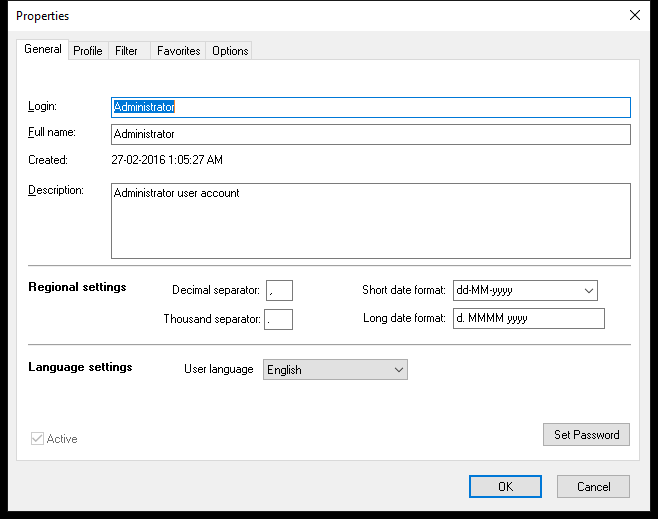 The General tab.
| Tab | Settings |
|---|---|
| General | Login (the user name, unique), Domain (for browser login to Datashop Web), Full name, Description, Set Password, Active, Allow browser authentication; Regional settings (separators and date formats – leave empty for Windows defaults) and User language |
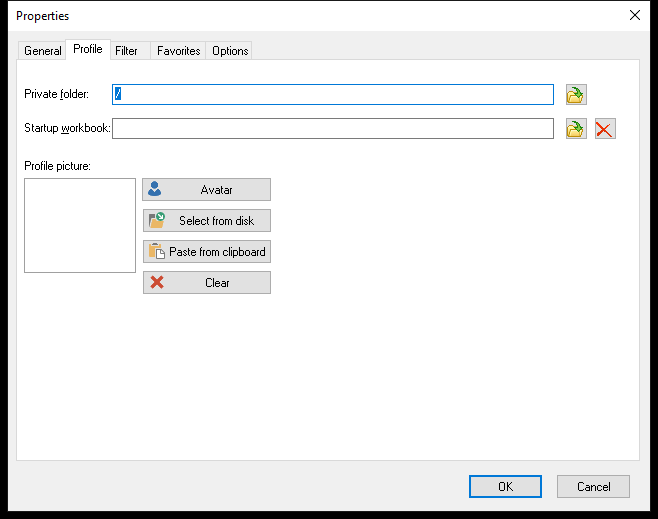
| Profile | Private folder – the workbook folder the user sees; Startup workbook; Profile picture |
| Filter | The user's data filter – see 32.2 Security and Data Access |
| Favorites | The user's favorite objects (read-only) |
| Options | Try nikolAI assistant, Execute AI suggestions immediately |
Users see and change some of these themselves – see 4.5 Your User Settings. The Filter tab, Private folder, Login and Active can only be changed in Enterprise Manager.
Deactivating and Deleting
- Untick Active to stop a user from logging in, e.g. when someone leaves. Their favorites and settings are kept.
- Delete removes the user. Folders can only be deleted when empty.
Copying a User
Copy a user and paste it to create a similar one – the copy opens for editing. The copy keeps the original's password: always set a new one.
The Administrator
Every project has the built-in user Administrator in the System folder. It can't be deleted or deactivated, and is the only user who sees all workbook folders regardless of private folders.
[!WARNING] New projects have the Administrator password
system. Change it right away with Set Password. Don't rename the Administrator – some features find it by its name.
Tips – Users
- Organize users in folders by department – it makes large projects easier to manage.
- Set Private folder for users who should only see their department's workbooks.