5.6 Side Panels
In design mode, panels around the workbook give you the building blocks: the data you can show, the types of visuals, a search that finds anything, and nikolAI. Open and close them with the buttons at the right end of the formula bar, just below the ribbon.

| Button | Panel |
|---|---|
| Visuals | The visuals palette |
| nikolAI | The nikolAI assistant |
| Search (Ctrl+F) | Search and build |
| Data & Objects | The Object Tree |
The Filter Panel on the left of the workbook is described in 5.5 The Filter Panel.
Data & Objects – the Object Tree
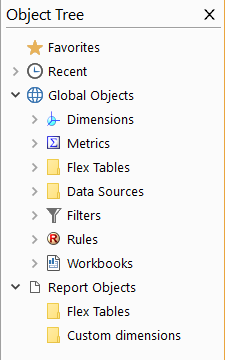
The Object Tree lists everything you can use in the workbook:
| Folder | Contains |
|---|---|
| Favorites | Your favorite objects |
| Recent | Objects you used recently |
| Global Objects | Dimensions, Metrics, Flex Tables, Data Sources, Filters, Rules and Workbooks shared by the whole project |
| Report Objects | Flex Tables and Custom dimensions that belong to this workbook only |
Drag a dimension or metric onto a visual to add it, or onto an empty spot of the sheet to create a new visual. Right-click an object for more commands, such as Browse data..., Edit, New segmentation, New consolidation or Make global (turns a report object into a global one that other workbooks can use).
Visuals – the Visuals Palette
The palette shows all the visual types: tables, charts, gauges, text, images, buttons, filters and more.
- Click a visual type to insert it on the sheet.
- With a visual selected, clicking another type converts the selected visual, e.g. a table into a bar chart, keeping its data.
- Drag a visual type onto the sheet to place it exactly where you want.
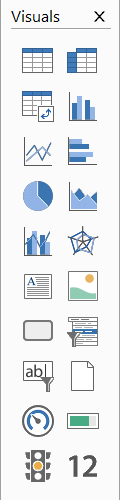
Hold the mouse over an icon to see its name. The visual types are described in Chapter 8 Visual Types.
Search – Search and Build
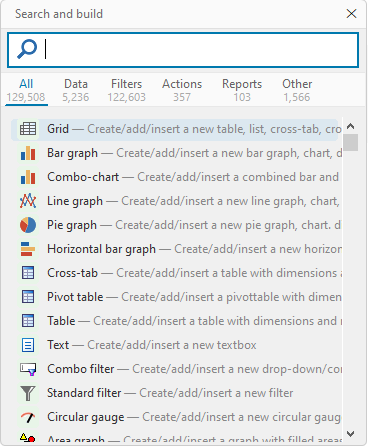
Search and build finds everything in one place: dimensions and metrics, filter values, visual types, ribbon commands and other workbooks. Start typing, and narrow the results with the tabs All, Data, Filters, Actions, Reports and Other. The number under each tab shows how many matches it has.
Pick a result to use it right away – e.g. choosing Bar graph inserts a bar graph, and choosing a metric adds it to the selected visual. The best text matches come first – how well a result matches what you typed counts more than how often it's used. With an empty search and no visual selected, the items for adding a visual are on top (build 20387 and later).
nikolAI
The nikolAI panel is a chat with your AI assistant. Type a request such as "Show revenue by month as a line chart", or click one of the suggestions above the request box. With Execute suggestions immediately ticked, clicking a suggestion carries it out right away; otherwise the suggestion is copied into the request box so you can adjust it first.
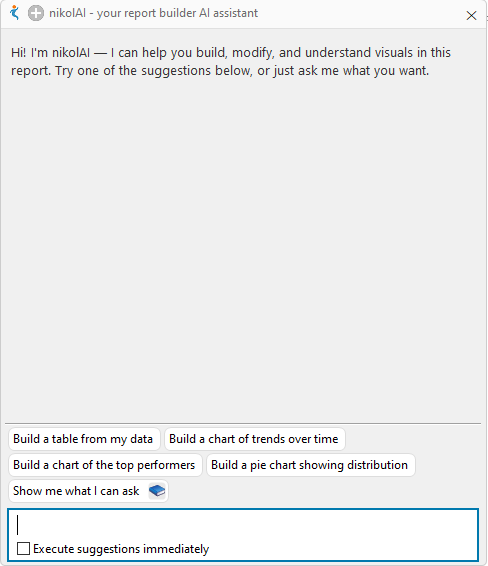
nikolAI is described in Chapter 2 – see 2.1 What is nikolAI.
The Element Structure Panel
Next to the workbook, the Element Structure panel shows how the selected visual is built:
- The drop-down at the top lists all visuals on the sheet – pick one to select it.
- The tree below shows the visual's Values (metrics), Rows and Columns (dimensions), with any transformations and rules underneath each value. The tag after each value, e.g. !C1, is its cell reference for expressions. Right-click an item to edit it, change how it is displayed or sorted, or remove it. You can also drag items in and out of the tree.
- The buttons below the tree are Ignore filters (choose which workbook filters the visual should ignore), Modify filter (change how a global filter affects this visual, e.g. shift a date range to last year) and Delete.
- The Appearance section sets how the selected dimension is shown: ID or description, sorting, which values to show, and icon position.
Designing visuals with the Element Structure panel is covered in Chapter 7 Designing Workbooks.
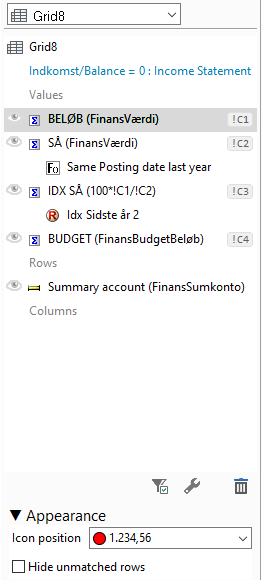 A table's structure: four values with cell references !C1–!C4, a transformation (Same Posting date last year) and a rule under the values, and one dimension in Rows.