4.1 Signing In and Choosing a Project
When you start Datashop, you connect to a project – your organization's data model with all its workbooks, metrics and filters. Which project you open, and what you see afterwards, depends on your login and on which Datashop edition you start.
The Two Datashop Editions
Both editions are the same program; the shortcut you start decides the edition.
| Edition | What you can do | What opens after login |
|---|---|---|
| Datashop Workbook | View and explore workbooks. Nothing can be saved. | Your startup workbook, or a dialog where you pick a workbook |
| Datashop Expert | Everything in Workbook, plus create and design workbooks, metrics, filters, consolidations, rules and other objects, the SQL Explorer, debug mode and the nikolAI right-click commands (Explain data, Modify visual, Build visual) | The main window |
The window title shows the edition, e.g. Sales Analytics - Datashop Expert (3.4.1234).
[!NOTE] Before build 20086 there was also a Datashop Professional edition. Since then, its old shortcuts are removed on upgrade and former Professional users start Datashop Expert.
Logging In
If your project uses Acinta logins, the login dialog appears:
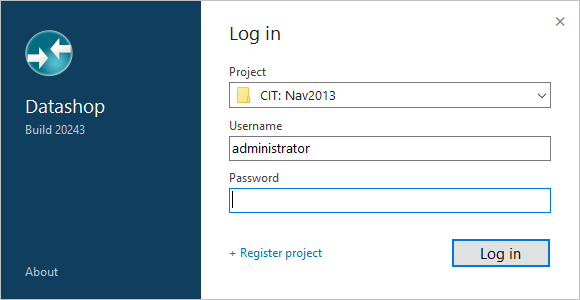
The dark blue panel on the left shows the product name and build number. Click About at the bottom of the panel for more.
- Choose the project under Project (only needed if more than one project is registered on your computer).
- Enter your Username and Password.
- Click Log in.
To close without logging in, click × in the top right corner or press Esc. If the project list is open, Esc only closes the list.
The Project List
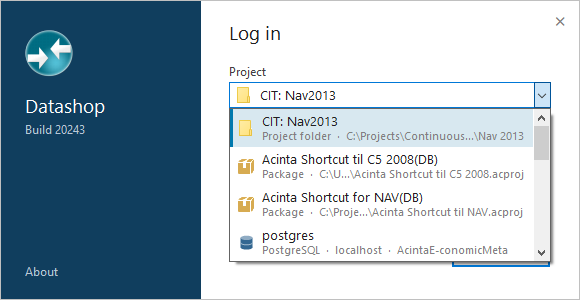 Each project shows its name and, in grey, its repository type and location.
| Repository | Shown as |
|---|---|
| Database | The database type – SQL Server, PostgreSQL, MariaDB or MySQL – then server · database · schema |
| Project folder | Project folder and the folder path |
| Package | Package and the path of the .acproj file |
The icon shows the repository type; database projects get an icon coloured by the database type. Point at the list to see the full type and location if the text is cut off.
Registering a Project
+ Register project, to the left of Log in, adds an existing project to the list. Choose the repository type – package, project folder or database – and where it is. For a database, choose SQL Server, PostgreSQL, MariaDB or MySQL in the connection editor. The project is added to the list and selected.
If no project is registered on your computer yet, the dialog opens with an empty project list – register one with + Register project. The link is hidden when Datashop only opens a workbook and has no project choice.
Progress Indicator
During longer operations – connecting to the databases at login, loading the project, upgrading or converting a repository, updating dynamic views – a small progress window shows a round chart of ten slices on the left and a description on the right.
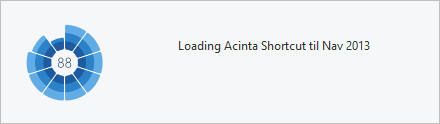 Loading a project: 88 % done.
- When Acinta knows how many steps there are, the slices grow outward one after the other, clockwise from 12 o'clock, in shades of blue. The middle shows how far it has come as a number, e.g. 42 for 42 % – without a % sign. Until the first step is done, a small orange dot pulses in the centre instead (new in build 20310). At 100 an orange dot appears behind the number. When the task finishes, the chart always completes to 100 % and shows the dot for a moment before the window closes.
- When it doesn't – e.g. Connecting to databases... at login – a wave of growing and shrinking slices runs around while the whole chart turns slowly, without a number. The slices then have an orange outer edge.
The elapsed time and a Cancel link appear when the operation supports them.
If your project uses Windows logins, Datashop recognizes you from your Windows account and you may not see the dialog at all.
Your user account is created in the project by an administrator (in Enterprise Manager) – not in Windows. If you get "Login or password is incorrect", check the spelling and remember that passwords are case-sensitive. If it still fails, ask your administrator.
Messages You May See When Opening a Project
| Message | What it means | What to do |
|---|---|---|
| You are opening the project … with a newer version of the software | Your Datashop is newer than the project. Only the user administrator sees this, in Datashop Expert. | Click OK to continue. With Upgrade project ticked, the project is upgraded to your version. |
| WARNING – You are opening the project … with an OLDER VERSION of the software | Someone has already upgraded the project; your Datashop is outdated. Only the user administrator sees this, in Datashop Expert. | Install the newer version. You can continue, but older versions may not handle newer project features. |
| Wrong application version | Your Datashop and the project have different versions. The project must be upgraded to version … means your Datashop is newer – only the administrator can upgrade the project. | Ask your administrator to upgrade the project, or install the version named in the message. See 30.3 Updating Acinta. |
| Connection to the metadata database failed | The database holding the project can't be reached | Click Yes to try again. If it keeps failing, contact your administrator. |
| The AI service customer key expires on … / expired on … / The AI service does not accept the customer key of this project | Datashop Expert checks the project's AI customer key at project start and warns when it expires within 30 days, has expired or is rejected (new in build 20114) | Contact Acinta for a new key; an administrator enters it in the project options – see 26.2 |
| You can't open more than one project! | A project is already open in this Datashop | Close Datashop and start it again to switch project. |
[!NOTE] Before build 20242, any user could continue with a different version and upgrade or downgrade the project. Since then only the user administrator can.
After Login
- Workbook edition: your startup workbook opens, or you choose a workbook from a list. See 1.3 Opening Your First Workbook.
- Expert: the main window opens. If you have a startup workbook, it opens on top of the main window. See 4.2 The Main Window.
Related Topics
- 1.2 Launching Datashop for the First Time
- 4.5 Your User Settings – change your password and startup workbook