19.2 Job Monitor and Performance
When a workbook is slow, these tools show what Datashop is doing: which calculations run, how long they take, and whether results come from the cache.
Job Monitor
Main window cog menu → Tools → Job Monitor (Ctrl+Shift+J). The window refreshes every few seconds.
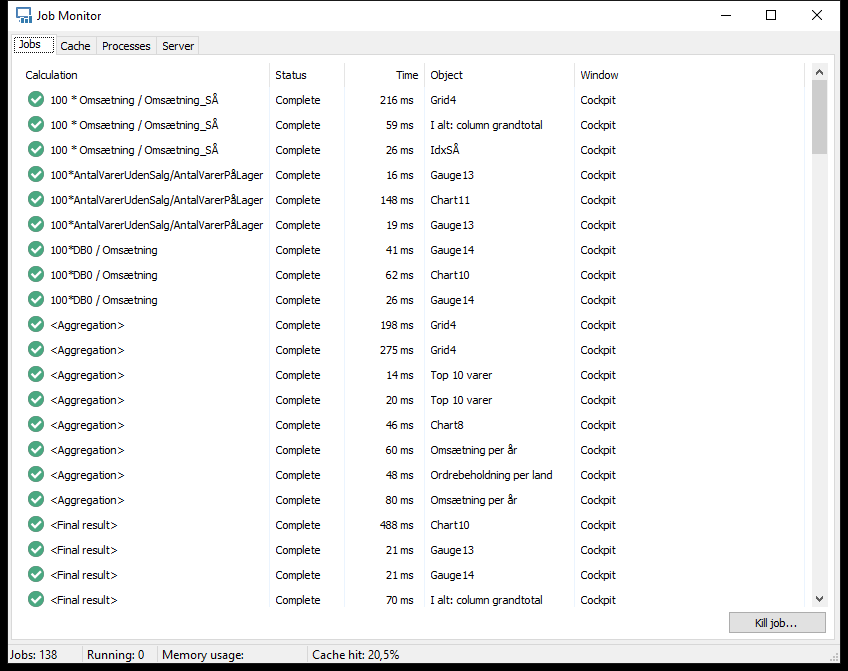 All calculations of the open Cockpit workbook, with their time and the visual they belong to.
| Tab | Shows |
|---|---|
| Jobs | Every calculation of the open workbooks: Calculation, Status (waiting, running, complete or failed), Time, Object (the visual) and Window. Double-click Object to jump to the visual, or another column to see the job's SQL and statistics. |
| Cache | Cached tables and views: Status (e.g. Fresh, Expired, Updating, Failed), when they expire, load time, rows, size and how often they were used (Hits) |
| Processes | Connections in use and Free connections to the data warehouse |
The status bar shows the number of jobs, how many are running, and the Cache hit rate.
Kill job... cancels the selected job at once – without asking.
Finding Slow Visuals
- Open the workbook and the Job Monitor.
- Sort the Jobs tab by Time (click the heading).
- Double-click the slowest job's Object to see which visual it is.
- In the workbook, use View statistics on that visual for details – see 6.5 View Dataset, Statistics and Errors.
Common causes: many rows or columns, metrics on large fact tables without a date filter, and visuals that ignore the workbook's filters.
More in the Statistics Window
Besides what 6.5 describes, the Statistics window has:
- Send – opens your e-mail program with the SQL and statistics, e.g. for Acinta support;
- SQL Explorer – opens the selected calculation's SQL (Expert);
- View data – shows the selected calculation's result next to it;
- Scope – switch between the main calculation and the totals.
HTML Source
VIEW → HTML source (Ctrl+Shift+H, Datashop Expert) shows the HTML generated for the selected visual or the workbook – useful when a visual looks different in distributions or the web than in Datashop.
Debug Mode
Cog menu → Tools → Debug mode makes visuals generate their SQL without running it. Visuals then show no data, but View statistics shows the SQL. Use it to inspect a heavy workbook without loading the database. It applies to all open workbooks until you turn it off or restart Datashop.
Related Topics
- 19.1 SQL Explorer
- 6.5 View Dataset, Statistics and Errors
- 5.3 The Ribbon – Clear cache and refresh