7.6 Workbook Properties
Settings that apply to the whole workbook are in File → Properties (in design mode).
General
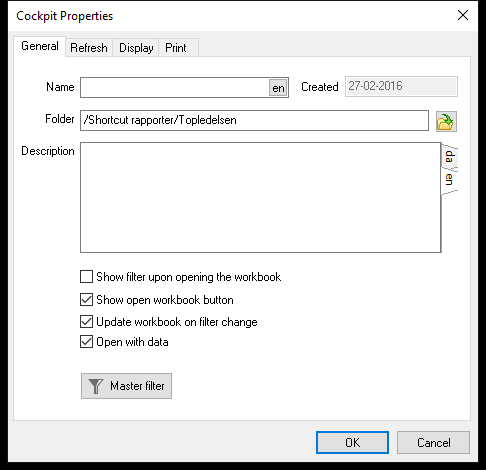
| Setting | What it does |
|---|---|
| Name, Description | The workbook's name and description, in each of the project's languages (switch with the language tabs) |
| Folder | Where the workbook is stored. Click the folder button to move it. |
| Show filter upon opening the workbook | Shows the Filter Panel when the workbook opens |
| Show open workbook button | Shows a button that lets users open another workbook |
| Update workbook on filter change | Refreshes the data as soon as a filter changes. When off, users change several filters and then click Refresh – useful for heavy workbooks. |
| Open with data | Loads data when the workbook opens. Turn it off for heavy workbooks where users set filters first. |
| Master filter | The workbook's master filter (legacy – the Filter Panel is the modern way) |
Refresh
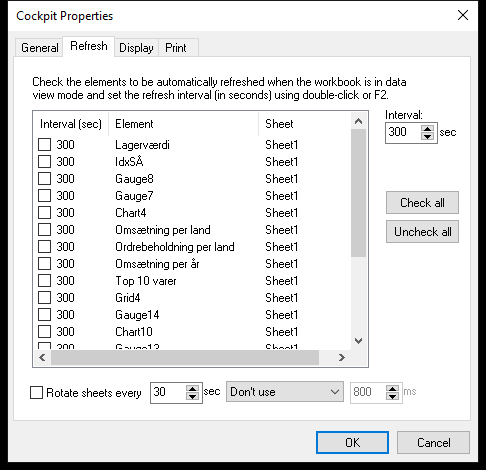
- Auto refresh: tick the visuals that should reload their data automatically, and set the Interval in seconds. Double-click a visual's interval (or press F2) to give it its own. Auto refresh works when the workbook is in normal view.
- Rotate sheets every N sec: switches to the next sheet automatically, with a transition effect and duration – typical for displays.
The same settings are on the ANIMATION tab.
Display
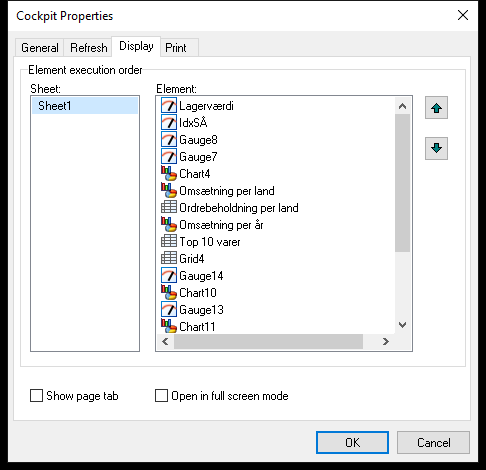
| Setting | What it does |
|---|---|
| Element execution order | The order in which the visuals on each sheet load their data. Move the most important visuals to the top with the arrow buttons, so they appear first. |
| Show page tab | Shows the sheet tabs in normal view (same as PAGE → Show tabs) |
| Open in full screen mode | Opens the workbook in full screen (same as PAGE → Open full screen) |
Print
| Setting | What it does |
|---|---|
| Page numbers | Continuous numbering across all sheets, or start again on each sheet |
| Print all master pages | Prints every master page (legacy master layouts) |