6.5 View Dataset, Statistics and Errors
When a number looks wrong, a visual is slow, or it shows an error instead of data, the Diagnostics commands show what's going on behind the scenes. Right-click the visual → Diagnostics, or use the shortcuts.
View Dataset (Ctrl+D)
Shows the raw data behind the selected visual in a separate window – one row per record, before any formatting.
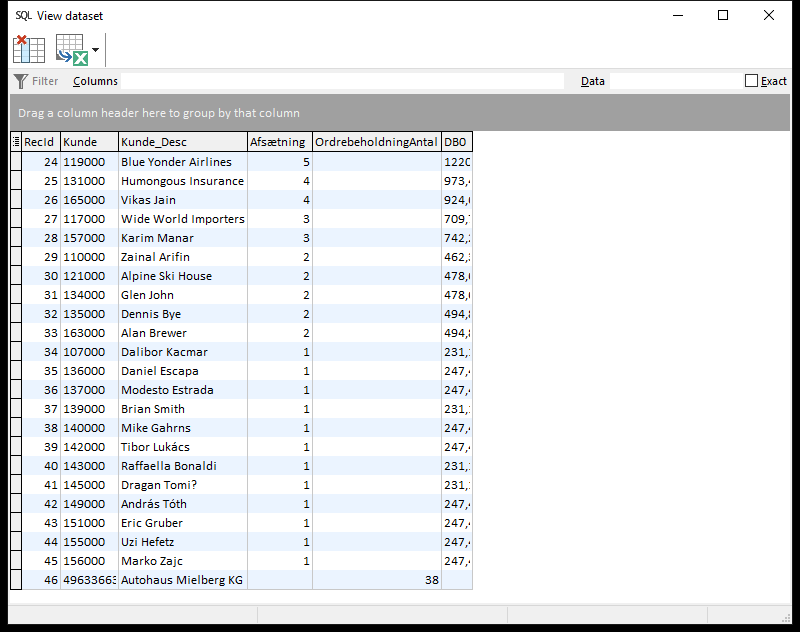 The raw data behind a table. The column names are the names used in the database, which may differ from the headings in the workbook.
In the dataset window you can: - drag a column header to the grey bar to group by that column, - type in Columns to show only matching columns, or in Data to find values (tick Exact for exact matches), - export the data to Excel with the toolbar button.
View Statistics (Ctrl+Shift+S)
Shows how Datashop fetched the data for the selected visual: the SQL statements it ran, how many rows each returned, how long each took, and whether the data came from the cache.
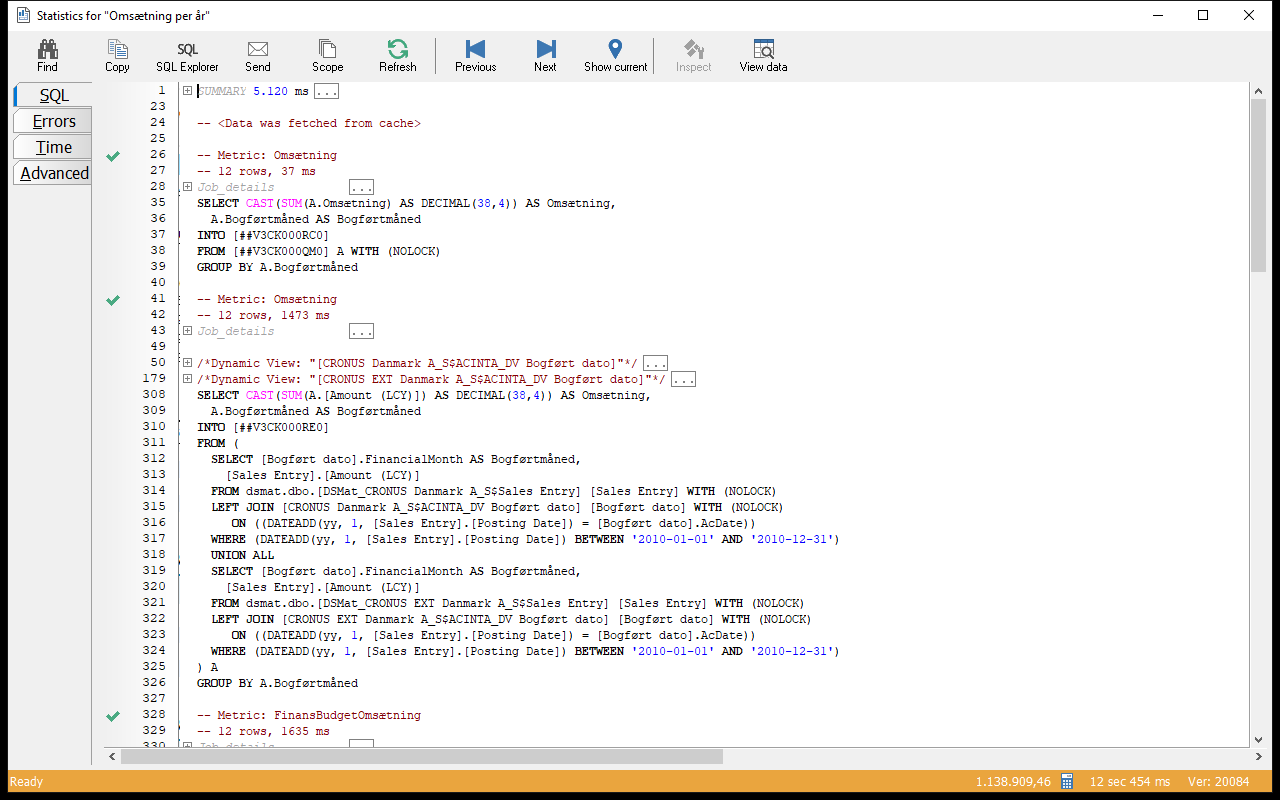 Statistics for a chart: each metric's SQL with row count and time. "Data was fetched from cache" means the result was reused instead of asking the database again.
The tabs on the left show SQL, Errors, Time and Advanced details. Statistics are mostly useful when you report a slow or wrong visual to your administrator or to Acinta support – Copy and Send pass the details on.
You can also open statistics from the ribbon: VIEW → View statistics.
View Errors
If a visual shows Error during execution instead of data, select it and choose Diagnostics → View errors (or VIEW → View errors) to see the error message. If nothing is selected, Datashop says No errors to show.
Common causes:
| Message in the visual | Likely cause |
|---|---|
| Error during execution | The database couldn't be reached, or a metric or filter is invalid – View errors tells you which |
| No data returned | The filters exclude everything – e.g. a date range without data |
| Loading... for a long time | A heavy query – check View statistics, or press Cancel (F6) |