17.1 Printing and Page Setup
Print a workbook with File → Print (Ctrl+P). A preview shows exactly what will be printed, and lets you change orientation, paper and scaling before you print. The same preview is used for PDF and e-mail – see 17.2 PDF and Email.
The Print Preview
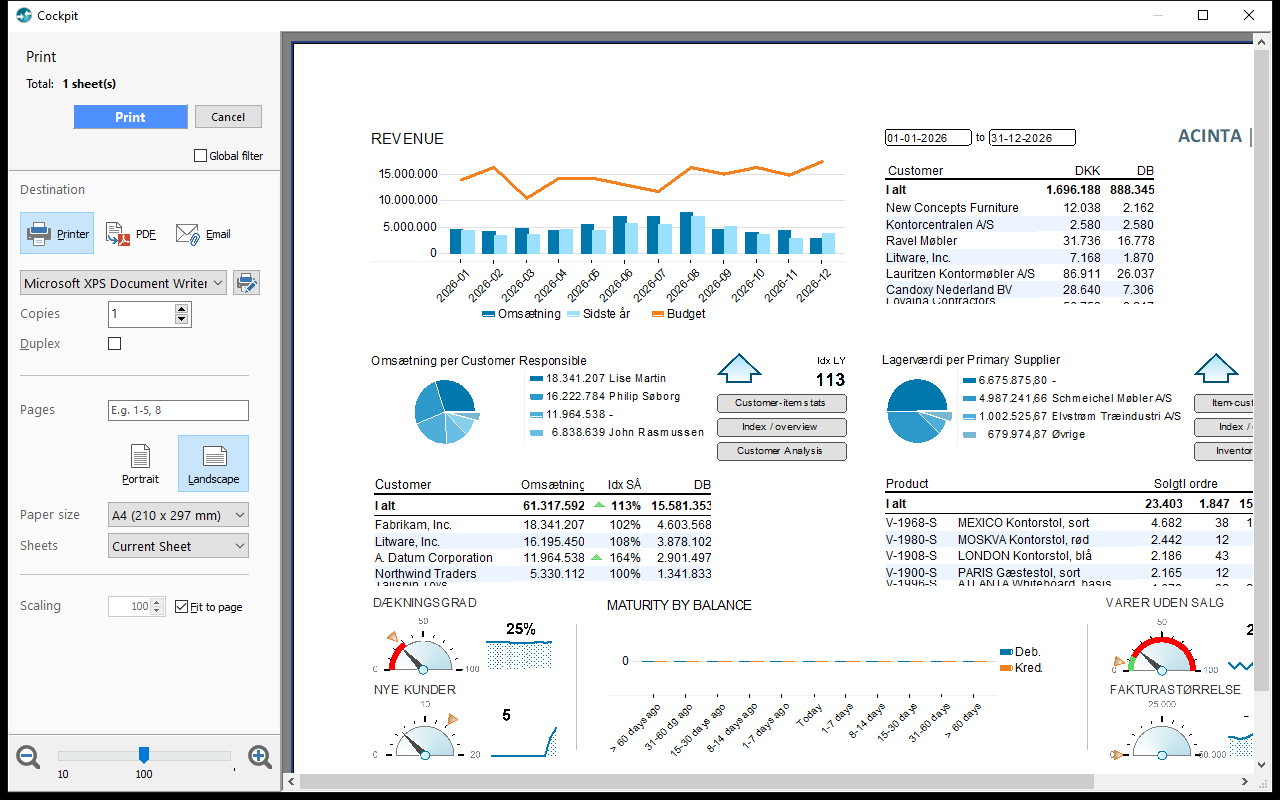 The Cockpit workbook in the preview: landscape, A4, fit to page.
| Setting | What it does |
|---|---|
| Destination | Printer, PDF or Email |
| Printer, Copies, Duplex | The printer and the number of copies; Duplex prints on both sides (if the printer can) |
| Portrait / Landscape | Orientation |
| Paper size | A3, A4 or A5 |
| Sheets | Current Sheet or All |
| Scaling | A percentage, or Fit to page to shrink each sheet to one page |
| Global filter | Adds a last page listing the workbook's filters |
Print prints directly to the chosen printer; Cancel closes the preview. Zoom with the slider at the bottom or Ctrl+mouse wheel; Ctrl+PgUp/PgDn moves between pages.
Changes to orientation, paper and scaling are saved in the sheet's page setup when you print – so the next print looks the same. Cancel undoes them.
Print is available in normal view, not in design mode.
Page Setup
File → Page setup..., or PAGE → Page setup.... Each sheet has its own page setup.
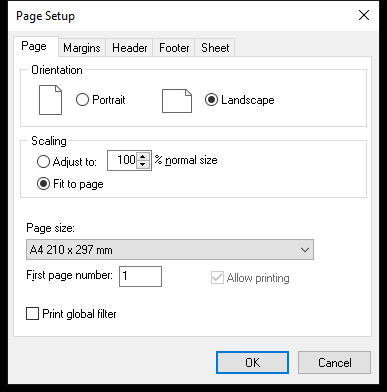 Page tab: orientation, scaling, paper size and first page number.
| Tab | Settings |
|---|---|
| Page | Orientation, Scaling (Adjust to: % or Fit to page), Page size:, First page number:, Allow printing (design mode only), Print global filter |
| Margins | Top:, Bottom:, Left:, Right: (default 2 cm), Header: and Footer: (1 cm), Center on page Horizontally / Vertically |
| Header, Footer | Text for the Left, Middle and Right sections. Insert field... adds e.g. the page number, page count, date, workbook name, sheet name, filter or user. |
| Sheet | Page order: Down, then over or Over, then down for tables spanning several pages |
Example footer: Left {File}, Middle {Filter}, Right Page {Page} of {Pagecount}.
What Gets Printed
- Allow printing in the page setup excludes a whole sheet; each visual also has Allow printing (on the Print tab of its settings) – e.g. to leave out buttons.
- Hidden visuals aren't printed.
- File → Properties → Print: Page numbers Continuous numbering or Start on each sheet.
Long Tables Over Several Pages
Tables are split over pages automatically. Control how on the GRID tab → Print options (design mode):
| Option | Effect |
|---|---|
| Repeat top header / Repeat left header | Repeat the column headings on every page, or the row headings on pages to the right (both on by default) |
| Row grouping / Column grouping | Group by: keeps each group together on a page; New page for every: starts a new page for each value of the chosen level – e.g. one page per department |
There are no manual page breaks; use New page for every: to control where pages start.
Tips – Printing and Page Setup
- Use Fit to page for dashboards and Landscape for wide tables.
- For a printed report per department, combine New page for every: with a header field
{Filter}.
Common Issues – Printing and Page Setup
Problem: Print is greyed out. - Solution: Allow printing is off for the sheet. Turn it on in Page setup... in design mode.
Problem: Print isn't in the File menu. - Solution: Switch from design mode to normal view.
Problem: Only the first pages are wanted. - Solution: Page ranges aren't supported yet – the Pages box has no effect. Save as PDF and print the pages you need from the PDF.
Related Topics
- 17.2 PDF and Email
- 7.2 Workbook Types – report-style workbooks