16.2 Creating FlexTables
Create a FlexTable from Excel data, from a file, from dimensions you pick, or as an empty table. Where you create it decides who can use it – see 16.1 What are FlexTables.
Where to Create It
| For | How |
|---|---|
| Everyone | Main window → FlexTables folder → + (or right-click → New → New FlexTable) |
| One workbook | In design mode, Object Tree → Report Objects → right-click Flex Tables → New table |
| One visual | In design mode, right-click the visual in the Element Structure panel → Enter own data → New empty table |
The editor opens with a choice of how to start:
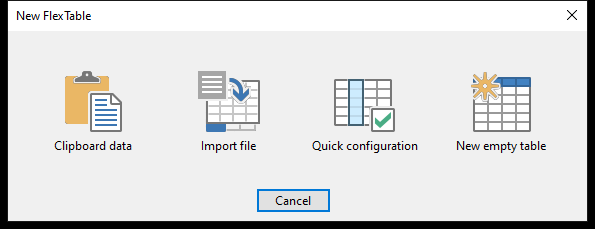 Choose how to fill the new table.
| Choice | What happens |
|---|---|
| Clipboard data | Pastes what you copied, e.g. a range in Excel (only available when the clipboard has data) |
| Import file | Imports an Excel or text file – see below |
| Quick configuration | Builds the table from dimensions and columns you pick – see below |
| New empty table | Starts with one empty column |
You name the table when you save it the first time.
Quick Configuration
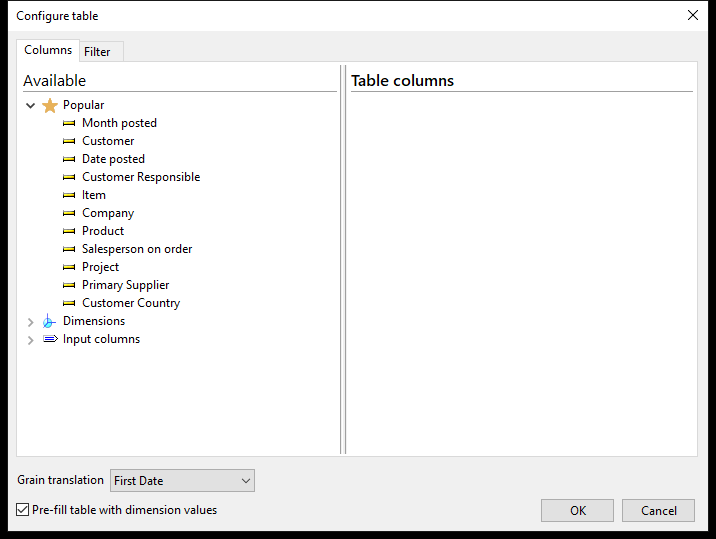 Pick dimensions and input columns; the Popular group lists the most used dimension units.
- On the Columns tab, double-click (or drag) dimension units from Available to Table columns, e.g. Month and Department.
- Add Input columns for your own values: Text, Number, Date or Yes/No. Rename them in the list, e.g. Budget.
- Tick Pre-fill table with dimension values to create a row for every combination – e.g. every month for every department – so you only fill in the numbers.
- Use the Filter tab to limit the rows, e.g. only this year's months. Without a filter, a pre-filled table can become very large; Datashop warns you.
- Click OK.
Quick config on the editor's ribbon reopens the dialog later to add or remove columns.
Pasting and Importing
Paste from Excel: copy a range in Excel and paste it into the table (Ctrl+V). If the data has formatting, choose OK to keep it, or Ignore to paste plain text with the import options.
Import from file (Ctrl+O, or drag a file onto the editor) reads .xlsx, .xls, .xlsm, .csv, .tsv and .txt. The Import Options panel shows a live preview:
| Option | What it does |
|---|---|
| Source: | The sheet, named range or Excel table to import |
| First row contains headers | Use the first row as column names (detected automatically) |
| Insert at current position / Replace all existing data | Add to the table, or replace its contents |
| Detect data types | Recognize numbers and dates |
| Auto-bind to dimensions | Bind columns whose values match a dimension, e.g. customer numbers. Tolerance sets how many values may be missing in the dimension. |
| Split date-time columns | Split columns with date and time into two |
| Delimiter | For text files: Auto, Tab, Semicolon, Comma or Pipe |
Click Apply to import, or Cancel to undo the preview.
From the Data in a Visual
In design mode, right-click the visual in the Element Structure panel → Enter own data:
- Convert to local copy – turns what the visual shows now into a FlexTable named Local data. The visual then shows only this table – a frozen snapshot, no longer linked to your systems. Useful for examples or what-if versions. Undo reverses it.
- Create targets... – a table of targets next to the actual figures – see 10.6 Targets.
Tips – Creating FlexTables
- Start with Quick configuration for budgets: dimensions plus a number column, pre-filled, is the quickest way to a clean budget table.
- Use Auto-bind to dimensions when importing – bound columns are what link the table to your other data.
Common Issues – Creating FlexTables
Problem: Clipboard data is greyed out. - Solution: Copy the data first, e.g. a range in Excel.
Problem: An imported column wasn't bound to a dimension. - Solution: Bind it in the editor: right-click the column → Bind to dimension – see 16.3 The FlexTable Editor.